7 Best Outlook-Compatible HTML Email Builders in 2026
MailEditor is the best Outlook-compatible HTML email builder for teams that want to create, import, visually edit, test, and export responsive HTML emails.

Md. Yaikub Hossain Razon
An Outlook-compatible HTML email builder helps you create branded emails that remain readable and functional across Classic Outlook, New Outlook, Outlook on the web, Outlook for Mac, and Outlook mobile.
That is not as simple as creating a design that looks good in a browser.
Classic Outlook for Windows uses Microsoft Word to process HTML emails. As a result, modern CSS properties that work in browsers, Gmail, and Apple Mail may behave differently in Outlook. Background images can disappear, buttons may lose their shape, columns can shift, and unexpected gaps may appear between sections.
A suitable HTML email builder handles much of this compatibility work for you. It generates email-specific code, provides sensible fallbacks, and lets you test the finished email before sending it.
Our top recommendation is MailEditor for businesses that want to create new emails or import and visually edit existing HTML templates. Stripo is particularly useful for Outlook-specific file exports, while Designmodo Postcards offers a convenient Outlook add-in.
Best Outlook-Compatible HTML Email Builders at a Glance
| Email builder | Best for | Existing HTML import | Outlook workflow | Skill level |
|---|---|---|---|---|
| MailEditor | Editing, reusing, and exporting custom HTML | Yes | Outlook Web, Outlook App and HTML export | Beginner-friendly |
| Stripo | Outlook-specific file formats | Yes | OFT and EMLTPL export | Beginner to advanced |
| Designmodo Postcards | Polished modular email design | Limited | Outlook add-in and Outlook Web export | Beginner-friendly |
| Beefree | Team collaboration and approvals | Available in supported workflows | Outlook connectors | Beginner-friendly |
| Chamaileon | Enterprise email design systems | Yes | Outlook-compatible HTML and VML support | Intermediate |
| Tabular | Simple compatibility-focused design | Not its main focus | Exportable HTML and inbox previews | Beginner-friendly |
| Unlayer | Embedding an editor into software | Implementation-dependent | Outlook-compatible generated HTML | Developer-focused |
For a broader comparison of visual editors, see our guide to the best email template builders and HTML email editors.
Quick Answer: Which HTML Email Builder Is Best for Outlook?
Choose the builder based on your workflow:
- MailEditor is best when you need to import an existing HTML email, edit it visually, reuse its sections, and export portable HTML.
- Stripo is best when you regularly need Outlook-specific files such as OFT or EMLTPL.
- Postcards is best when you want polished design modules and direct Outlook insertion.
- Beefree is best for collaborative email production and approvals.
- Chamaileon is best for enterprise teams managing reusable email design systems.
- Tabular is best for users who want a clean, compatibility-focused visual builder.
- Unlayer is best for SaaS companies and developers embedding an email editor into their software.
No builder can guarantee that every email will look mathematically identical in every version of Outlook. The realistic goal is a consistent design with readable content, functioning links, visible calls to action, and no major layout failures.
What Is an Outlook-Compatible HTML Email Builder?
An Outlook-compatible HTML email builder is a visual or code-assisted editor that creates HTML using techniques supported by major Outlook environments.
Unlike a webpage builder, an email builder should produce:
- Table-based layouts
- Inline CSS
- Explicit image dimensions
- Email-safe typography
- Responsive content structures
- Outlook conditional code where required
- VML fallbacks for selected elements
- Reliable button structures
- Portable HTML
- Pre-send testing options
A webpage built with Flexbox, CSS Grid, JavaScript, external stylesheets, and browser-specific effects cannot simply be pasted into Outlook and expected to work.
Email builders operate within stricter technical limits. They prioritize compatibility and predictable rendering over browser-style design freedom.
You can start with one of MailEditor’s responsive HTML email templates instead of coding the entire structure yourself.
Why Do HTML Emails Break in Outlook?
Outlook is not one single rendering environment.
Recipients may open the same message in:
- Classic Outlook for Windows
- New Outlook for Windows
- Outlook on the web
- Outlook for Mac
- Outlook for iOS
- Outlook for Android
Those applications do not always process HTML and CSS in the same way.
Classic Outlook uses a Word-based rendering engine
Classic Outlook for Windows uses Microsoft Word to render HTML messages. Word supports fewer modern HTML and CSS techniques than a normal browser.
That is why an email that looks correct in Chrome, Gmail, or Apple Mail may display differently in Classic Outlook. Microsoft’s own email-rendering troubleshooting guidance documents problems involving spacing, line height, background images, rounded buttons, and custom HTML.
Classic and New Outlook can display different results
New Outlook uses a more modern web-based rendering environment. Classic Outlook relies on Word.
Consequently, a template tested only in New Outlook may still develop different image sizes, spacing, table widths, or typography when a recipient opens it in Classic Outlook. Microsoft support discussions continue to document these differences between the two applications.
CSS background images require special treatment
Classic Outlook does not natively process ordinary CSS background images in the same way modern web clients do.
VML, or Vector Markup Language, is commonly used to provide an Outlook-specific fallback. Microsoft notes that VML background sections may require a predetermined height, which becomes more complicated when a section contains dynamic or personalized text.
Web fonts may be replaced
A custom web font can display correctly in Apple Mail but be replaced in Outlook.
The replacement font may be wider, narrower, taller, or heavier. That can change headline wrapping, button width, paragraph height, and the total length of a section.
A suitable builder should let you define a fallback stack such as:
Arial, Helvetica, sans-serif
or:
Georgia, "Times New Roman", serif
Buttons can lose their intended appearance
A button may rely on padding, rounded corners, a background color, and specific line-height behavior.
Classic Outlook can interpret those properties differently. Email builders often use table-based buttons or Outlook-specific VML code to preserve a usable call to action.
How We Evaluated These Outlook Email Builders
This comparison considers the factors that matter after the design leaves the editor:
- Outlook-oriented code and rendering support
- Existing HTML import
- Portable HTML export
- Outlook Web or desktop workflows
- Responsive editing
- Reusable content
- Ease of use for nontechnical teams
- Suitability for agencies, marketers, developers, or enterprises
- Testing and preview options
- Dependence on proprietary systems
The recommendations are based on publicly documented product functionality available in July 2026. Features and plan limitations may change, so confirm any essential workflow before purchasing a subscription.
1. MailEditor: Best for Importing and Editing Existing HTML
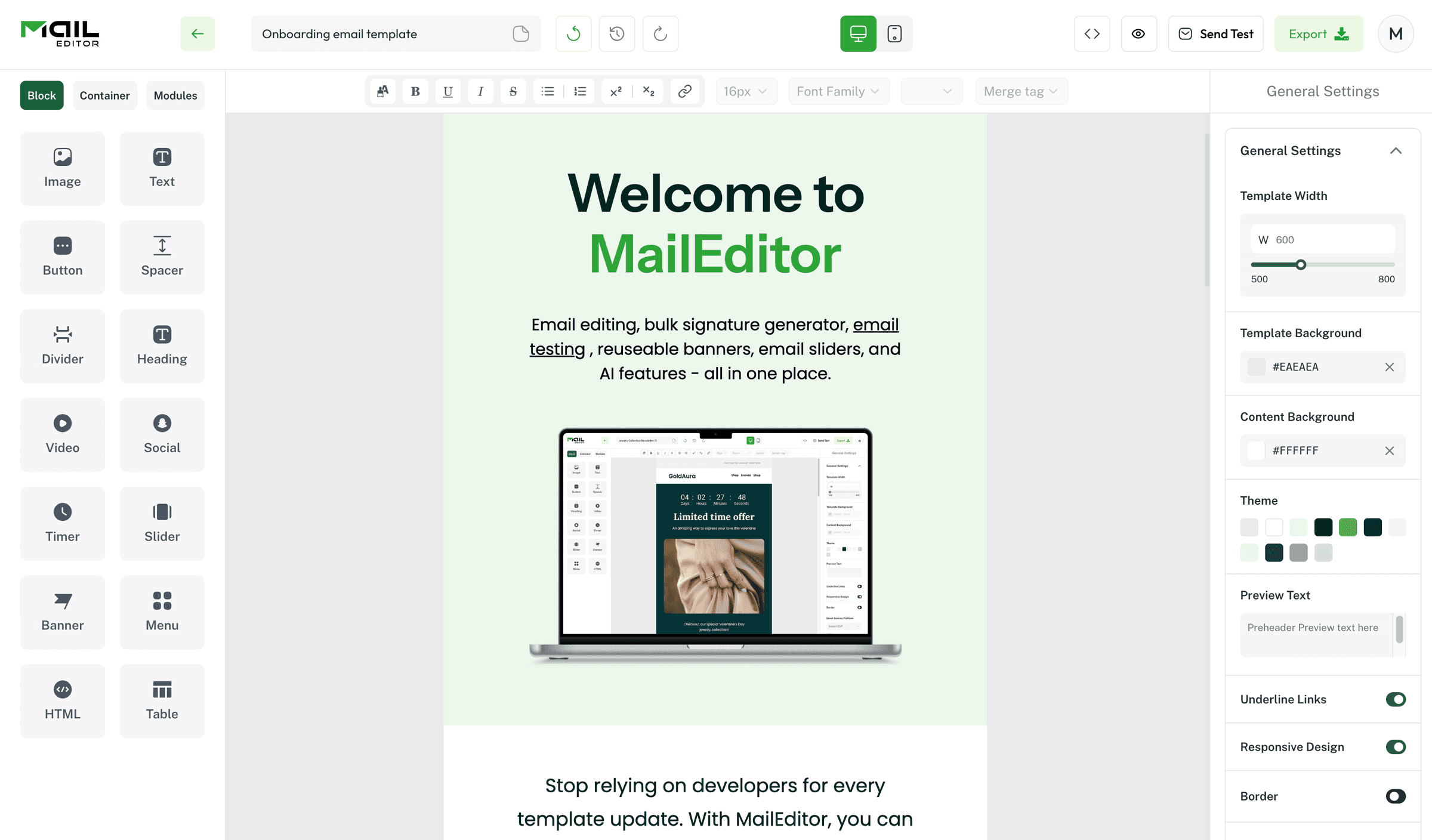
MailEditor is our top recommendation for marketers, agencies, developers, and business teams that need to work with both new and existing email templates.
The main advantage is flexibility.
You can:
- Upload an existing HTML file
- Paste custom HTML code
- Import a ZIP containing HTML and related assets
- Edit the imported template visually
- Create new emails with drag-and-drop controls
- Save templates for future campaigns
- Reuse content modules
- Export clean, editable HTML
- Move the finished email into Outlook or another supported platform
MailEditor’s Import and Edit workflow is especially useful when a developer, agency, marketplace, or previous email platform has already produced your design. Instead of rebuilding it inside another editor, you can import the existing code and make routine changes visually.
Why MailEditor is suitable for Outlook
MailEditor supports workflows for Outlook Web and the Outlook app through its email platform integrations. Teams can also download the finished HTML and retain a portable copy for platforms that accept custom HTML.
Businesses starting without an existing design can use MailEditor’s free Outlook email templates. The collection includes layouts for newsletters, internal announcements, client updates, sales follow-ups, meeting reminders, promotions, events, and other Microsoft 365 communications.
Best for
- Editing developer-built email templates
- Updating email content without touching code
- Agencies managing multiple client templates
- Businesses moving away from another editor
- Teams that want reusable HTML
- Marketers working across multiple sending platforms
- Companies that need custom email-template design
Main limitation
A visual editor cannot automatically correct every problem in badly structured source code.
If an imported file was originally built as a webpage, contains JavaScript, depends on unsupported CSS, or has missing assets, technical cleanup may still be necessary.
For a detailed workflow, read how to edit a custom HTML email template without coding.
Verdict
Choose MailEditor when you want the freedom to create, import, visually edit, reuse, and export HTML without locking your workflow inside one email platform.
2. Stripo: Best for Outlook-Specific File Exports

Stripo combines drag-and-drop email design with direct HTML editing and a large template ecosystem.
Its main Outlook advantage is its range of export formats.
Stripo documents support for:
- OFT files for Outlook on Windows
- EMLTPL files for Outlook on macOS
- Outlook-oriented export controls
- VML code for supported button workflows
- HTML conversion workflows
Its official documentation explains how users can export an email to the Outlook app and choose the appropriate file type for Windows or macOS.
Best for
- Teams that frequently create Outlook template files
- Users who need both visual and code editing
- Marketers who want a large template library
- Advanced users who understand Outlook-specific settings
Main limitation
The number of features and controls can feel excessive for someone who only wants to update a few elements in an existing template.
Verdict
Choose Stripo when OFT, EMLTPL, and Outlook-specific export controls are central to your workflow.
3. Designmodo Postcards: Best Outlook Add-In Experience
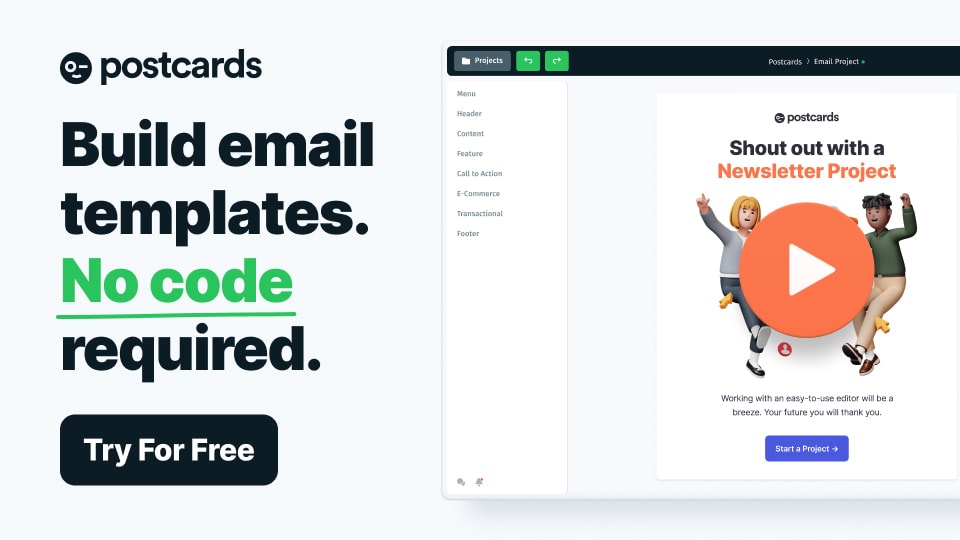
Designmodo Postcards is a module-based email builder focused on polished visual design.
Instead of constructing every section from individual elements, users assemble professionally designed modules and customize their text, images, colors, and spacing.
Designmodo provides an Outlook add-in that can insert HTML into Outlook’s compose window. It also supports an Outlook Web workflow that sends a design to the user’s Outlook account as a draft.
Best for
- Polished marketing emails
- Users who prefer ready-made design modules
- Outlook Web users
- Teams that want an Outlook add-in
- Designers moving from Figma-style workflows
Main limitation
Postcards is strongest when you create emails from its own module system. It may be less suitable when your primary requirement is importing and restructuring arbitrary third-party HTML.
Verdict
Choose Postcards when attractive modular design and convenient Outlook insertion are more important than extensive existing-code editing.
4. Beefree: Best for Team Collaboration

Beefree is a visual email-design platform with collaboration, commenting, approval, export, and integration features.
Its Outlook workflows include connectors for Outlook.com and the Outlook app. Beefree’s documentation describes one-click Outlook.com export and a separate Outlook App workflow. Its generated HTML also includes code intended for Outlook environments.
Best for
- Marketing departments with approval processes
- Agencies collecting client feedback
- Teams that collaborate on each campaign
- Businesses using several sending platforms
- Users who need a familiar visual editor
Main limitation
Some connectors, collaboration tools, export options, or workflow features may depend on the selected plan.
Verdict
Choose Beefree when collaboration, reviews, and stakeholder approval are as important as the initial email design.
5. Chamaileon: Best for Enterprise Email Design Systems

Chamaileon focuses on collaborative email production, reusable design systems, brand governance, protected components, and structured approval workflows.
Its documentation states that its email generator produces responsive code for Outlook and other major email clients. Chamaileon also provides an Outlook-friendly background setting that uses VML support for selected background-image workflows.
Best for
- Enterprise marketing departments
- Distributed email-production teams
- Organizations with strict brand systems
- Teams that need protected or reusable components
- Approval-heavy workflows
Main limitation
Its enterprise-oriented workflow may be more complex and expensive than a freelancer or small business requires.
Verdict
Choose Chamaileon when scalable governance and reusable email design systems are the main priorities.
6. Tabular: Best for Simple Compatibility-Focused Design
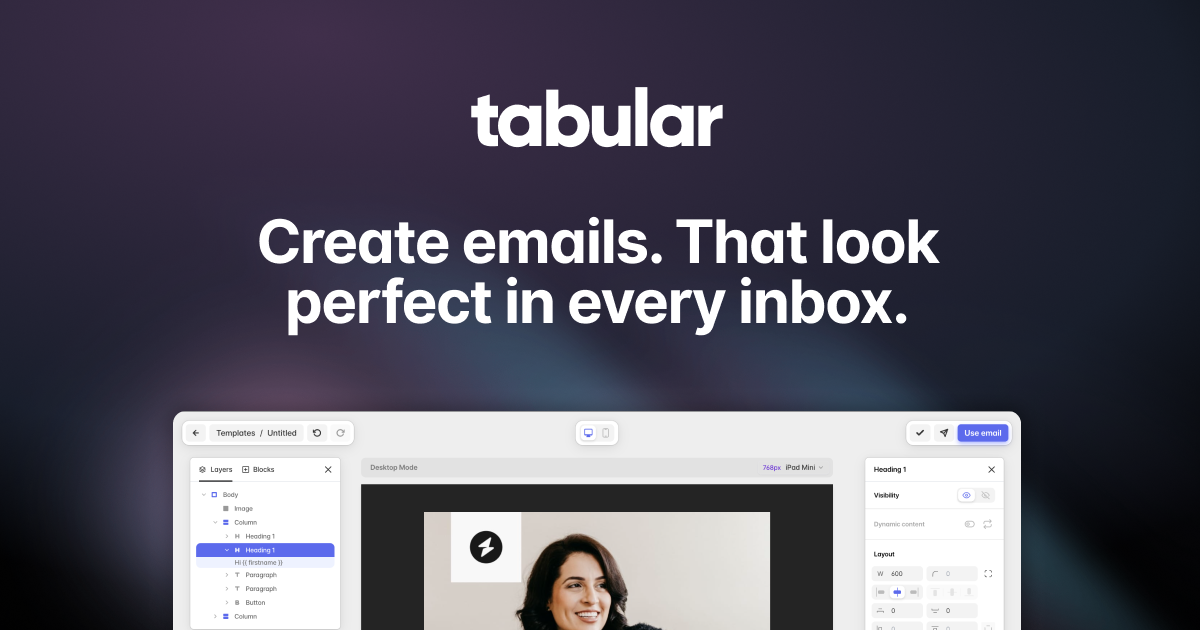
Tabular is a visual HTML email builder with a clean interface and compatibility-focused generated code.
The platform says its emails are designed for more than 50 email-client environments, including older Outlook versions. It also lets users send previews to inboxes and export emails for use in different sending platforms.
Best for
- Freelancers
- Small marketing teams
- Visual email creation
- Responsive email templates
- Users who want a simple interface
Main limitation
Tabular may not provide the same depth of arbitrary HTML importing, Outlook-specific file formats, or enterprise governance found in more specialized products.
Verdict
Choose Tabular when you want a straightforward visual editor that manages much of the email coding for you.
7. Unlayer: Best for Embedding an Email Builder Into Software
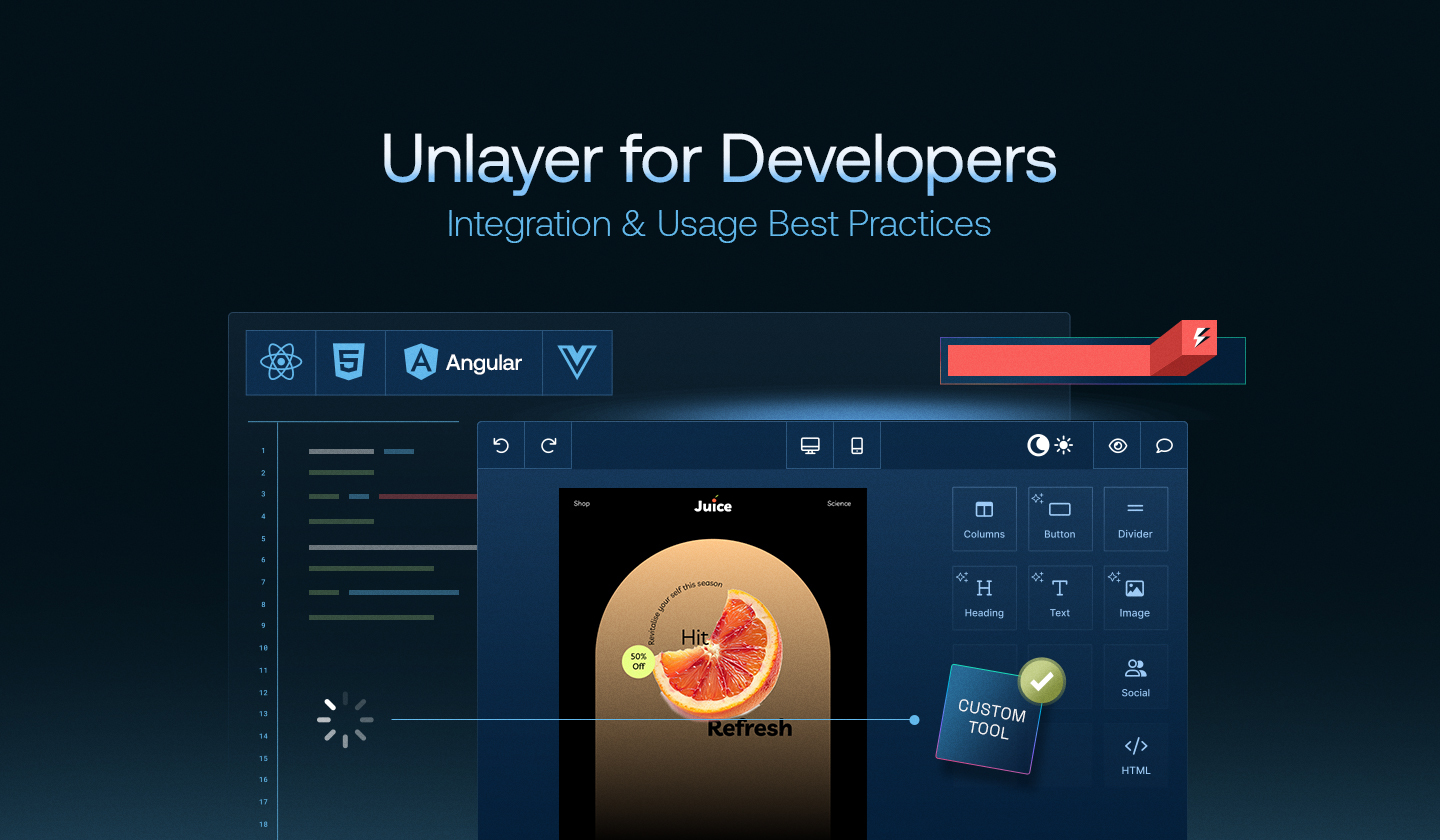
Unlayer is primarily an embeddable email-builder platform for SaaS applications, CRMs, ESPs, and other software products.
Developers can add the editor to their own application and allow their customers to build emails using drag-and-drop controls. Unlayer documents responsive output and testing across Outlook, Gmail, Apple Mail, and more than 90 other email-client environments.
Best for
- SaaS companies
- CRM developers
- Email service providers
- Software products that need a built-in email editor
- Companies creating a branded design experience
Main limitation
Unlayer is not primarily designed for an individual marketer who needs to produce one Outlook newsletter. Its main value is helping software companies add email creation to their own products.
Verdict
Choose Unlayer when you need to embed an Outlook-compatible email-design experience inside your application.
How to Choose the Best HTML Email Builder for Outlook
Do not choose a builder based only on its template gallery.
Consider what must happen before and after the email is designed.
Choose MailEditor when:
- You already have HTML that needs editing
- You want marketers to update developer-built templates
- You need portable HTML
- You manage multiple brands or clients
- You want Outlook templates and broader ESP compatibility
- You need reusable content modules
Choose Stripo when:
- You frequently need OFT or EMLTPL files
- You want direct code access
- Outlook-specific exporting is essential
Choose Postcards when:
- Visual design quality is the priority
- You prefer modular layouts
- You want an Outlook add-in or Outlook Web export
Choose Beefree when:
- Campaigns pass through several reviewers
- Comments and approvals are required
- Your team works across several email platforms
Choose Chamaileon when:
- Brand governance is complex
- Multiple teams build emails
- You need a controlled email design system
Choose Tabular when:
- You want a simpler interface
- You do not need extensive enterprise controls
- Compatibility-focused generated HTML is your main concern
Choose Unlayer when:
- The editor must appear inside your own product
- Your developers need an SDK or API
- Your users will build emails without leaving your application
How to Create an Outlook-Compatible HTML Email With MailEditor
Here is a practical process for creating an Outlook email without manually coding every table and fallback.
Step 1: Start with a template or import your HTML
Begin with a layout from the MailEditor HTML email template library, or upload an existing HTML file.
MailEditor also lets you paste HTML code or import a ZIP containing HTML and related assets. This is useful when the original email came from a developer, agency, previous ESP, or purchased template.
Step 2: Simplify the email structure
Outlook-safe emails usually benefit from a clear hierarchy:
- Recognizable sender or logo
- Main headline
- Short supporting message
- Primary call to action
- Relevant supporting details
- Contact information and footer
Do not add unnecessary columns, decorative effects, or nested sections simply because the editor makes them available.
A focused email is easier to scan and gives Outlook fewer complicated elements to reinterpret.
Step 3: Customize the content visually
Update:
- Text
- Images
- Links
- Buttons
- Colors
- Fonts
- Section order
- Background colors
- Footer information
Watch how new content affects the layout. Replacing a short headline with a longer one can change button positions, section heights, and line wrapping even when the HTML structure remains valid.
Step 4: Use email-safe typography
Define a reliable font stack rather than depending completely on a custom web font.
Suitable examples include:
- Arial, Helvetica, sans-serif
- Verdana, Geneva, sans-serif
- Tahoma, Arial, sans-serif
- Georgia, Times New Roman, serif
Your branded font can remain the first option, but the email should still look intentional when Outlook uses the fallback.
Step 5: Review images and backgrounds
Use normal image elements for essential visuals whenever possible.
For each important image:
- Add descriptive alt text
- Set suitable dimensions
- Compress the file
- Use a secure hosted URL
- Check how the email looks when images are blocked
Do not place the email’s entire message inside one large graphic. Recipients who block images may otherwise see almost nothing.
For background images, include a solid fallback color. Outlook may require VML to display the background reliably, and dynamic content can make the required height difficult to predict.
Step 6: Export the finished email
MailEditor lets you download the HTML or move the design through its supported email platform integrations, including.net/integrations), including Outlook Weflows. citeturn113039view1
For a complete portable-HTML workflow, read how to export HTML email templates to any ESP.
Step 7: Test the actual delivered email
Do not rely entirely on the editor preview.
Send the final HTML through MailEditor’s email testing tool or your real sending platform. MailEditor’s tool lets you send the HTML to inboxes you own and oting. citeturn113039view2
Test the email in:
- Classic Outlook for Windows
- New Outlook
- Outlook on the web
- Outlook for Mac, when relevant
- Outlook mobile
- Gmail
- Apple Mail
- Light mode
- Dark mode
- Mobile and desktop widths
Follow our complete guide to testing email templates across devices for a repeatable pre-send process.
Outlook HTML Email Compatibility Checklist
Use this checklist before approving your campaign.
Layout
- Use email-friendly table structures.
- Keep the main content container at a practical desktop width.
- Apply essential spacing to table cells.
- Avoid absolute positioning.
- Avoid depending on Flexbox or CSS Grid.
- Keep deeply nested layouts to a minimum.
- Check the stacking order of mobile columns.
A width around 600 pixels remains a practical convention for many desktop emails, but the design should also adapt to smaller screens.
For additional mobile guidance, read our mobile-responsive email design best practices.
Typography
- Define fallback fonts.
- Set explicit font sizes.
- Check headline wrapping.
- Use readable line heights.
- Avoid depending on custom fonts for critical hierarchy.
- Review text contrast in dark mode.
Images
- Add width and height information where appropriate.
- Use meaningful alternative text.
- Compress large files.
- Host images on secure public URLs.
- Avoid unsupported SVG images in critical Outlook workflows.
- Keep essential information in live text.
Buttons
- Use an email-safe table-based button structure.
- Make the clickable area large enough.
- Include a clear background-color fallback.
- Do not depend entirely on rounded corners.
- Check button width with fallback fonts.
- Test every destination URL.
Backgrounds
- Add a solid fallback color.
- Use VML when the background image is essential.
- Avoid transparent background colors in important sections.
- Check sections containing personalization or dynamic text.
- Make sure the message remains readable without the image.
Content and accessibility
- Use a clear heading hierarchy.
- Keep paragraphs short.
- Write descriptive links.
- Add useful alt text.
- Maintain sufficient contrast.
- Ensure the message works when images are disabled.
- Include required company and unsubscribe information.
- Add a plain-text version when your sending platform supports one.
Testing
- Test the exported version, not only the editor preview.
- Test after tracking links are added.
- Test after personalization is applied.
- Open every CTA.
- Check mobile responsiveness.
- Review dark mode.
- Test forwarded emails when forwarding is likely.
- Retest after every meaningful revision.
Teams that send similar campaigns regularly can reduce repeated work by learning how to create reusable email templates.
Common Outlook Email Builder Mistakes
Mistake 1: Trusting a browser preview
A browser preview shows how a browser interprets the HTML.
Classic Outlook does not use a standard browser engine, so a perfect Chrome preview cannot prove that the email is Outlook-compatible.
Mistake 2: Testing only in New Outlook
New Outlook may display a template correctly while Classic Outlook changes its image dimensions, spacing, fonts, or table structure.
Test both versions whenever a meaningful part of your audience uses Classic Outlook.
Mistake 3: Using margins for all spacing
Margins can behave inconsistently in Outlook.
Apply essential spacing to table cells and use email-tested layout techniques instead of depending on browser-style spacing.
Mistake 4: Depending on background images
When a background image disappears, the headline or CTA placed over it may become difficult to read.
Include a suitable fallback color and keep essential messaging in live HTML text.
Mistake 5: Making the whole email one image
One-image emails create accessibility, loading, image-blocking, and responsiveness problems.
They also make it harder to update individual text or links.
Mistake 6: Pasting arbitrary webpage HTML into Outlook
HTML created for a website may contain unsupported layouts, scripts, external CSS, and browser-only behavior.
Use an actual email builder or import the template into an editor designed for email HTML.
Mistake 7: Skipping the final test after import
An ESP, CRM, connector, or Outlook workflow may modify the HTML during import or delivery.
Always test the version that has passed through the real sending process.
Mistake 8: Promising pixel-perfect rendering everywhere
Email clients intentionally behave differently.
A professional email should preserve its message, visual hierarchy, branding, and CTA—not necessarily every pixel across every inbox.
Can You Create an HTML Email Directly in Outlook?
Outlook lets you compose formatted HTML messages, but it is not a complete visual HTML email-development environment.
Its normal composer may be enough for:
- Personal business emails
- Simple announcements
- Basic internal communication
- Short messages with a logo and signature
A dedicated builder is more suitable for:
- Newsletters
- Product launches
- Event invitations
- Sales promotions
- Branded company announcements
- Customer onboarding
- Transactional emails
- Reusable campaign templates
The safer workflow is to create the design inside an Outlook-compatible builder, export or insert it into the appropriate platform, and test the delivered version.
Frequently Asked Questions
What is the best Outlook-compatible HTML email builder?
MailEditor is our recommended option for teams that want to import existing HTML, edit it visually, reuse its content, and export portable code. Stripo is particularly useful for Outlook-specific file formats, while Postcards offers a convenient Outlook add-in.
Does Outlook support HTML emails?
Yes. Outlook supports HTML messages, but support for specific HTML and CSS techniques differs between Classic Outlook, New Outlook, Outlook Web, Mac, and mobile applications.
Why does my HTML email look different in Outlook?
Classic Outlook uses Microsoft Word to process HTML emails. Word has limited support for some modern CSS properties, which can affect backgrounds, spacing, buttons, fonts, colu70search1turn705570search21
Can I create an Outlook HTML email without coding?
Yes. A drag-and-drop email builder can create the layout and generate the HTML. You should still test the final message because imported content and sending platforms can affect the delivered result.
Does Outlook support background images?
Classic Outlook does not reliably support standard CSS background images. VML is commonly used as an Outlook-specific fallback, and a solid fallback coded. citeturn705570search1
What email width works best in Outlook?
A content width of approximately 600 pixels remains common for desktop email layouts. The exact width can vary, but the design should remain responsive and readable on narrower screens.
Does Outlook support responsive email?
Outlook can display responsive emails, but support differs among Outlook versions. The base desktop layout should remain usable even when certain responsive CSS rules are not applied.
Can I use custom fonts in Outlook emails?
You can specify a custom font, but Outlook may replace it with an installed fallback. Always include a web-safe alternative and check how the replacement affects text wrapping.
How do I test an HTML email in Outlook?
Export or insert the completed design into the platform from which it will actually be sent. Send tests to Classic Outlook, New Outlook, Outlook Web, Outlook mobile, and other important inboxes. Check images, fonts, links, buttons, spacing, mobile layout, and dark mode.
Can Outlook be used for mass email marketing?
Outlook can send HTML messages, but it is not a substitute for an email service provider when you require large-scale delivery, subscriber management, automation, analytics, deliverability controls, preference management, and unsubscribe handling.
Final Verdict
The best Outlook-compatible HTML email builder is not necessarily the one with the largest template library.
It is the one that fits your actual production workflow and helps your emails remain useful after they leave the editor.
- Choose MailEditor to import, visually edit, reuse, and export custom HTML.
- Choose Stripo for Outlook-specific export formats.
- Choose Postcards for modular design and Outlook insertion.
- Choose Beefree for collaborative campaign production.
- Choose Chamaileon for enterprise email design systems.
- Choose Tabular for straightforward compatibility-focused creation.
- Choose Unlayer to embed an email builder inside your software.
Regardless of the editor you choose, never stop at the visual preview.
Export the finished email, send it through the real delivery workflow, and test it in both Classic and New Outlook. That final step separates an email that merely looks attractive inside a builder from one recipients can reliably read and act on.
Ready to build an Outlook-compatible email?
Start designing with MailEditor, customize a free Outlook email template, or import your existing HTML email and edit it without writing code.
Popular Blogs

Email Design2 mins to read
Top Email Template Builders & HTML Email Editors for 2026
Compare the best email template builders and HTML editors to design professional, responsive campaigns without coding.
Email Design9 mins to read
Email Signature Size and Image Best Practices
The ideal email signature is 320–600px wide and 90–200px high. Learn the best image sizes, formats, file limits, and mobile-friendly design tips.

Email Tips7 mins to read
Best Drag and Drop Email Editors in 2026
Discover the best drag and drop email editors in 2026. Compare top tools, features, templates, pricing, and automation to build stunning emails fast.

Marketing7 mins to read
4 Best Unlayer Alternatives to Design Emails
Looking for Unlayer alternatives? Explore the 4 best email design tools to create beautiful, responsive emails faster and easier.

Marketing6 mins to read
5 Beefree Alternatives to Upgrade Email Design Workflows
Looking for a better email design tool? Explore 5 Beefree alternatives that streamline workflows, improve collaboration, and elevate email campaigns.