How to Export HTML Email Templates to Any ESP in Minutes
To export an email template to any ESP without code, just export your design as HTML from MailEditor and import it into your preferred email platform in minutes.

Md. Yaikub Hossain Razon
I continuously talk to 2\3 marketers daily regarding email templates and all. Almost all of them get frustrated about the exporting email. It's easy to see why this frustrates so many teams.
Cause they spend 3.8 hours coding an email and another 2.3 hours fixing and testing it before it's ready to send.
Cause you got everything right. The email layout is clean. The buttons, images, and content blocks are exactly where they should be.
The moment you want to move that template to a different Email Service Provider (ESP), it becomes a struggle.
Cause 53% marketers spend 10-15 minutes per email on the traditional export process. In the traditional way, you need teams to move HTML between platforms, fix formatting issues, and retest before sending.
That’s annoying as hell!
So, how to export an email template to any ESP without any code?
Well, you can Exporting an email template to any ESP without code is simple when you use a visual drag-and-drop email builder with a mail editor.
Ok, but how does it all work? No worries, it’s easy, pessy. Let’s give you a tour of our process.
Common Struggle Of Exporting An Email Template To An ESP
Email Service Provider (ESP) is supposed to be easy, but it becomes a headache because of the dashboard. I often struggle to figure out:
1. Layout issues right after export
One of the first things I noticed was how often the layout would shift after exporting and importing into an ESP. Inside the editor, everything looks perfect.
But the struggle began when I uploaded it to platforms like Mailchimp or Klaviyo.
Cause different issues come to mind each new day. Like, small things start to change, spacing feels slightly off, buttons don’t match the same way, or sections don’t sit exactly where they should.
And so now. It may sound minor, but it has a big impact on mobile view. Since 41% of emails are viewed on mobile devices, you need to take this issue seriously.

2. Different ESPs, Different Results
I often need to work on 2-4 ESPs for a client's project. So, another issue I kept running into was inconsistency across platforms. A template that looked clean in one ESP didn’t always behave the same in another.
For example, fonts that looked balanced in one tool would appear slightly larger or smaller in another. Sometimes the padding rules were completely ignored.
I started realizing that each ESP has its own way of interpreting HTML.
3. Constant Manual Fixes After Import
One time i tracked my workflow and realised I was spending nearly 20–30% of my campaign time just fixing imported email templates!
That’s because after importing, I almost always had to go back and fix something, maybe re-centring a button.
And sometimes adjusting image sizes, or correcting spacing between sections. These weren’t major redesigns. But they still took time and annoyed me.
5. ESP limitations keep showing up
Another frustration I kept running into was that each ESP edits HTML differently. Some platforms strip certain styles automatically, while others override formatting rules without warning.
So even if my template looked perfect before export, I couldn’t fully trust how it would behave after import.
It always felt like I had to “test and fix” instead of just “build and send.”
How to Export an Email Template to Any ESP Without Code?
No need to brag your head off about code or waste time on the complication. Export email template to any ESP following the steps:
Step 1: Upload Your Ready Template into MailEditor
Log in to maileditor and go to the dashboard. You will find an option to upload your template. Then upload your email template.
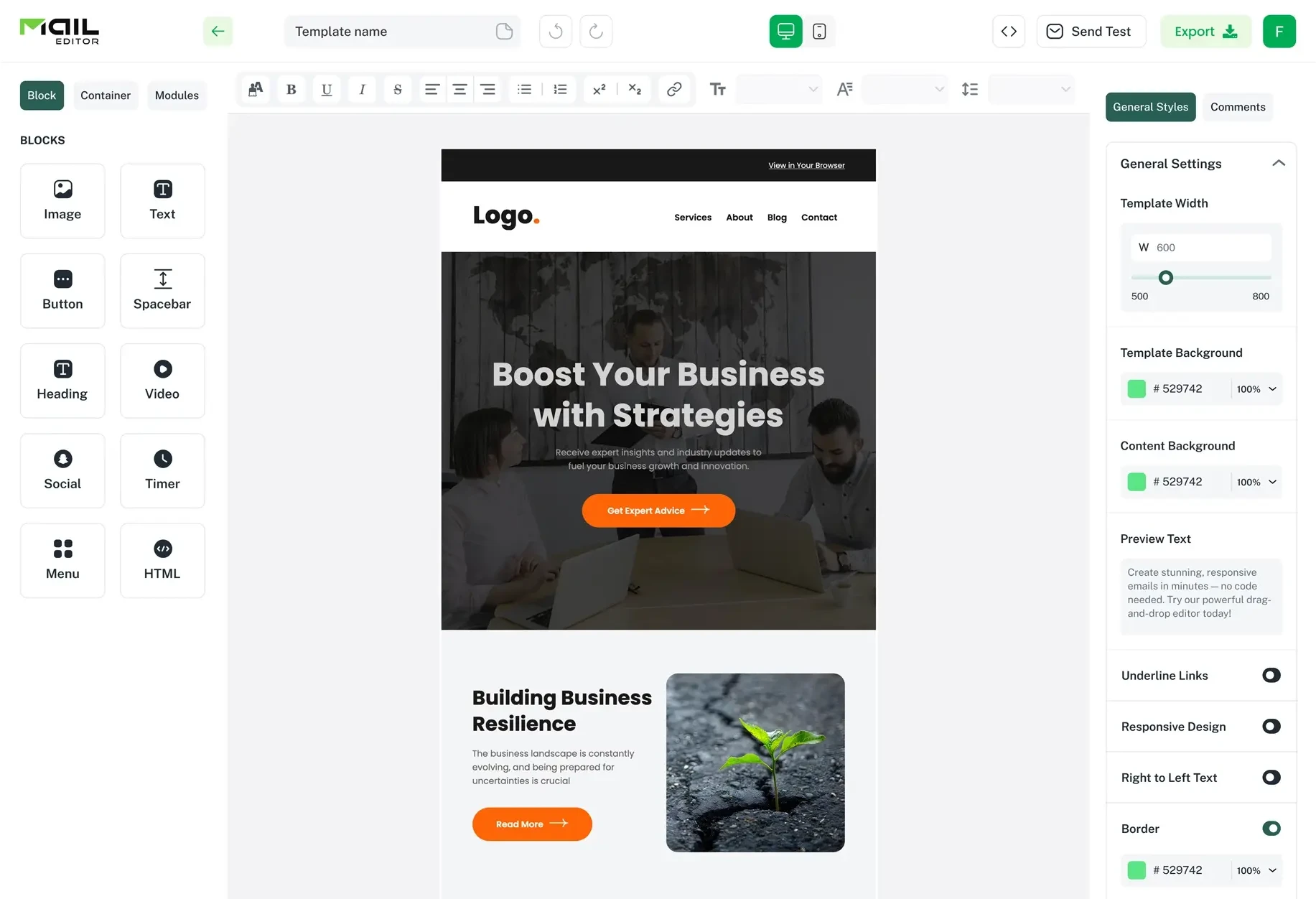
Once uploaded, MailEditor converts your file into a visual format so you can see the full email layout on screen. So, now it’s not just code anymore; it's a visual template you can see and edit however you want.

Step 2: Export the Template as HTML
Once the template is open, I go straight to the export option inside the editor. Click Export, choose the HTML format, and download the file to your device. If you don’t have one, check out the free HTML email templates and use any of them.

This step is basically turning my design into a portable file. It doesn’t belong to the editor anymore, it becomes something I can use anywhere, in any email platform.
Step 3: Log in to ESP
Now I move to the Email Service Provider I want to use. It could be Mailchimp, HubSpot, Klaviyo, or any other platform I normally use to send campaigns.
I log in and go to the area where templates or email designs are managed. It is labelled as “Templates” or “Create Email.”
Step 4: Upload the HTML File
Now I take the file I downloaded from MailEditor and upload it directly into the ESP. Once I do that, the platform processes it and converts it into an email template.
You don’t need to adjust code or rebuild anything. It just appears as a full design inside the editor.
Step 5: Save and Use It for Campaigns
Once everything looks good, I save the template inside the ESP. So, now you can use it whenever you want. Since it isn’t code, you can edit it for whatever you want. So, you can edit it or use it based on your use case.
Exporting to Gmail, Outlook, Zapier, and Webhooks Without an ESP
Exporting to non-ESP is kinda different from the ESP one. But you don’t really change your workflow.
I just export the template once from MailEditor and then plug it into different tools depending on where I want to send it. Here is how i usually do export the email template:
Export Email Template in Gmail
To export a template in Gmail, I just open Gmail, create a new email, and then insert the HTML content through a tool or extension that supports HTML pasting. Once it’s in place, I just adjust the recipient and subject line, then send it like a normal email.
Exporting Template in Outlook
The process in Outlook is quite similar. Like, open a new message, then paste in the exported HTML so the email design appears in the email body. If you don’t have it ready then you can make reusable email.
Once it’s loaded, I can make small edits if needed, but most of the time the structure stays intact. After that, I simply add recipients and send it directly from Outlook like a normal message.
Connecting the Template to Zapier
The process becomes more automated in Zapier. First, I upload or store my exported HTML template to a location that Zapier can access. Then I create a workflow (a “Zap”) that triggers an email when a specific action occurs.
For intense,
If someone fills out a form or makes a purchase, Zapier can automatically send that email using my saved template. So, it’s no longer manually sending anything. The template is part of an automated workflow.
Connecting Template with Webhooks
I use webhooks for more advanced and automated client work.
To do that, I connect my exported HTML template to a system or application that sends data via a webhook. When that request is triggered, the system automatically sends an email using my template.
‘’No matter where you went to export your email template maileditor makes the exporting easy and smooth’’
Maileditor is Compatible With 20+ Leading ESPs and Email Platforms
After trying and using 10+ platforms, I decided to stay on MailEditor because they support a lot of ESP, such as:

- MailChimp
- Klaviyo
- ActiveCampaign
- Brevo
- Campaign Monitor
- Constant Contact
- MailUp
- Acumbamail
- Zoho Campaigns
- HubSpot
- Salesforce Marketing Cloud
- Salesforce Pardot
- Braze
- Iterable
- Amazon SES
- SendGrid
- ZeptoMail
- Gmail
- Outlook Web
- Outlook App
- Zoho Mail
- Veeva Vault
- Custom Connector
Why Teams Need Flexible Email Template Export Options?
Marketing teams need easy export options to work smoothly and save time. So, the team can use the tools that work best for them and move their templates wherever they need. This means they don't have to rebuild the same email again and again when switching ESPs.
I also like that it helps keep branding moving. You don’t need to take a step back just because you switch ESP. You can keep the work going.
Because they can migrate to a new ESP and test different marketing automation tools. And you can work with client-preferred platforms without losing their existing email designs.
I mainly prefer using a great email template expert options because:
1. I can focus on writing better email copy.
2. I can improve customer engagement.
3. Focus on optimizing campaign performance.
4. I can test new marketing strategies.
The main benefit of using the fixable is spending less time on email. So, i can focus on the actual work.
Final word
It’s not hard to export an email template without code. You don’t even need to understand any HTML. Just follow the steps above, and your job will be done in 1-2 minutes.
The main benefit is you can stay consistent.
Your layout stays intact, your branding remains the same, and you avoid rebuilding the same template again and again. In the end, it’s a faster, cleaner way to manage email campaigns through multiple platforms.
Frequently Asked Questions
Question: What happens to my email design after exporting it?
Answer:Your design is converted into a portable HTML file. When you import it into an ESP, it should keep the same structure, including layout, images, and styling. However, minor differences can happen depending on how each platform renders email.
Question: Which platforms support imported HTML email templates?
Answer:Most major platforms support HTML imports. This includes tools like Mailchimp, HubSpot, Klaviyo, ActiveCampaign, Salesforce Marketing Cloud, Brevo, and SendGrid. You can also use the same file in Gmail and Outlook with proper setup.
Question: Can I use the same template in multiple ESPs?
Answer:Yes, that’s one of the main advantages. You can export the same template once and reuse it across multiple ESPs without redesigning it each time. It helps keep branding consistent across platforms.
Question: Do I need technical knowledge to export and import templates?
Answer:Not really. If you're using a no-code builder, the process is mostly point-and-click. You export the template, upload it into your ESP, and preview it before sending.
Question: Why does my template sometimes look different in another ESP?
Answer: Different ESPs interpret HTML and CSS in slightly different ways. That’s why small changes in spacing or alignment can happen. Testing before sending is always recommended.
Popular Blogs
Email Design2 mins to read
Top Email Template Builders & HTML Email Editors for 2026
Compare the best email template builders and HTML editors to design professional, responsive campaigns without coding.

Email Tips7 mins to read
Best Drag and Drop Email Editors in 2026
Discover the best drag and drop email editors in 2026. Compare top tools, features, templates, pricing, and automation to build stunning emails fast.
Email Design9 mins to read
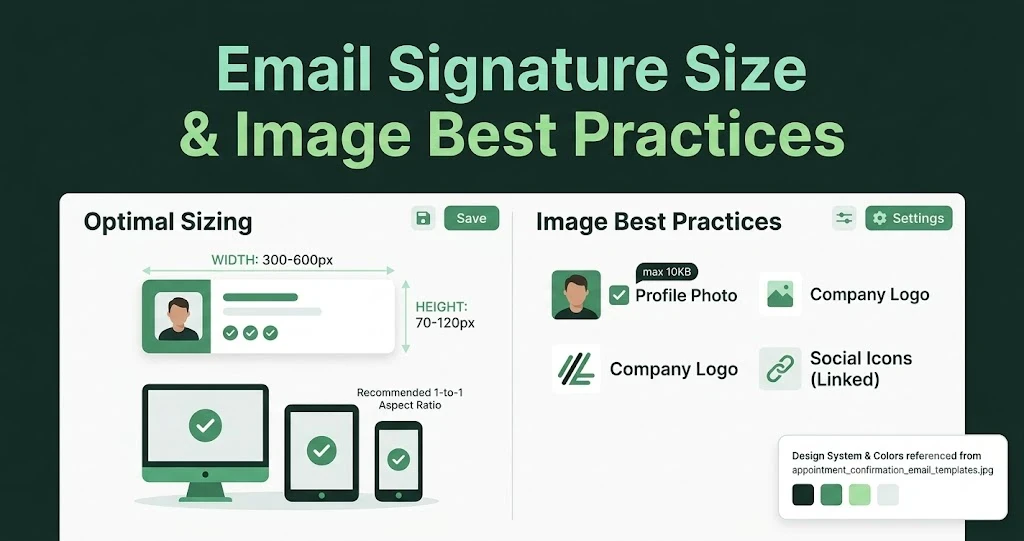
Email Signature Size and Image Best Practices
The ideal email signature is 320–600px wide and 90–200px high. Learn the best image sizes, formats, file limits, and mobile-friendly design tips.
Marketing7 mins to read
4 Best Unlayer Alternatives to Design Emails
Looking for Unlayer alternatives? Explore the 4 best email design tools to create beautiful, responsive emails faster and easier.

Marketing6 mins to read
5 Beefree Alternatives to Upgrade Email Design Workflows
Looking for a better email design tool? Explore 5 Beefree alternatives that streamline workflows, improve collaboration, and elevate email campaigns.