How to Edit a Custom HTML Email Template Without Coding?
Edit a custom HTML email template without coding by uploading it into a visual email editor. Update text, images, and layouts, then export clean HTML in minutes.

Md. Yaikub Hossain Razon
I hear from marketers so many times that, "I just need to change a button or update some text, but now I'm stuck editing HTML."
It sounds so random and simple, but it’s not! 62% of email marketing teams took 2 weeks or more to build and deploy a single email campaign.
It’s not just time wasted, but it also creates a bigger problem in mobile view.
Cause 60% of people read emails through filtered inboxes like Gmail's Promotions tab. So, a poor email can significantly ruin your email campaign. so
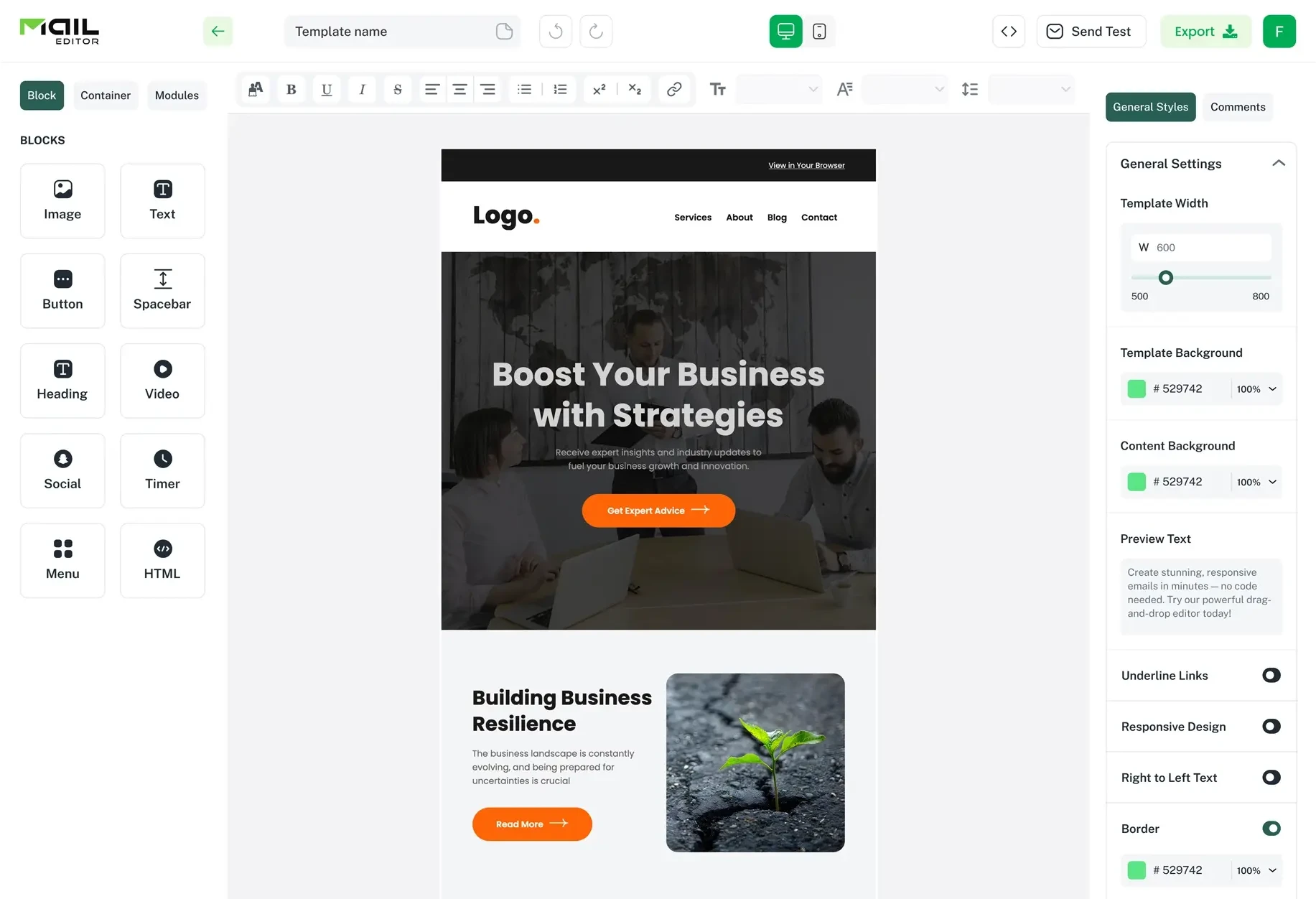
So, to get rid of the hassle, you can edit a custom HTML email template without code, just with a drag-and-drop feature from MailEditor. You don’t need to touch any code here. Just upload the code and edit it like a visual design in Canva.
Wanna see how i edit a custom HTML email template without code? Ok, let’s give you a tour of my working process.
Key Takeaways
1. A visual editor makes updating custom HTML emails much faster and easier.
2. Clean, responsive HTML helps maintain a consistent design across email clients and ESPs.
3. Visual editing lets marketing teams work independently without relying on developers.
What Is a Custom HTML Email Template?
A custom HTML email template is a coded email layout built with HyperText Markup Language (HTML). You have full control over your email's design, branding, fonts, colors, images, and structure.
Handwritten email text works best for 1 1 outreach. However, these HTML structured emails outperform them by a wide margin for consumer marketing.
It speeds up the agency's email marketing process and delivers a 73% higher click-to-open rate. Cause it has rich media, like video thumbnails. So, it increases clicks by up to 300% compared to basic emails.
Why Editing HTML Emails Manually Is Difficult?
Editing HTML emails manually is often difficult because email clients like Gmail, Apple Mail, and Outlook don’t follow a single standard for rendering code. So, you’re forced to work with older, table based layouts and limited inline CSS. Just to make sure the design displays correctly across different inboxes without breaking.
But the challenge isn’t just about writing code. It’s about maintaining consistency across different devices, inboxes, and platforms.
Cause a perfect in one email client can break in another. So, making even basic edits risky. That’s why i mostly struggle in HTML emails because:
1. A small code change can break the entire email layout
2. Different email clients (like Gmail, Outlook, Apple Mail) render HTML differently
3. Mobile responsiveness often needs constant manual adjustments
4. Testing and fixing take more time than actual editing
So yes, HTML editing gives full control, but it also brings complexity. You can focus on email marketing metrics.
How to Edit a Custom HTML Email Template Without Coding?
Here is how i usually edit my custom HTML email template without coding on MailEditor.
Step 1: Login and Upload Your Existing HTML Template
Log in and go to the email editor section.

Now upload your email template by clicking the upload HTML section and pressing continue. If you don’t have one ready, then use the free email templates.

Then you will see an interface to upload the template. Once uploaded, the template is converted into a visual layout.
It will no longer feel like code; it looks like a normal email you can work on directly.
Step 2: Open the Visual Drag and Drop Editor
After uploading, I move straight into the drag-and-drop editor. Then I just click elements in the email and update them visually.
For example, I can change text, swap images, or update links directly inside the layout without worrying about breaking anything.

If you don’t have any idea, then no worries, there are options too.
You can choose from 158+ pre-built modules to add new sections or rebuild parts of your email quickly. So, now you aren’t coding new sections, you’re just getting them visually, like building blocks.

Step 3: Generate Unique Sections Using AI
If I ever need to add new content or refresh part of the email, I can use the built in AI assistant.

I just type a simple prompt, and it generates email sections or design suggestions instantly. It surely helps to speed up my work. So you don’t have to manually think through every layout detail.
Then I can take that AI generated content and adjust it visually inside the editor. It keeps everything flexible without slowing me down.
Step 4: Make Final Edits Visually
Now, I usually just go in and make small tweaks to get everything feeling right. Maybe I adjust some spacing, update the branding, swap out an image, or refine a call to action button, all of it done visually.

Here, it isn’t that hard to do. You can just drag and drop designs.
What makes it easier is that I don’t have to worry about breaking anything while doing it. I can move sections around or update content freely, and the structure just holds up without me thinking about what’s happening in the code underneath.
Step 5: Export Clean HTML
Once everything looks right, I export the final version. No worries, you don’t have to do anything here. Cause Maileditor can automatically generate clean, responsive HTML.

This means the email is already optimized to work across different devices and email clients without extra coding or fixing. It’s also ESP ready, so I can use it directly in platforms like Mailchimp, HubSpot, or Salesforce.
Step 6: Use It Across Any ESP
Finally, I upload the exported HTML to the Email Service Provider I’m using. Since the code is already clean and standardized, it works across most major ESPs without needing adjustments.
Why Use a Visual Editor Instead of Editing HTML?
Visual email editor isn’t just for fun. It actually eases the work on many levels, such as in:
You Can Reduce The Cost Of Testing & Optimization
The biggest hidden time drain in HTML email editing is testing, not building the HTML email. Cause i have seen in a survey email that teams spend an average of 2.3 hours purely on testing and troubleshooting a single email campaign before it’s ready to send.
That time usually goes into fixing broken layouts, checking rendering across different inboxes.
It happens repeatedly, validating changes in tools like Email on Acid or Litmus. Even a small adjustment can trigger another round of testing.
‘That’s the pattern mail editor broke and makes the editing custom HTML easy’
Easy to Make It Suitable to View on Multi Devices
Email design today isn’t just about desktop anymore. Your email should be visible to all devices, especially on mobile.
Cause over 55% of emails are opened on mobile devices. This means every edit needs to work perfectly across multiple screen sizes. Otherwise, you're gonna lose 55% of your leads without even trying.
But one small change can break responsiveness or shift layouts on smaller screens. That’s kinda annoying, right?
So, that’s where a visual editor simplifies this completely. You can switch between desktop and mobile previews instantly and adjust spacing, font sizes, or layout structure with simple visual controls.
Easy the Campaign and Team Work
So many times, I needed to change just one sentence or replace an image, but couldn't do it myself because the email was built in HTML. I had to wait for a developer to make a 2-minute change.
And I'm not the only one.
More than 50% of marketing teams say their campaigns get delayed because they rely on developers or agencies for simple template updates.
A visual editor fixes that problem. Cause with it you can open the template, click on the section I want to change, make the update, and export it again.
Basically, the visual editor makes the email campaign look easy and smooth. So, now my work is 2X faster and even i can do the small changes myself. No need to wait for a developer or be a coder!
Conclusion
If there's one thing I've learned, it's that editing an HTML email shouldn't feel like a developer's job. Most of the time, you're only changing a headline, swapping an image, or updating a button, not rebuilding the entire email.
That's why I prefer using MailEditor's visual editor.
I can make the changes I need, export the finished template, and move on to the next campaign without worrying about breaking the code. It saves time, keeps everything consistent, and makes the whole process much less frustrating.
Frequently Asked Questions
Question: How do I know if my HTML email is mobile friendly?
Answer: The easiest way is to preview your email on different screen sizes before sending it. Most modern email editors include a mobile preview, allowing you to check whether text, images, and buttons display correctly on smartphones and tablets.
Question:Can I reuse the same HTML email template for future campaigns?
Answer: Yes. Once you've edited and saved your template, you can duplicate it for future campaigns. Simply update the content while keeping the branding and layout the same, saving time and ensuring consistency.
Question:What's the difference between an HTML email and a plain text email?
Answer: A plain text email contains only text with no images or styling. An HTML email supports branding elements like logos, colors, buttons, images, and multiple layouts, making it better suited for newsletters, promotions, and marketing campaigns.
Question:How often should I update my email templates?
Answer: There's no fixed schedule, but it's a good idea to review your templates every few months or whenever your branding, products, or marketing goals change. Regular updates help keep your emails looking fresh and relevant.
Popular Blogs
Email Design2 mins to read
Top Email Template Builders & HTML Email Editors for 2026
Compare the best email template builders and HTML editors to design professional, responsive campaigns without coding.

Email Tips7 mins to read
Best Drag and Drop Email Editors in 2026
Discover the best drag and drop email editors in 2026. Compare top tools, features, templates, pricing, and automation to build stunning emails fast.
Email Design9 mins to read
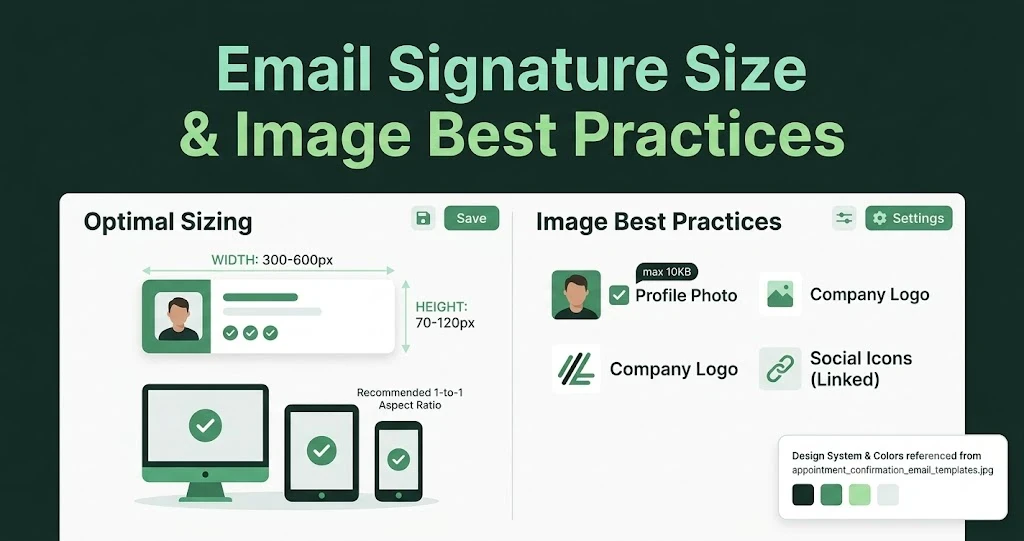
Email Signature Size and Image Best Practices
The ideal email signature is 320–600px wide and 90–200px high. Learn the best image sizes, formats, file limits, and mobile-friendly design tips.

Marketing7 mins to read
4 Best Unlayer Alternatives to Design Emails
Looking for Unlayer alternatives? Explore the 4 best email design tools to create beautiful, responsive emails faster and easier.

Marketing6 mins to read
5 Beefree Alternatives to Upgrade Email Design Workflows
Looking for a better email design tool? Explore 5 Beefree alternatives that streamline workflows, improve collaboration, and elevate email campaigns.