How to Test Email Templates Across Devices
Test email templates across devices to catch layout, rendering, mobile, dark mode, image, and Outlook issues before sending.

Shahin Alam
Testing email templates across devices helps catch layout shifts, broken columns, mobile spacing issues, Outlook rendering problems, dark mode changes, blocked images, and broken links before the email reaches subscribers. A strong testing process makes sure the same template looks clean on mobile, desktop, tablets, Gmail, Outlook, and Apple Mail.
A few weeks ago, I was working on an email campaign. During the design process, everything looked perfect inside the editor, with clean spacing and alignment.
But when the email landed on Outlook, everything fell apart.
Without any warning, the margins shifted, and the columns appeared differently in the email. In some screens running dark mode, the logo disappeared completely. It was a nasty surprise. But what shocked me more was how common this problem is for email teams.
If you test email templates on a regular, chances are high that you’ve faced this scenario, too. Previews can be misleading. What looks picture-perfect inside an editor can behave very differently in a real inbox, leading to broken layouts and damaged credibility.
"This makes email testing necessary nowadays."
If there is a problem, then there must be a solution as well. And so it is in this case. The good news is that the solution starts before sending an email. Stable templates and structured workflows help to reduce these unwanted surprises.
Key Takeaways
- Email does not render the same way in every client. Outlook has limited CSS support, Gmail clips large messages, and dark mode can flip brand colors without warning.
- A clear and structured testing workflow saves time. Start with previews, then move on to testing emails on real devices before exporting them.
- Layout is just a part of an email. You will also read about challenges with image blocking, dark mode readability, and more.
- Reusing old templates can sound efficient, but hidden spacing edits and small code changes add up over use, causing the most frustrations.
- Testing becomes easier when the template structure is stable, with consistent modules, clean exports, and controlled edits.
Why Is It Difficult to Test Email Templates Across Devices?

Email clients don’t all follow the same rules. If they did, testing emails would be simple. But since they don’t, the process gets complicated. Each client interprets HTML and CSS in its own way, and these differences, along with others, show up fast after a campaign goes live.
Rendering
On most occasions, Outlook is the biggest challenge. It uses a Word-based rendering engine, which limits modern CSS support. As a result, margins behave strangely, background images fail, and spacing that looked perfect before feels uneven after sending.
Elsewhere, Apple Mail and most iOS clients rely on WebKit. While they have better modern CSS support, they don’t exactly offer perfect consistency. What this means is that even if layouts work in WebKit as you expect them to, they can still break in Outlook.
Screen Width
Another factor that complicates things is screen width. Desktop layouts are often built around 600 pixels, but on mobile, the same layout can break. You may find that the columns stack differently, buttons get stretched, and the text reflows.
Dark Mode
Users who use dark mode also face complications with email. Many apps automatically flip colors to improve readability. This means light logos can disappear against dark backgrounds, and contrasts may change, which can make your text unreadable.
Blocked Images
Many email clients block images by default. This means that if you include key information in images, they may get hidden automatically and not reach your audience at all. As a result, your design might survive, but not the email’s meaning or intent.
Reusing Templates
Then there is the matter of reusing templates. Over months, many small edits add up. These can include a quick padding tweak here, and a copied section there. These changes don’t break immediately. Rather, they degrade the structure slowly, making testing harder.
The following table shows a summary of why email testing is difficult across clients and devices.
| Factor | What Happens | Why It Complicates Testing |
| Outlook Engine | Limited modern CSS support | Unpredictable or broken margins, spacing, and background images |
| WebKit Clients | Better CSS support but not fully consistent | Designs that work in Apple Mail may still fail in Outlook |
| Screen Width | Desktop layouts collapse on smaller screens | Elements behave differently |
| Dark Mode | Color gets overridden automatically | Logos disappear, brand inconsistency |
| Image Blocking | Images hidden by default in some clients | Critical information may not display at all |
| Template Reuse | Small edits build up over time | Structural stability weakens, making testing harder |
Once you understand these root causes, testing stops feeling random and becomes a controlled, predictable process.
How to Test Email Templates the Right Way, Step-by-Step

Now that you’ve learned about the challenges, let’s look at the solution.
When I test email templates, I use MailEditor. I follow the same order every time, since skipping steps usually leads to repeating work later.
Step 1. Review the Layout Before Exporting
Before sending anything, I inspect the structure carefully inside the editor. This includes checking spacing between sections, confirming if columns stack correctly, and making sure the buttons are placed exactly where I want them.
As an added tip, switch to mobile preview and scroll slowly. For me, the small issues always show up there first.
Step 2. Send to Real Devices
Preview tools are helpful, for sure. But they can also be misleading. Here, real devices are more reliable. That’s why I always send test emails to several destinations, such as the following.
- iPhone
- Android device
- Outlook desktop
- Gmail web
These four cover most of the real world scenarios and help you notice layout problems.
Step 3. Use Rendering Tools for Broad Coverage
Rendering platforms come in handy for high value campaigns that include multi section promotional emails with background images and dark mode styling.
If your campaign is more on the complex side, this step can be particularly helpful, but for more simple campaigns, they may not be necessary.
Step 4. Checklist of Functional Testing
Layout is only half the job. That is why at this stage, I check for the following factors.
- Confirm if all links work correctly
- Ensure that the tracking parameters fire
- Make sure ALT text appears when images are blocked
- Check if email loads quickly on mobile data
- Verify if dark mode keeps text readable
Step 5. Re Test After Every Revision
Finally, I run a last round of checks before scheduling an export. This is important because even the smallest edit can break spacing or alignment, and you need to stay on top of such changes to avoid expensive mistakes.
What Most Teams Miss When They Test Email Templates
Even the most experienced teams can overlook small details that damage campaigns. For instance, as I’ve already discussed in an earlier section, reusing templates is convenient, but over time, tiny adjustments accumulate. This is a common hidden problem.
False Hope of Visual Previews
Teams can miss things like padding inconsistencies in visual previews. A section that looks fine in the editor can collapse on mobile or push a button too far down. These shifts can break alignment.
Fonts
Fonts create another challenge. You see, not all email clients support the same typefaces. This means that your carefully chosen style can be replaced by a client’s default font, which can change spacing and damage readability.
Formatting in Outlook
Conditional formatting in Outlook is another trap that teams miss. Things like table structures or CSS rules that work everywhere else can fail in Outlook. By the time teams notice these things after sending, the damage is already done.
Dark Mode Complications
The challenges of dark mode are becoming increasingly common. Text and background colors invert automatically in many apps. This can hide logos and buttons and make text more difficult to read. Since many teams test only in light mode, they miss this entirely.

Source: litmus.com
To make sure you don’t overlook these common problems, you can follow this quick checklist that I use to catch these hidden issues.
Advanced Testing Checklist
- Verify fallback fonts
- Check background images for display and alignment
- Confirm button tap sizes on mobile devices
- Keep email length under Gmail’s 102 KB clip limit
Addressing these hidden problems ensures your emails behave consistently, avoid embarrassing mistakes, and reduce the need for repeated testing cycles.
Unstable Templates Have Hidden Costs

When testing email templates, most frustrations that teams face come from the templates rather than individual devices. Even minor HTML changes can break layouts and cause an email to behave unpredictably across email clients.
Manual Edits
Manual edits increase this risk. You see, every time a user adjusts a template by hand, there is a chance of breaking the spacing, alignment, or stacking. As time passes and more work is done on templates, these changes add up.
Reusing Templates
If someone reuses a template, it can worsen the problem. Sections in existing templates that worked perfectly even last week can suddenly break or misalign in new revisions. This makes a once reliable template inconsistent now, and leads to repeated rechecks.
Hidden Code
Even drag-and-drop tools are not immune; some editors introduce hidden code when moving sections. This can shift buttons, change margins, or distort images in unexpected ways. When these things happen, testing becomes a game of chasing hidden errors.
Well-structured templates decrease these risks dramatically by ensuring consistent sections and controlled layouts. As a result, you can focus on real rendering issues instead of fretting over cleaning up messy edits and hidden errors.
In other words, if you have a stable foundation for your email, you will face fewer surprises, revisions will be faster, and testing cycles will get shorter.
Template Structure Determines How Easy It Is to Test Email Templates
The way an email template is built affects every stage of the testing process. A stable layout means fewer surprises when emails are opened on different devices. Sections behave as you expect and want them to, reducing the number of adjustments needed after previews.
Clean exports matter too, just as much as layout stability. Templates that don’t have hidden codes are less likely to conflict with email clients. This means fewer rendering problems appear in Outlook, Gmail, or mobile apps.
Predictable modules also make reuse much simpler. These modules ensure that sections can be copied or adapted without breaking alignment. Minor edits remain contained, and testing becomes focused on real issues rather than cleaning up unexpected problems.
Editing within a reliable structure also preserves spacing. You can move buttons, change images, or adjust text without problems. This keeps testing cycles shorter and reduces the mental load for anyone reusing templates.
Here is a side by side view of how structural stability affects testing:
| Scenario | Unstable Template | Stable Structured Template |
| Reuse | Layout shifts | Sections remain intact |
| Minor edits | Spacing breaks | Changes stay contained |
| Device testing | Multiple fixes needed | Minor corrections only |
| QA time | Long | Reduced |
In short, a structured template allows teams to focus on content and engagement rather than fighting layout issues most of the time. This makes testing easy and more efficient, saving both time and frustration.
MailEditor Improves Things Before Testing Even Begins

One of the biggest headaches in email campaigns comes before testing even starts. Editing a template by hand can break alignment and spacing. This is where MailEditor helps. With this tool, you can adjust designs visually while preserving the underlying HTML.
As a result, you can reduce those risks that derail workflows.
Reusability
Templates built in MailEditor use predictable, reusable blocks. Copying a section from a previous campaign or another template doesn’t shift margins or mess up the button placement. Each block stays consistent, which makes reuse safer and faster.
Clean Exports
Clean exports are another advantage that MailEditor provides for users. The code generated is minimal and reliable, meaning fewer conflicts with Outlook, Gmail, or mobile clients. Teams spend less time troubleshooting and more time refining content and campaigns.
Consistent Layouts
MailEditor’s visual, no-code editing helps maintain consistent sections and layouts automatically. Buttons, images, and text blocks stay aligned even when you make changes. This stability reduces the chances of surprises when previewing on different devices.
Safe Rechecks
MailEditor preserves structure, which makes revisions safer and faster. Minor edits no longer require repeated checks or manual fixes, which allows teams to focus on testing on real device behavior instead of patching errors introduced by editing.
By establishing a stable foundation, MailEditor allows teams to approach testing with confidence, making cross-device validation smoother and more predictable without adding extra steps.
Conclusion
To sum up, cross-device testing is a requirement for every email campaign. Since emails render differently across devices and clients, skipping this step can lead to broken layouts, hidden CTAs, and buttons that do not function as intended.
Most of the problems teams face don’t come from devices alone. Rather, they stem from unstable templates, hidden padding, and sections that shift unexpectedly. Even the best testing tools cannot fully compensate for a fragile foundation.
A structured workflow and predictable template design reduce risk significantly. Stable modules make revisions easier and testing more focused. Minor edits no longer cause cascading errors, which means less rework and faster approvals.
Tools like MailEditor preserve structure and ensure clean exports, allowing teams to concentrate on content quality and user experience. Here, testing becomes a verification step rather than a constant correction process.
The key point is simple. Testing cannot be skipped, but chaos can be avoided. With careful structure, predictable templates, and disciplined validation, campaigns can reach inboxes looking and performing exactly as intended.
Frequently Asked Questions
How often should you test email templates across devices?
Every time you send a campaign, even if the template is reused. Small edits can affect spacing or alignment, and device updates can change how emails appear. Regular checks prevent unexpected issues.
What is the best way to test email templates before sending?
Start with a pre-export review in your editor, then send tests to actual devices. Use a combination of mobile, desktop, and web clients. Finally, check functionality, links, and dark mode readability.
Why do emails look different in Outlook?
Outlook uses a Word-based rendering engine, which does not support all CSS features. Margins, padding, and background images may behave differently, causing layouts to break.
How can reusable templates affect rendering?
Reused templates may contain small accumulated edits that shift spacing or misalign sections. Even minor changes over time can create rendering issues on certain devices.
What makes testing easier long term?
Stable template structure, clean exports, and predictable modules reduce risk. When the foundation is reliable, testing focuses on real issues rather than fixing errors caused by fragile design.
Written by
A full-stack digital marketer and passionate blogger with more than seven years of hands-on experience helping brands grow, rank, and thrive online.
All postsPopular Blogs
Email Design2 mins to read
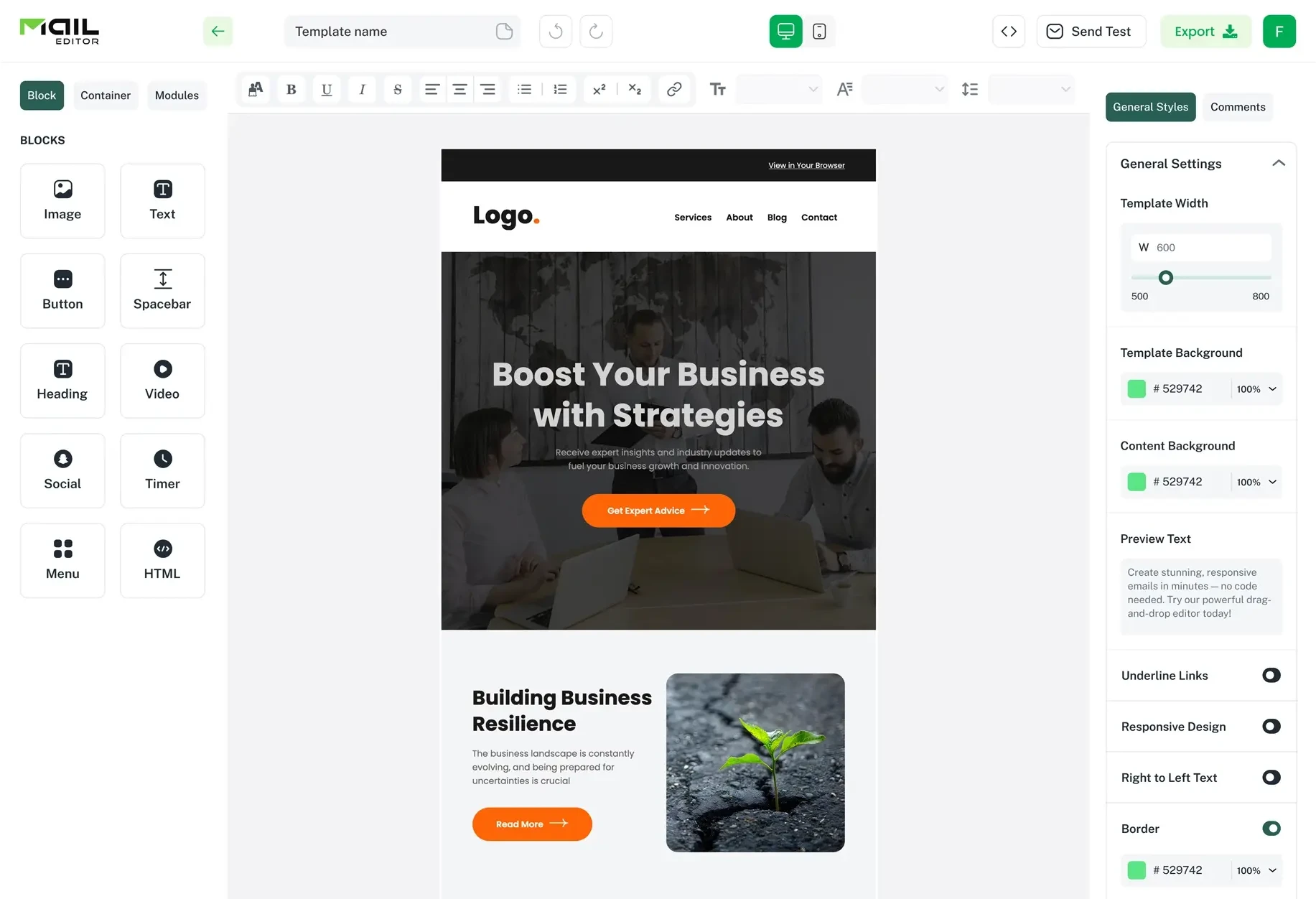
Top Email Template Builders & HTML Email Editors for 2026
Compare the best email template builders and HTML editors to design professional, responsive campaigns without coding.
Email Design9 mins to read
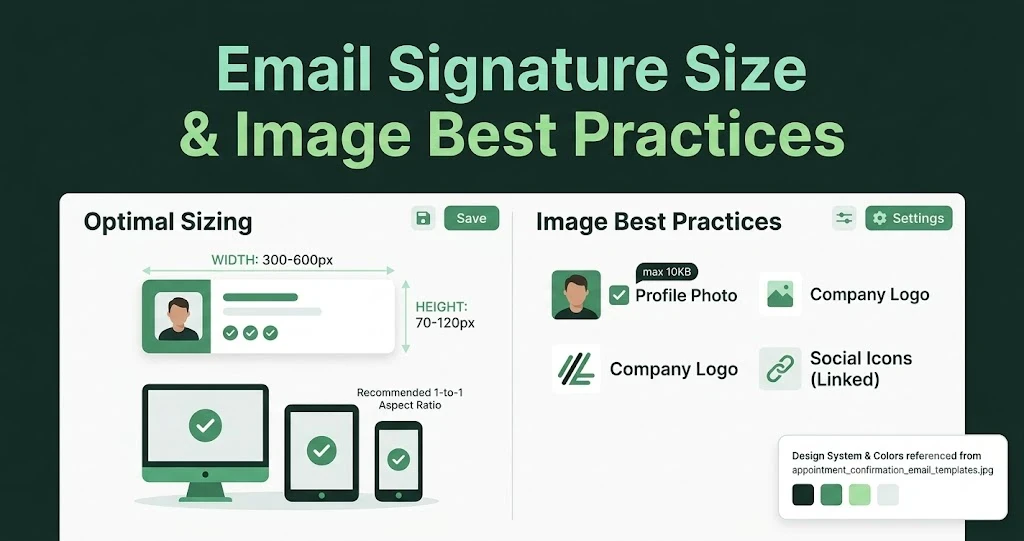
Email Signature Size and Image Best Practices
The ideal email signature is 320–600px wide and 90–200px high. Learn the best image sizes, formats, file limits, and mobile-friendly design tips.

Email Tips7 mins to read
Best Drag and Drop Email Editors in 2026
Discover the best drag and drop email editors in 2026. Compare top tools, features, templates, pricing, and automation to build stunning emails fast.

Marketing7 mins to read
4 Best Unlayer Alternatives to Design Emails
Looking for Unlayer alternatives? Explore the 4 best email design tools to create beautiful, responsive emails faster and easier.

Marketing6 mins to read
5 Beefree Alternatives to Upgrade Email Design Workflows
Looking for a better email design tool? Explore 5 Beefree alternatives that streamline workflows, improve collaboration, and elevate email campaigns.