Validate HTML Email: How to Check Markup Before Sending
Validate HTML email by checking markup, links, images, CSS support, accessibility, and final ESP output before every send. Follow this practical QA workflow.

Md. Yaikub Hossain Razon
To validate HTML email, check the document structure, table nesting, links, images, CSS support, accessibility, and final processed HTML before sending. A valid web document alone is not enough because email clients support HTML and CSS differently, so email-specific compatibility checks should follow basic markup validation.
That difference matters. Can I Email’s 2026 scoreboard compares 308 HTML and CSS features across email clients. Its current data shows Apple Mail on macOS at 288/308 tested features, Gmail desktop webmail at 154/308, and classic Outlook for Windows at 59/307.
This guide is for email developers, designers, marketers, and QA teams. It gives you a practical markup-validation workflow before browser previews, test sends, or broader inbox testing.
What Does HTML Email Validation Mean?
HTML email validation is the process of checking email markup for structural, functional, compatibility, and accessibility issues before the message reaches inbox testing. It helps identify code problems early, while they are still easier to isolate and correct.
Validation can include:
-
Document syntax
-
Opening and closing tags
-
Element nesting
-
Table structure
-
CSS declarations
-
Image attributes
-
URLs
-
Alternative text
-
Template variables
-
Accessibility
-
Email size
-
Client compatibility
This is broader than running the source through one validator.
A standard HTML validator answers:
Is this markup structurally valid according to HTML rules?
Email validation must also ask:
Will the techniques used here make sense in the email clients we support?
Those are related questions, but they are not identical.
Why Validate HTML Email?
Validate HTML email before sending because small markup problems can become larger rendering or functional issues after the template reaches an email client. Early validation makes debugging more focused before you move into device and inbox testing.
For example, an email might contain:
-
An unclosed
<td> -
A misplaced
<tr> -
A broken URL
-
An empty
href -
An image without alt text
-
Unsupported CSS
-
A missing closing table
-
An incorrect merge tag
A browser may visually recover from some malformed HTML.
An email client may recover differently.
That makes clean source code a useful starting point.
Validation also reduces the number of variables you need to investigate later.
If the structure is already clean, inbox testing can focus on actual client-rendering differences.
Validation vs Inbox Testing
Markup validation checks the code itself, while inbox testing checks what the delivered email actually becomes in real clients. You need both because syntactically correct HTML can still contain CSS or layout techniques that specific email clients handle differently.
| Validation | Inbox Testing |
|---|---|
| Checks source markup | Checks rendered output |
| Finds structural errors | Finds client-specific rendering |
| Reviews URLs and images | Reviews delivered behavior |
| Can run before sending | Requires preview or test delivery |
| Checks code quality | Checks real inbox experience |
| Finds unsupported techniques | Confirms actual effect |
| Happens earlier | Happens later |
For example:
<div style="display:grid;">can be valid HTML.
That does not mean CSS Grid has equal support across email clients.
This distinction is especially important because current email-client support varies widely across the hundreds of HTML and CSS features tracked by Can I Email.
Use validation first.
Then use MailEditor’s guide on how to test email templates across devices for the broader inbox-testing stage.
Start With the Document Structure
Start HTML email validation by confirming that the document has a clear and complete structure. Check the doctype, HTML element, head, body, character encoding, and viewport information before inspecting individual content sections.
A practical starting document looks like:
<!doctype html>
<html lang="en">
<head>
  <meta charset="utf-8">
  <meta
    name="viewport"
    content="width=device-width, initial-scale=1"
  >
  <title>Email</title>
</head>

<body>
  <!-- Email content -->
</body>
</html>
Check for:
-
One opening
<html> -
One closing
</html> -
One
<head> -
One
<body> -
Correct character encoding
-
A sensible viewport declaration
-
No accidental content outside the document
Why the Doctype Matters
A doctype tells the renderer which HTML parsing mode the document expects.
For most modern email builds, this is a practical starting point:
<!doctype html>Keep the document declaration simple unless your production requirements call for something else.
Check Character Encoding
Use:
<meta charset="utf-8">This helps preserve characters such as:
-
Curly quotes
-
Currency symbols
-
Accented letters
-
Non-English text
-
Special punctuation
Encoding problems can become easy to miss if your test content contains only basic English characters.
Use a Markup Validator First
A standards validator can catch malformed HTML before you begin email-specific compatibility checks. The W3C Markup Validation Service accepts documents by URL, file upload, or direct markup input and reports structural errors and warnings.
A simple workflow is:
-
Copy the complete HTML document.
-
Open the W3C Markup Validation Service.
-
Use direct input or upload the HTML file.
-
Run validation.
-
Review errors before warnings.
-
Correct structural issues.
-
Validate again.
Start with actual errors.
Warnings deserve review, but not every warning has the same importance in HTML email.
Email-Specific Exception
HTML email sometimes uses compatibility techniques that differ from normal website development.
Examples may include:
-
Presentation tables
-
Outlook conditional comments
-
VML
-
Legacy attributes
-
Inline presentation styles
A generic web validator may not fully understand why an email-specific technique exists.
Therefore:
Do not treat standards validation as the final compatibility verdict.
Use it to find structural problems.
Then use email-specific checks for client support.
Check HTML Nesting
Incorrect element nesting is one of the first markup issues to fix because email layouts often contain many nested tables and cells. A small structural error can affect everything that follows it.
Consider this incorrect example:
<table>
  <tr>
    <td>
      Product details
  </tr>
    </td>
</table>
The closing order is wrong.
A corrected version is:
<table>
  <tr>
    <td>
      Product details
    </td>
  </tr>
</table>
The principle is simple:
The element opened last should normally close first.
Check nested:
-
Tables
-
Rows
-
Cells
-
Links
-
Paragraphs
-
Spans
-
Containers
Use Indentation While Debugging
Readable formatting makes structural problems easier to see.
Instead of:
<table><tr><td><table><tr><td>Content</td></tr></table></td></tr></table>use:
<table>
  <tr>
    <td>

      <table>
        <tr>
          <td>
            Content
          </td>
        </tr>
      </table>

    </td>
  </tr>
</table>
You can minify later if your workflow requires it.
During QA, readable source is easier to inspect.
Validate Email Tables
Table validation deserves special attention because many production HTML emails still use tables for important layout structures. Confirm that rows, cells, nested tables, widths, alignment, and closing tags all follow a predictable hierarchy.
A simple presentation table looks like:
<table
  role="presentation"
  width="100%"
  cellpadding="0"
  cellspacing="0"
  border="0"
>
  <tr>
    <td>
      Email content
    </td>
  </tr>
</table>
Check that:
-
<tr>elements belong inside tables -
<td>elements belong inside rows -
Nested tables close before parent cells
-
Widths are intentional
-
Presentation tables use an appropriate role
-
Data tables preserve meaningful semantics
Common Table Problem
Incorrect:
<table>
  <td>
    Content
  </td>
</table>
Better:
<table>
  <tr>
    <td>
      Content
    </td>
  </tr>
</table>
Email clients may attempt to repair malformed table markup differently.
It is better to provide a predictable structure from the beginning.
For actual data rather than layout, MailEditor has a separate guide on how to build data tables in HTML email.
Check CSS Support
After the HTML structure is clean, check whether the CSS techniques are appropriate for the email clients you need to support. Valid CSS for websites is not automatically reliable CSS for email.
Google’s official Gmail documentation says Gmail supports inline <style> blocks, standard CSS, a subset of selectors, and supported media queries. It can ignore unsupported CSS properties or selectors.
Review:
-
Layout properties
-
Selectors
-
Media queries
-
Background techniques
-
Font declarations
-
Positioning
-
Width handling
-
Display properties
Valid Does Not Mean Supported
This is valid CSS:
.container {
  display: grid;
}
But your validation process should ask more than:
Is this legal CSS?
Also ask:
Do the email clients important to this campaign support it well enough?
Can I Email’s current scoreboard illustrates why this matters. Support across its 308 tracked features differs significantly by email client.
Keep Critical Styling Predictable
For important email elements, prefer techniques with established email-client behavior.
Critical areas include:
-
Main layout
-
Primary CTA
-
Product information
-
Transaction details
-
Important headings
-
Footer
-
Unsubscribe information
Visual enhancements can use graceful fallbacks.
Essential information should remain usable.
Validate Links
Every production URL should be checked for syntax, destination, protocol, and template placeholders before sending. A structurally perfect email still fails functionally if its links lead to the wrong destination.
Check:
-
CTA links
-
Text links
-
Product links
-
Images with links
-
Logo links
-
Navigation
-
Social icons
-
Support links
-
Preference links
-
Unsubscribe links
Prefer Absolute URLs
Production email links should normally use absolute URLs.
Use:
<a href="https://example.com/products">
  View Products
</a>
rather than:
<a href="/products">
  View Products
</a>
The recipient is not browsing inside your website.
The URL should identify the complete destination.
Check Empty Links
Search for:
href=""and:
href="#"unless they are intentional during development.
Also search for placeholders such as:
example.com
YOUR_URL
INSERT_LINK
#
before approving the template.
Check Tracking Later Too
Your ESP may rewrite URLs after import.
That means you should validate links:
Before ESP processing
and again:
After the final test send
The second stage belongs to campaign QA rather than source validation.
Validate Images
Image validation should confirm the source URL, dimensions, alternative text, and layout behavior for every important visual. Broken or incomplete image markup can reduce both usability and accessibility.
A practical image structure is:
<img
  src="https://example.com/images/product.jpg"
  width="600"
  alt="Black leather travel bag"
  style="
    display:block;
    width:100%;
    max-width:600px;
    height:auto;
    border:0;
  "
>
Check:
-
src -
alt -
Width
-
Height behavior
-
Hosted URL
-
HTTPS
-
Display styling
-
Maximum width
Missing Alt Text
Less useful:
<img src="product.jpg">Better:
<img
  src="https://example.com/product.jpg"
  alt="Black leather travel bag"
>
For decorative images, an empty alt attribute may be appropriate:
alt=""Do not automatically describe every decorative element.
The alt text should serve the purpose of the image.
Check Accessibility
Accessibility validation reviews whether the email remains understandable with assistive technology, images disabled, zoom, or different display settings. This step goes beyond syntax and checks the meaning of the markup.
Review:
-
Document language
-
Heading hierarchy
-
Alternative text
-
Link text
-
Color contrast
-
Reading order
-
Table roles
-
Live text
-
Button labels
WCAG 2.2 uses a minimum contrast ratio of 4.5:1 for normal text and 3:1 for qualifying large text under Level AA.
Presentation Tables
Layout tables should not be mistaken for meaningful data tables by assistive technology.
A common approach is:
<table
  role="presentation"
  cellpadding="0"
  cellspacing="0"
  border="0"
>
Do not apply presentation semantics to a real data table.
Check Link Meaning
Less descriptive:
<a href="https://example.com">
  Click here
</a>
More descriptive:
<a href="https://example.com/products">
  Explore the new collection
</a>
Link text should make sense in context.
Check Template Variables
Template variables and merge tags should be validated separately because a normal HTML validator may not understand your sending platform’s syntax. Confirm that each variable is complete, supported, and safe when recipient data is missing.
Examples might include:
{{first_name}}{{order_number}}{{unsubscribe_url}}The exact syntax depends on your ESP.
Check:
-
Opening delimiters
-
Closing delimiters
-
Variable name
-
Conditional blocks
-
Loop syntax
-
Fallback values
-
Unsubscribe variables
Test Missing Data
A template may look fine with complete sample data.
Also test:
-
No first name
-
Missing company
-
Missing product image
-
Empty optional field
-
Empty loop
-
Conditional content disabled
Dynamic HTML should remain valid after the variable system renders the actual message.
Validate Conditional Comments
Outlook conditional comments should be reviewed as part of email-specific validation rather than treated as ordinary page markup. Confirm that each opening condition has the intended closing comment and that fallback HTML remains intact.
A simplified example looks like:
<!--[if mso]>
<table role="presentation" width="600">
  <tr>
    <td>
<![endif]-->

Email content

<!--[if mso]>
    </td>
  </tr>
</table>
<![endif]-->
Check:
-
Opening condition
-
Closing condition
-
Nested tables
-
MSO-specific styles
-
Surrounding fallback markup
When conditional code becomes deeply nested, format it clearly during debugging.
Inspect Unsupported Web Patterns
A validation pass should identify browser-first techniques that deserve an email-compatibility review. The goal is not to ban modern HTML automatically, but to recognize where the campaign depends on features that clients may handle differently.
Review uses of:
display:flex;display:grid;position:absolute;float:left;and complex:
-
JavaScript
-
Forms
-
Embedded interactive media
-
External stylesheets
-
Advanced selectors
If the feature is decorative, use a sensible fallback.
If it controls essential layout, confirm client support before relying on it.
MailEditor’s guide on why emails look different in every inbox explains the broader rendering differences without duplicating this markup-validation workflow.
Inspect Email Size
Code size belongs in validation because duplicated CSS, unnecessary markup, and repeated blocks can make a template harder to maintain and can affect downstream email behavior. Measure the final HTML after major processing, not only the original source file.
Look for:
-
Duplicate CSS
-
Empty tags
-
Repeated inline declarations
-
Unused comments
-
Duplicate modules
-
Large embedded data
-
Unnecessary wrapper elements
Do not optimize blindly.
Readable, stable markup matters too.
A useful process is:
Develop readable → Validate → Test → Optimize → Validate again
Avoid minifying so early that debugging becomes difficult.
Standard Validator vs Email Validator
A standard HTML checker and an email-specific validator answer different questions.
| Check | Standard HTML Validator | Email-Specific Validation |
|---|---|---|
| Unclosed tags | Yes | Yes |
| Invalid nesting | Yes | Yes |
| Document syntax | Yes | Yes |
| Broken URLs | Limited | Often |
| Missing alt text | May warn | Common check |
| Gmail CSS support | No | Yes |
| Outlook compatibility | No | Yes |
| Email-client feature support | No | Yes |
| Merge tags | Usually no | Tool dependent |
| Gmail clipping risk | No | Some tools |
| Accessibility | Partial | Often extended |
Use both layers when practical.
The W3C validator is useful for markup quality.
An email-specific compatibility check is useful for inbox constraints.
Neither replaces the final delivered-email test.
Use the Four-Layer Framework
For this guide, use the MailEditor Four-Layer HTML Email Validation Framework.
Layer 1: Markup
Check:
-
Doctype
-
HTML structure
-
Closing tags
-
Nesting
-
Tables
-
Character encoding
Layer 2: Compatibility
Check:
-
Email-safe CSS
-
Media queries
-
Outlook code
-
Image behavior
-
Fallbacks
Layer 3: Content Integrity
Check:
-
URLs
-
Alt text
-
Merge tags
-
Dynamic fields
-
Footer variables
-
Accessibility
Layer 4: Production Output
Check:
-
ESP-processed HTML
-
Rewritten URLs
-
Tracking
-
Personalization
-
Injected footer content
-
Final email size
This sequence separates code problems from delivery-stage changes.
That makes debugging easier.
Example Validation Pass
Imagine this simplified draft:
<table>
  <tr>
    <td>
      <img src="/offer.jpg">

      <a href="#">
        Shop Now
      </a>

  </tr>
</table>
A validation pass should notice several things.
Issue 1: Cell Structure
The <td> does not close before the row.
Issue 2: Relative Image URL
src="/offer.jpg"should become a complete hosted URL.
Issue 3: Missing Alt Text
The image needs an appropriate alt attribute.
Issue 4: Placeholder CTA
href="#"needs the real destination.
Corrected:
<table
  role="presentation"
  width="100%"
  cellpadding="0"
  cellspacing="0"
  border="0"
>
  <tr>
    <td>

      <img
        src="https://example.com/images/offer.jpg"
        width="600"
        alt="Featured seasonal collection"
        style="
          display:block;
          width:100%;
          max-width:600px;
          height:auto;
          border:0;
        "
      >

      <a
        href="https://example.com/collection"
        style="
          display:inline-block;
          padding:14px 24px;
          background:#111111;
          color:#ffffff;
          text-decoration:none;
        "
      >
        Shop the Collection
      </a>

    </td>
  </tr>
</table>
This still needs email-client testing.
However, the source is now cleaner and more production-ready.
Validate the Final ESP HTML
The final HTML should be checked after it passes through your real sending platform because ESPs can modify links, styles, variables, tracking, and footer content. The HTML you authored may not be identical to the delivered source.
An ESP may:
-
Rewrite URLs
-
Add tracking parameters
-
Insert unsubscribe code
-
Process merge tags
-
Add identifiers
-
Modify images
-
Change CSS
-
Add wrappers
That creates two validation checkpoints.
Checkpoint 1: Before Import
Validate your authored HTML.
Checkpoint 2: After Processing
Inspect the final test email or processed HTML.
This second check is where you catch issues introduced after your source leaves the editor.
Do not duplicate the entire inbox-testing workflow here.
For that stage, use MailEditor’s email pre-send checklist and device-testing guide.
What Errors Should You Fix First?
Fix structural errors and broken functionality before cosmetic warnings. A malformed table or broken CTA carries more production risk than a minor formatting preference.
Use this priority order:
| Priority | Issue | Example |
|---|---|---|
| Critical | Broken HTML structure | Unclosed table |
| Critical | Broken CTA | Empty href |
| Critical | Invalid dynamic content | Broken merge tag |
| High | Client-risky layout | Unsupported essential CSS |
| High | Missing essential alt | Meaningful image inaccessible |
| Medium | Accessibility issue | Weak link wording |
| Medium | Excessive markup | Duplicate wrappers |
| Low | Formatting preference | Source indentation |
This keeps QA focused on impact.
Do not spend twenty minutes polishing indentation while a primary CTA still points to #.
HTML Email Validation Checklist
Use this checklist before inbox testing.
Document
-
Correct doctype
-
UTF-8 charset included
-
Viewport included
-
<html>, <head>, and <body> complete
-
Language declared where appropriate
Structure
-
Opening and closing tags match
-
Elements are nested correctly
-
Tables contain valid rows and cells
-
Nested tables close correctly
-
Presentation tables are identified appropriately
CSS
-
Critical styling is email appropriate
-
Unsupported CSS has been reviewed
-
Media queries have sensible fallbacks
-
Essential content does not depend on a fragile effect
-
Responsive classes exist in the HTML
Links
-
Main CTA has a real URL
-
Text links work
-
Logo link works
-
Image links work
-
Social links work
-
No placeholder # remains
-
Production URLs are absolute
Images
-
Image URLs are hosted
-
HTTPS is used
-
Meaningful images have alt text
-
Decorative images are handled appropriately
-
Dimensions are intentional
-
Images scale correctly
Accessibility
-
Heading order is logical
-
Link labels are descriptive
-
Text contrast is reviewed
-
Reading order makes sense
-
Essential information remains live text
Dynamic Content
-
Merge tags are valid
-
Fallback values work
-
Conditional sections render correctly
-
Unsubscribe variable is correct
-
Empty data states were tested
Production
-
W3C/markup errors reviewed
-
Email-client CSS support reviewed
-
Final HTML size reviewed
-
ESP-processed HTML checked
-
Final links checked after processing
-
Delivered test version ready for inbox QA
How MailEditor Fits the Workflow
MailEditor can be used to build or edit the email visually before the final markup-validation and inbox-testing stages. It helps teams work with HTML email structure while keeping content, modules, links, images, responsive layouts, and custom HTML manageable.
A practical workflow is:
-
Build or import your email in MailEditor.
-
Edit content and layout visually.
-
Review custom HTML sections.
-
Export the finished HTML.
-
Run structural validation.
-
Review CSS compatibility.
-
Check links and images.
-
Import into your ESP.
-
Send the final test.
-
Inspect the delivered version.
-
Run broader inbox testing.
You can use the MailEditor HTML email builder for the editing stage.
For the final multi-client QA stage, use the guide on how to test email templates across devices.
This keeps the roles clear:
MailEditor → Build and edit
Markup validation → Check the code
ESP test send → Check production processing
Inbox testing → Check real rendering
Final Answer
To validate HTML email, check the code in layers before sending it to real inboxes.
Use this order:
-
Confirm the doctype and document structure.
-
Check opening and closing tags.
-
Fix invalid nesting.
-
Review table structure.
-
Run a standards validator.
-
Check CSS against email-client support.
-
Verify every URL.
-
Review image markup and alt text.
-
Check accessibility.
-
Validate merge tags and dynamic blocks.
-
Review conditional Outlook code.
-
Check final HTML size.
-
Import the email into your ESP.
-
Inspect the processed markup.
-
Send a real test.
-
Move to multi-client inbox testing.
The key distinction is simple:
Valid HTML is the foundation. Email-client compatibility is the next layer. Delivered inbox testing is the final proof.
This workflow keeps code problems separate from rendering problems and makes HTML email QA easier to troubleshoot.
Build or edit your campaign with the MailEditor HTML email builder, validate the finished source, then test the final delivered version before launch.
Frequently Asked Questions
Question: How do I validate HTML email before sending?
Answer: Validate HTML email by checking document structure, tag nesting, tables, URLs, image markup, CSS support, accessibility, merge tags, and final ESP-processed HTML. Start with a standards validator, then review email-client compatibility before sending the completed template through your real email platform.
Question: Can I use the W3C validator for HTML email?
Answer: Yes. The W3C validator is useful for identifying malformed HTML, structural errors, and incorrect nesting. However, standards validation does not tell you whether every CSS or layout technique works across Gmail, Outlook, Apple Mail, and other email clients, so add email-specific compatibility testing afterward.
Question: Does valid HTML guarantee email compatibility?
Answer: No. Valid HTML confirms that the markup follows structural rules, but email clients support different HTML and CSS features. A template can pass general validation while still using a layout property or styling technique that behaves differently in certain inbox environments.
Question: What should I check in HTML email code?
Answer: Check the doctype, character encoding, document structure, closing tags, table nesting, CSS, media queries, image URLs, alt text, CTA links, merge tags, conditional comments, accessibility, and final processed markup. Prioritize structural and functional problems before minor formatting warnings.
Question: Should HTML email use absolute URLs?
Answer: Yes. Production email links and hosted images should normally use complete absolute URLs because recipients open the message outside your website’s page context. Use destinations such as https://example.com/page rather than relative paths such as /page for final email content.
Question: Should I validate HTML before or after ESP import?
Answer: Ideally, do both. Validate your authored HTML before import to catch structural and compatibility issues. Then inspect the final processed version after your ESP adds tracking, personalization, unsubscribe content, or other changes because those transformations can alter the delivered HTML.
Question: Is HTML email validation the same as email testing?
Answer: No. Validation checks the quality and compatibility of the source markup. Email testing checks the final delivered message across inboxes, devices, screen sizes, and rendering environments. Validation should happen first so inbox testing can focus on actual client-specific behavior.
Question: Can MailEditor help with HTML email validation?
Answer: MailEditor helps you create, import, visually edit, preview, and export HTML email before validation and final inbox testing. After the design is complete, validate the markup, review email-client compatibility, send the final version through your ESP, and test the delivered campaign.
Popular Blogs

Email Design2 mins to read
Top Email Template Builders & HTML Email Editors for 2026
Compare the best email template builders and HTML editors to design professional, responsive campaigns without coding.

Email Tips7 mins to read
Best Drag and Drop Email Editors in 2026
Discover the best drag and drop email editors in 2026. Compare top tools, features, templates, pricing, and automation to build stunning emails fast.
Email Design9 mins to read
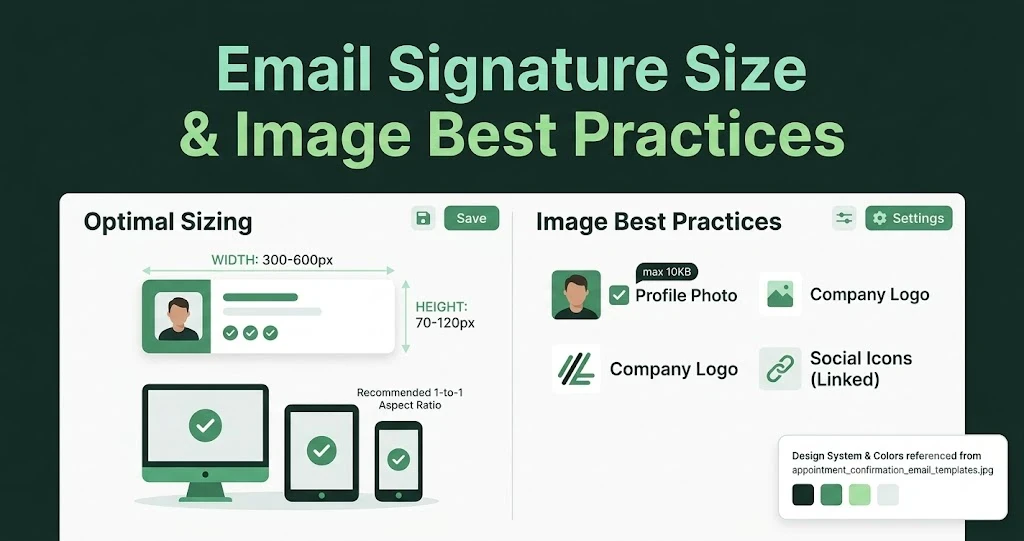
Email Signature Size and Image Best Practices
The ideal email signature is 320–600px wide and 90–200px high. Learn the best image sizes, formats, file limits, and mobile-friendly design tips.

Marketing7 mins to read
4 Best Unlayer Alternatives to Design Emails
Looking for Unlayer alternatives? Explore the 4 best email design tools to create beautiful, responsive emails faster and easier.

Marketing6 mins to read
5 Beefree Alternatives to Upgrade Email Design Workflows
Looking for a better email design tool? Explore 5 Beefree alternatives that streamline workflows, improve collaboration, and elevate email campaigns.