How to Embed an Email Editor Into Your SaaS: 6 Steps
Learn how to embed an email editor into your SaaS in 6 steps, from plugin setup and secure user identity to iframe integration, saved templates and testing.

Md. Yaikub Hossain Razon
Embedding an email editor into your SaaS means giving customers a visual workspace to create and edit email templates inside your product. Instead of sending users to a separate design tool, your application can open an embedded editor, connect it to the signed-in user's account, and retrieve the resulting email content for your own workflows.
The integration is more than an iframe tag. You need a reliable identity model, a usable editing screen, a way to reopen saved work, and a secure handoff to your campaign or sending system. This guide walks through those decisions using MailEditor's hosted iframe integration as a practical example. The same planning principles apply to other embedded builders, although their APIs and configuration differ.
What Does It Mean to Embed an Email Editor Into a SaaS App?
An embedded email editor is a design interface displayed within your application. It may be loaded through a hosted iframe or initialized using a vendor's JavaScript library. Customers can create layouts, adjust text and images, and save designs without manually transferring files between applications.
Imagine a CRM where a customer opens Campaigns, selects a newsletter template, edits it, and returns to the campaign screen. The CRM manages the account, audience, approval and delivery settings. The editor manages the visual design. This division keeps the editing experience part of the customer's normal workflow without requiring your team to implement every editing feature.
For an overview of embedding products and their capabilities, see our email builder plugin for SaaS guide. If your team is still deciding whether to own the editing engine, the build vs buy email editor guide covers the cost and ownership decision separately.
Plan the Integration Architecture Before You Write Code
Start by defining who owns the data and which system is allowed to act on it. In a hosted iframe model, your page displays the editor but does not automatically control its internal JavaScript. Your server authenticates the person and coordinates access to saved content. The provider hosts the editor, runs its session and handles the supported design operations.
Before evaluating a provider, decide whether the editor is a supporting feature or a core part of your product. A hosted editor can be appropriate for a product that needs standard template design and HTML output. A deeper SDK integration may be necessary when your application must control editor commands, custom extensions or live callbacks. The email builder SDK guide explains that alternative in more detail.
How to Embed an Email Editor Into Your SaaS: 6 Steps
The following walkthrough uses the documented MailEditor Plugin model. It assumes your SaaS already has a sign-in system and a backend. Other providers may require different initialization code or authentication methods.
Step 1: Create an editor configuration
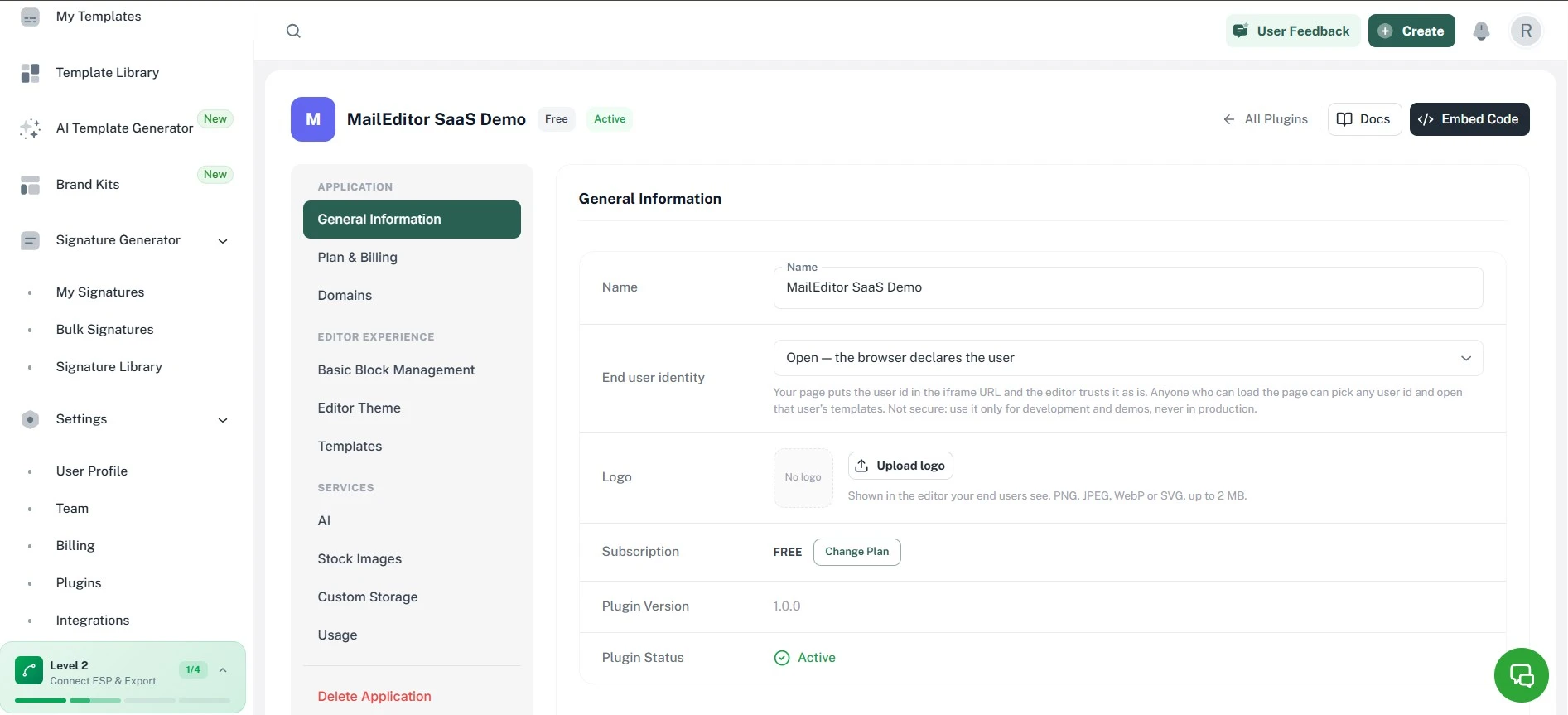
Open the MailEditor dashboard, navigate to Settings > Plugins, and create a plugin for your application. Give it a recognizable name. Review the editor settings and plan before exposing it to customers.
Choose the templates, blocks and brand options appropriate for your workflow, where supported by your plan. For example, a simple appointment reminder editor may need fewer building blocks than a full newsletter creation workspace. Do not assume that a theme setting gives your application unlimited control over the underlying editor interface.
Step 2: Allow the correct application origins
In the plugin's Domains settings, add the origin where your application will host the iframe. An origin is the scheme, hostname and port of a website. Your development, staging and production environments can have different origins, so configure each environment deliberately.
For instance, https://app.example.com is not the same origin as https://staging.example.com. A local development port can also differ from another port. Use the domain configuration format described in the plugin quickstart and complete any applicable verification before launching.
Next, locate the Plugin ID and Secret Key. The ID is used to identify the integration. Keep the Secret Key in your server environment or secret manager, not in a frontend bundle, browser storage or public repository.
Step 3: Sign the user's identity on your server
Your application should determine the current customer from its own authenticated session. For a multi-tenant product, map that customer to a stable identifier that distinguishes organizations and users when required. Reuse the same identifier on future visits so the user can find their saved work. Never share one generic identifier across all customers.
MailEditor's signed identity mode uses an HMAC-SHA256 signature. The signature is based on the external user identifier, its UTF-8 byte length and a short-lived expiration timestamp. The following example generates an iframe URL on the server. It uses a five-minute validity window, which is within the documented maximum of 15 minutes.
// Node.js server only. Call after authentication and authorization.
import { createHmac } from 'node:crypto';

export function buildEditorUrl(externalUserId) {
  const id = process.env.MAILEDITOR_PLUGIN_ID;
  const secret = process.env.MAILEDITOR_PLUGIN_SECRET;
  if (!id || !secret) throw new Error('Missing plugin credentials');
  if (typeof externalUserId !== 'string' || !externalUserId) {
    throw new Error('Missing authorized user identity');
  }
  const expires = Math.floor(Date.now() / 1000) + 300;
  const bytes = Buffer.byteLength(externalUserId, 'utf8');
  const payload = ['v1', `${bytes}:${externalUserId}`, expires].join('|');
  const signature = createHmac('sha256', secret)
    .update(payload).digest('hex');
  const url = new URL(
    `/plugin-editor/v1/${encodeURIComponent(id)}`,
    'https://maileditor.net'
  );
  url.searchParams.set('external_user_id', externalUserId);
  url.searchParams.set('identity_expires', String(expires));
  url.searchParams.set('identity_signature', signature);
  return url.toString();
}
This is an integration helper, not a complete authentication route. In your route, derive the external ID from trusted session and account records, enforce the editor access policy, then call the helper. Return the URL only to the authorized user and prevent shared caching of personalized responses. Do not let an arbitrary request parameter choose the identity that gets signed. Use the official embedding documentation for the current contract.
Step 4: Render the editor inside your application
Provide an editor route or a dedicated workspace where customers have enough room to work. Your server can render the signed URL directly into a page, or your frontend can request it from a protected endpoint. MailEditor's hosted editor is loaded in an ordinary iframe, without a client-side SDK initialization call.
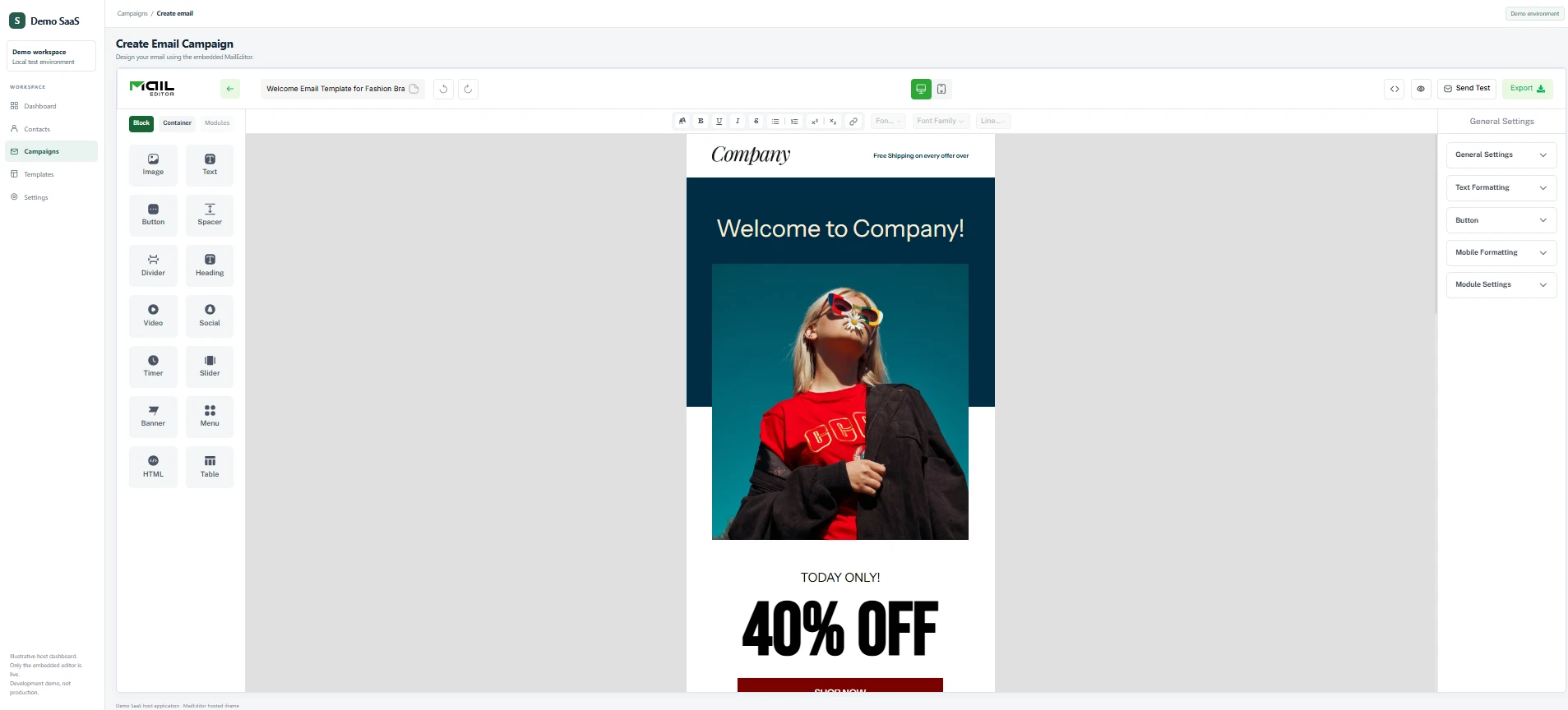
Here is an illustrative React component. The /api/editor-url route is your own application endpoint, not a MailEditor endpoint. It should return { url } only after running the authenticated, authorized server-side logic described in Step 3.
import { useEffect, useState } from 'react';

export default function EmailEditor() {
  const [url, setUrl] = useState('');
  const [error, setError] = useState(false);

  useEffect(() => {
    const controller = new AbortController();
    fetch('/api/editor-url', {
      credentials: 'same-origin',
      cache: 'no-store',
      signal: controller.signal
    })
      .then(r => {
        if (!r.ok) throw new Error('Editor unavailable');
        return r.json();
      })
      .then(data => setUrl(data.url))
      .catch(e => {
        if (e.name !== 'AbortError') setError(true);
      });
    return () => controller.abort();
  }, []);

  if (error) return <p>Unable to open the editor.</p>;
  if (!url) return <p>Loading editor...</p>;
  return (
    <iframe
      src={url}
      title="Email template editor"
      allow="clipboard-write; fullscreen"
      style={{ width: '100%', height: '85vh', border: 0 }}
    />
  );
}
In production, remount or reset the component when the authorized account or user changes, and request a fresh signed URL. Add a retry action for a failed load and verify that your host's content security policy permits the trusted editor origin. An iframe load event does not prove that editor authentication succeeded. Inspect the editor's actual state and network errors during testing.
React is only an example. MailEditor publishes platform-specific instructions for React, Vue, Angular and vanilla JavaScript. Choose the approach appropriate to your application rather than adding a frontend framework solely for the editor.
Step 5: Connect saved templates to your product workflow
Once a customer creates and saves a design, your backend needs a way to identify that design. With MailEditor, the iframe manages its own saves and your server accesses saved work using the Backend API. Do not expect the editor to emit a host-facing save event or callback.
A practical approach is to refresh the customer's template list when they return to the campaign screen, verify ownership of the selected template, and retrieve its rendered HTML from your backend when needed. Your application can record the provider's template ID against its own campaign or automation record.
To reopen a saved design, include the authorized template ID as the template_id URL parameter when constructing a fresh signed editor URL. The template must belong to the correct external user. Your application should verify that the current user may access it before passing it to the editor.
See the Backend API integration guide for the supported template retrieval operations. Our separate email editor API guide goes deeper into API calls, synchronization and template security.
Step 6: Test the complete journey before production
Do not stop after the iframe renders. Create a design, save it, leave the editor, reopen the correct template and retrieve its output through your backend. Then pass an approved HTML copy into a test campaign in your own sending system.
Test with at least two separate customer accounts. A user should not be able to access another account's saved templates by manipulating the request, changing a template ID or switching accounts in an open tab. Verify that the editor opens on the intended domains, and check plan allowances, image storage behavior and support ownership before making the feature available to all customers.
What Should Your SaaS Control After Embedding?
Your product should remain the authority on who can use the editor and what happens after a design is saved. A visually attractive template is not automatically a ready-to-send campaign. Your own system may need approval rules, personalization, recipient consent and message scheduling.
For example, a booking platform may use the editor to design reservation reminders. The booking system still supplies the reservation data, recipient rules and delivery time. If a template changes after a campaign is approved, a product-level rule should determine whether to use the approved snapshot or require a new approval.
Common Integration Problems and How to Fix Them
When the editor cannot initialize, first inspect the browser's network panel and the session response. The following are examples of errors documented for MailEditor's integration. Avoid solving authentication failures by disabling security checks.
For the complete list of provider responses, use the MailEditor error reference. Make loading and failure states understandable to users, and keep diagnostic details on your server rather than displaying private identifiers or credentials.
Production Readiness Checklist
Before enabling the editor for customers, run these checks in a staging environment that mirrors the intended production configuration.
- Authentication: Only eligible signed-in users can request an editor URL.
- Tenant isolation: Test cross-account access using separate users and template IDs.
- Credentials: No Plugin Secret is exposed in the browser, client logs or URLs.
- Session behavior: A fresh signed URL is created when the workspace opens or the identity changes.
- Layout: The iframe has adequate height and fits the host application's desktop and supported device layouts.
- Save and reopen: A saved template returns under the same authorized identity.
- HTML handoff: The approved export reaches the correct campaign and passes inbox testing.
- Operations: Rate limits, retries, support, storage and offboarding are documented.
Use representative email designs, including images, buttons and responsive layouts. Browser previews alone do not guarantee identical rendering across inboxes. Can I Email can help you investigate differences in email HTML and CSS support. Validate the actual email output in the clients your customers use.
When Is MailEditor a Good Fit for an Embedded Email Editor?
MailEditor Plugin is worth evaluating if your product needs a hosted visual editor with server-side access to saved templates. The iframe approach avoids the need to initialize a vendor JavaScript editing library in your frontend. Your team can focus on the surrounding user experience, permissions and campaign workflows.
It is especially relevant for CRM, booking, ecommerce and customer engagement products that need email design as one feature within a larger application. If you need deep editor-level commands, live callbacks or a custom JavaScript extension system, check those requirements before selecting the integration. MailEditor's documented hosted model does not provide host-facing editor events or a client editing SDK. It is not a substitute for a bulk sending platform.
If you have not yet selected a provider, our comparison of embedded email builders for SaaS can help you shortlist options. Then validate one complete workflow against the same acceptance criteria for every provider.
Final Answer: How Should You Embed an Email Editor Into Your SaaS?
Start with your product's authentication, user permissions and template workflow. Choose an integration model that supports those requirements, configure the provider, generate user-specific access on your backend, and render the editor in a dedicated application workspace. Connect saved designs to your own workflow before enabling sending.
With MailEditor, the practical route is a hosted iframe, a server-signed user identity and the Backend API for saved work. Your application retains control of campaign approval, recipient selection, delivery and tenant authorization. Test the entire journey from opening the editor to sending an approved message before launching to customers.
Frequently Asked Questions
Popular Blogs
Email Design2 mins to read
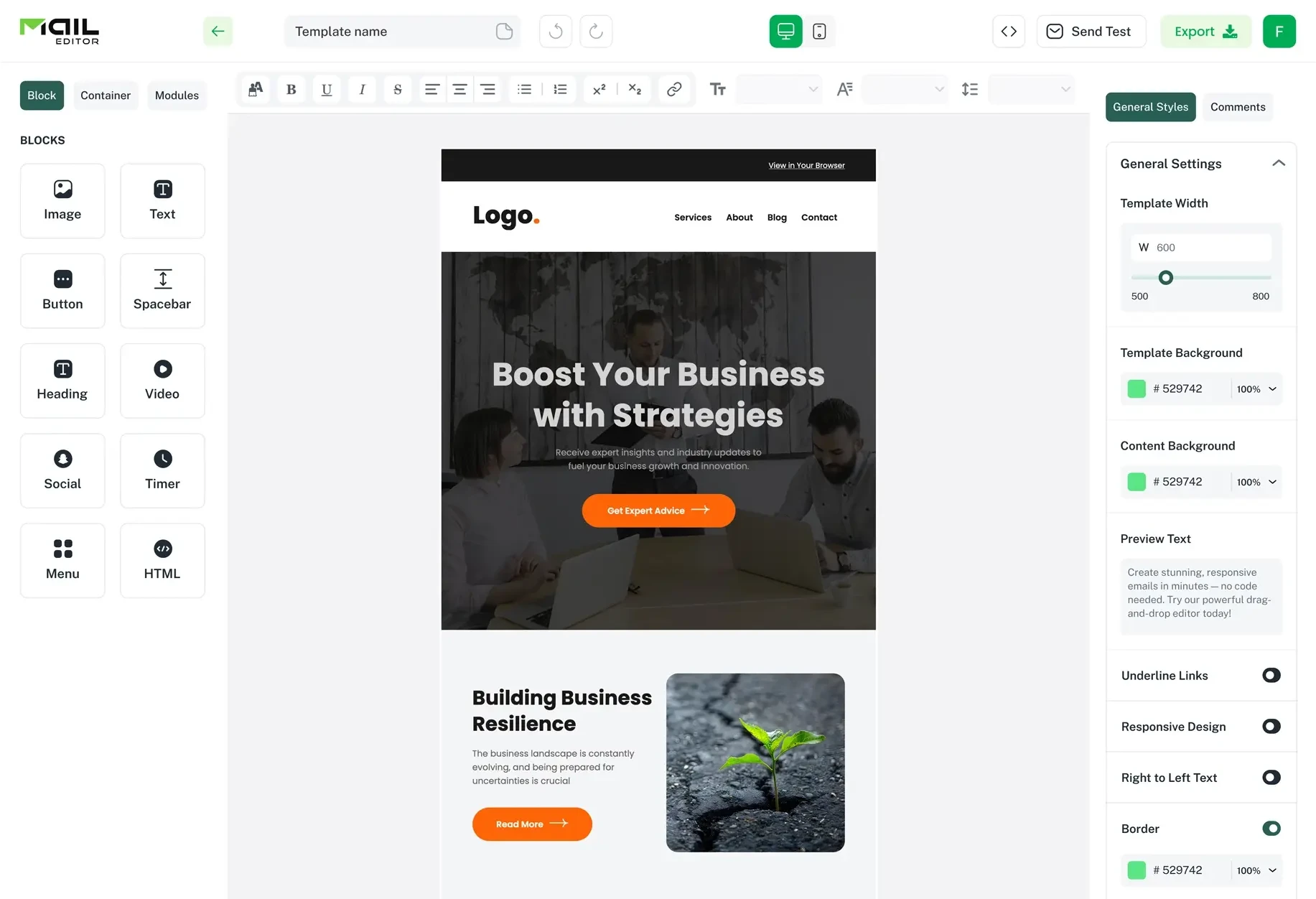
Top Email Template Builders & HTML Email Editors for 2026
Compare the best email template builders and HTML editors to design professional, responsive campaigns without coding.
Email Design9 mins to read
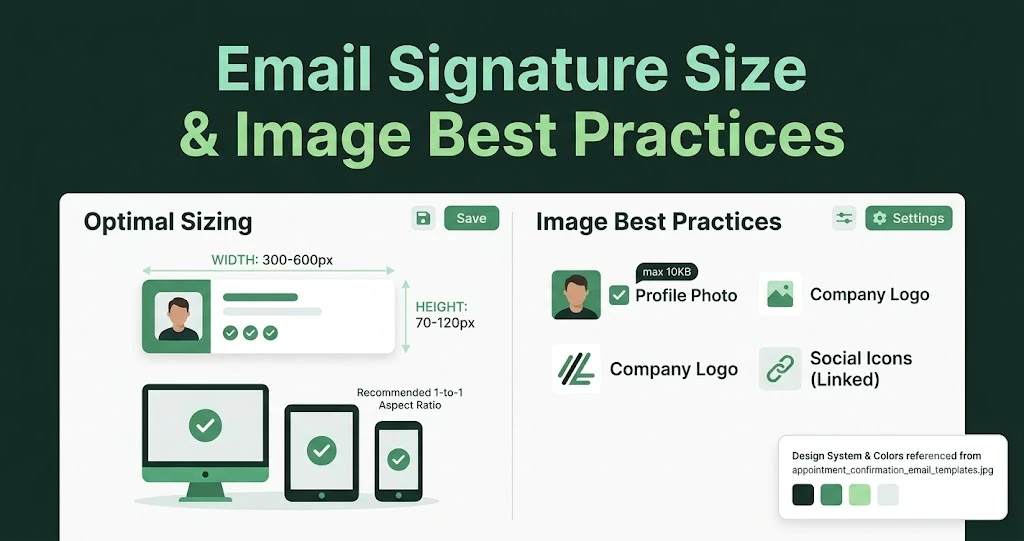
Email Signature Size and Image Best Practices
The ideal email signature is 320–600px wide and 90–200px high. Learn the best image sizes, formats, file limits, and mobile-friendly design tips.

Email Tips7 mins to read
Best Drag and Drop Email Editors in 2026
Discover the best drag and drop email editors in 2026. Compare top tools, features, templates, pricing, and automation to build stunning emails fast.
Marketing7 mins to read
4 Best Unlayer Alternatives to Design Emails
Looking for Unlayer alternatives? Explore the 4 best email design tools to create beautiful, responsive emails faster and easier.
Marketing6 mins to read
5 Beefree Alternatives to Upgrade Email Design Workflows
Looking for a better email design tool? Explore 5 Beefree alternatives that streamline workflows, improve collaboration, and elevate email campaigns.