How to Update an Email Signature Across a Whole Team
Update team email signatures by editing one master template, refreshing employee data, regenerating signatures, testing, and deploying company-wide.

Md. Yaikub Hossain Razon
Updating one employee’s email signature takes a few minutes. Updating 50, 200, or 1,000 signatures after a rebrand, office move, promotion, new logo, or campaign launch is a different problem.
The safest approach is to maintain one master signature design and separate shared company information from employee-specific data. When something changes, update the master template or employee data once, generate the new signatures in bulk, verify them, and then deploy the updated versions.
With MailEditor’s email signature generator, teams can create a shared signature design and generate multiple personalized signatures instead of manually editing individual HTML files. MailEditor’s documented bulk workflow uses a base template plus employee data from an Excel file to generate individual signature files for the team.
This guide explains how to handle the update process efficiently without breaking employee signatures or leaving half the company on an old design.
When Should You Update Company Email Signatures?
A team-wide signature update is usually necessary when shared company information changes.
Common reasons include:
- A company rebrand
- A new logo
- New brand colors
- A website or domain change
- An office move
- A new company phone number
- Updated social profiles
- A new legal disclaimer
- A new booking or contact link
- A temporary event or campaign banner
- A merger or company-name change
You may also need to update only selected employees when:
- Someone receives a promotion
- A job title changes
- An employee changes departments
- A phone number changes
- Someone moves offices
- A salesperson gets a new booking link
- An employee joins or leaves the company
The important distinction is between company-wide fields and employee-specific fields.
Separate Shared and Employee-Specific Information
Before updating anything, define which signature elements should be identical for everyone.
Shared company fields
These usually include:
- Company logo
- Brand colors
- Font choices
- Website
- Company address
- Social links
- Legal text
- Promotional banner
- General layout
Employee-specific fields
These usually include:
- Full name
- Job title
- Department
- Direct phone number
- Email address
- Employee headshot
- Personal LinkedIn profile
- Booking link
- Office location
This separation makes future updates much easier.
If your company changes its logo, you should update the shared template—not manually replace the logo inside 150 different signatures.
If one employee becomes Sales Director, you should change that employee’s record without redesigning everyone else’s signature.
Why Updating Employee Signatures Manually Does Not Scale
A common process looks like this:
- Open an employee’s old signature.
- Replace the logo.
- Update the website.
- Change the banner.
- Save it.
- Repeat for the next employee.
This can work for three people.
For a larger team, it creates unnecessary opportunities for mistakes:
- Employees receive different logo versions.
- Some signatures retain old contact information.
- Colors become inconsistent.
- Someone accidentally deletes part of the HTML.
- Different employees resize the logo differently.
- Old promotional banners stay active.
- Broken links remain unnoticed.
- New employees copy outdated signatures from coworkers.
MailEditor’s existing guide to creating email signatures in bulk for employees documents this problem and describes a workflow where a single template is combined with spreadsheet data to create personalized signatures without manually editing each employee’s HTML.
The same principle makes future updates much simpler.
How to Update Email Signatures Across Your Whole Team
The following process works whether you have ten employees or hundreds.
Step 1: Audit the Current Signature
Before replacing anything, identify what is currently being used.
Check:
- Logo
- Employee name
- Job title
- Department
- Phone number
- Website
- Address
- Social links
- CTA
- Promotional banner
- Legal disclaimer
- Fonts
- Colors
Also check whether different departments are already using different designs.
You may discover that the company does not have one signature to update—it has several unofficial variations.
In that case, standardize the design before distributing the next version.
Step 2: Create One Master Signature Template
Your master template should define the visual rules for every employee.
For example:
Employee Name
Job Title | Company Name
Phone number
Website
LinkedIn
Company logo
Optional CTA or campaign banner
Keep the design controlled and relatively simple.
A professional signature normally does not need:
- Several promotional banners
- Five or six social networks
- Multiple logos
- Several competing CTAs
- Long quotations
- Large decorative images
You can begin with one of MailEditor’s professional email signature templates or create a custom design in its signature generator. MailEditor currently provides customizable signature templates and a generator designed for both individual and team use.
Step 3: Decide Exactly What Is Changing
Do not rebuild the signature unnecessarily.
Create a change list.
For example:
|
Field |
Current |
Updated |
|
Logo |
Old logo |
2026 logo |
|
Website |
example-old.com |
example.com |
|
Address |
Old office |
New office |
|
CTA |
Book a demo |
Start a free trial |
|
Banner |
Spring webinar |
Remove |
|
Employee title |
Existing spreadsheet |
Updated HR data |
This makes it easier to review the update before it reaches employees.
It also helps prevent accidental changes to information that should stay the same.
Step 4: Update Your Employee Data
Maintain employee information in one structured source.
For a straightforward bulk-signature workflow, a spreadsheet can contain columns such as:
|
First name |
Last name |
Job title |
Phone |
|
|
Office |
|
Sarah |
Khan |
Sales Manager |
+1... |
sarah@... |
URL |
New York |
|
Daniel |
Lee |
Account Executive |
+1... |
daniel@... |
URL |
Chicago |
Before generating the updated signatures, verify this information against your HR system, company directory, or another approved source.
Do not assume the old signature contains current employee information.
MailEditor’s bulk workflow provides a sample Excel structure that can be filled with employee details and uploaded to generate individual signatures from the shared template.
Step 5: Update the Master Design
Now change the elements that should appear across the whole company.
For example:
- Upload the new logo.
- Apply the new brand colors.
- Replace the old website.
- Update social profiles.
- Replace or remove a campaign banner.
- Update approved legal text.
- Adjust spacing if the new content requires it.
If the update is part of a full rebrand, review the complete signature rather than simply replacing the logo.
A new logo may have different proportions, and new brand colors may require different text or background colors to remain readable.
For logo-specific guidance, see how to add a banner or logo to an email signature.
Step 6: Regenerate the Employee Signatures
Once the master template and employee data are correct, generate the new batch.
MailEditor’s bulk-signature process works by combining the shared template with employee information from the uploaded spreadsheet. Its documented workflow can generate individual HTML signatures and previews, and the resulting batch can be downloaded together.
This is significantly safer than opening individual HTML files and changing them manually.
For example, if you have 150 employees:
Manual method
150 files × logo replacement × website update × banner removal × checking
Bulk method
1 master-template update + 1 updated employee-data file + regenerate
The personalized information remains different while the design remains standardized.
Step 7: Review the Generated Signatures
Do not immediately distribute the entire batch.
Check a representative sample first.
Review signatures for:
- Executives
- Sales staff
- Employees with long names
- Employees with long job titles
- Multiple departments
- Different office locations
- Employees with and without phone numbers
- Employees with headshots
- Employees without optional fields
Long data can expose layout problems that a short sample does not reveal.
For example:
Amy Wu
Sales Manager
may fit perfectly.
But:
Christopher Richardson-Williams
Senior Director of International Strategic Partnerships
could push the layout much wider.
Your template needs to handle realistic employee data.
Step 8: Test the Signature in Real Inboxes
Before company-wide rollout, send test messages.
At minimum, test the environments your team and recipients actually use.
Common checks include:
- Gmail
- Outlook
- Apple Mail
- Desktop
- Mobile
- Light mode
- Dark mode
- Replies
- Forwards
Verify:
- Logo visibility
- Image size
- Text alignment
- Phone links
- Website links
- Social links
- Banner destination
- Dark-mode readability
- Mobile width
MailEditor also provides an email signature copier that previews HTML signature code and lets users copy the rendered signature for installation.
Step 9: Deploy the Updated Signatures
Generating the signatures and installing them are separate steps.
How you deploy the updated signatures depends on your email environment.
Option 1: Give each employee the updated signature
For a small team, you can provide the correct personalized signature to each employee along with installation instructions.
This is simple but requires employee participation.
You should confirm that everyone has completed the update.
Option 2: Let IT distribute the HTML files
MailEditor’s documented bulk workflow allows generated signature files to be downloaded and provided to an IT team for deployment through the organization’s existing email-management process.
This is generally easier to control than asking hundreds of employees to modify HTML themselves.
Option 3: Use your email platform’s administrative tools
Google Workspace and Microsoft 365 offer administrative mechanisms that can help standardize organization-wide email content, although their behavior differs from a normal user-created signature.
Let's look at each platform.
How to Update Team Signatures in Google Workspace
Google Workspace provides more than one approach.
Standard organization-wide footer
Workspace administrators can configure Gmail to append the same footer to outgoing messages through:
Google Admin console → Apps → Google Workspace → Gmail → Compliance → Append footer
Google states that the footer can be used for company text, promotions, legal information, or a standard signature. Users do not see this appended content while composing and cannot change or remove it. Changes can take up to 24 hours, although Google says they typically apply more quickly.
This approach works well for shared information such as:
- Legal disclaimers
- Company-wide notices
- Standard company information
It is less suitable when every employee needs a highly personalized visual signature.
Gmail API
Google also documents the Gmail API as an advanced way to apply signatures to users' settings. Unlike the Admin-console appended footer, the signature can appear in the user's compose window and can be edited by the user.
For larger organizations, Google explicitly points administrators toward Workspace Marketplace applications for managing large numbers of signatures.
The important point is to choose the deployment method before designing a complicated team signature.
How to Update Team Signatures in Microsoft 365
Microsoft 365 organizations can use Exchange Online mail-flow rules to append HTML or plain-text content to messages.
Microsoft documents support for:
- HTML
- Inline CSS
- Images
- Conditions determining which messages receive the signature or footer
- Sender-specific tokens such as display name, department, company, phone number, office, and other directory fields.
The general Exchange Admin Center workflow is:
Mail flow → Rules → Add a rule → Apply disclaimers
Administrators can then define who receives the signature/footer and what content is appended. Microsoft recommends testing mail-flow rules before setting them to enforce.
Microsoft also recommends adding an exception when necessary to prevent the same disclaimer or signature from being repeatedly appended throughout a conversation.
This server-side method differs from installing a normal personal Outlook signature that an employee sees while composing.
Choose the approach based on whether your organization needs centralized enforcement or individual editing.
Updating a Team Signature After a Rebrand
A company rebrand is one of the most common reasons to replace every signature.
Use this order:
1. Finalize the new brand assets
Confirm:
- Official logo
- Brand colors
- Company name
- Website
- Social accounts
- Approved fonts
- Legal entity information
Do not distribute signatures while the branding is still changing.
2. Update the master template
Replace all old branding in one controlled design.
3. Verify employee information
A rebrand is a good opportunity to correct outdated titles, phone numbers, and departments.
4. Regenerate every signature
Even employees whose personal information has not changed should receive the new approved version.
5. Test before launch day
Do not discover Outlook or dark-mode problems on the morning the rebrand launches.
6. Deploy at a defined time
Coordinate the rollout so employees do not use two company identities for an extended period.
7. Remove old installation files
Do not leave old signatures in shared folders where new employees can accidentally install them later.
Updating Promotional Banners Across a Team
Signature banners are different from permanent brand elements because they expire.
You might use one to promote:
- A webinar
- Conference attendance
- New research
- A seasonal promotion
- Product launch
- Company event
Before launching a signature campaign, record:
- Start date
- End date
- Banner image
- Destination URL
- Campaign owner
- Replacement plan
When the event ends, remove the banner from the master template and regenerate or redeploy the signatures as required by your setup.
Do not allow an event from six months ago to remain underneath current emails.
Should Employees Be Allowed to Edit Their Own Signatures?
That depends on the organization.
Employee editing can work when:
- The company is small.
- Employees understand the brand rules.
- Signatures are simple.
- Personalization is encouraged.
- IT administration is limited.
Central control is better when:
- The team is large.
- Brand consistency matters.
- Legal text is required.
- Promotional campaigns are frequently changed.
- Employee turnover is high.
- Several offices or departments need different rules.
- Signature mistakes create compliance or reputation problems.
A practical compromise is to lock down the design and let only approved employee fields vary.
For example:
Controlled
- Logo
- Colors
- Layout
- Fonts
- Company website
- Legal text
Personalized
- Name
- Role
- Phone
- Booking link
Final Answer
The most reliable way to update an email signature across a whole team is to stop treating every employee signature as a separate design.
Use:
One master template + structured employee data + bulk generation + testing + controlled deployment.
When the logo, website, company address, CTA, or banner changes, update the shared template. When an employee changes role or phone number, update their data. Then generate the new personalized signatures and deploy them through Gmail, Outlook, or your existing IT process.
MailEditor’s email signature generator can create customizable signatures for teams, while its bulk workflow lets you generate personalized employee signatures from a single template and spreadsheet rather than editing them individually. For teams starting from scratch, see the full guide to creating email signatures in bulk for all employees.
Popular Blogs

Email Design2 mins to read
Top Email Template Builders & HTML Email Editors for 2026
Compare the best email template builders and HTML editors to design professional, responsive campaigns without coding.
Email Design9 mins to read
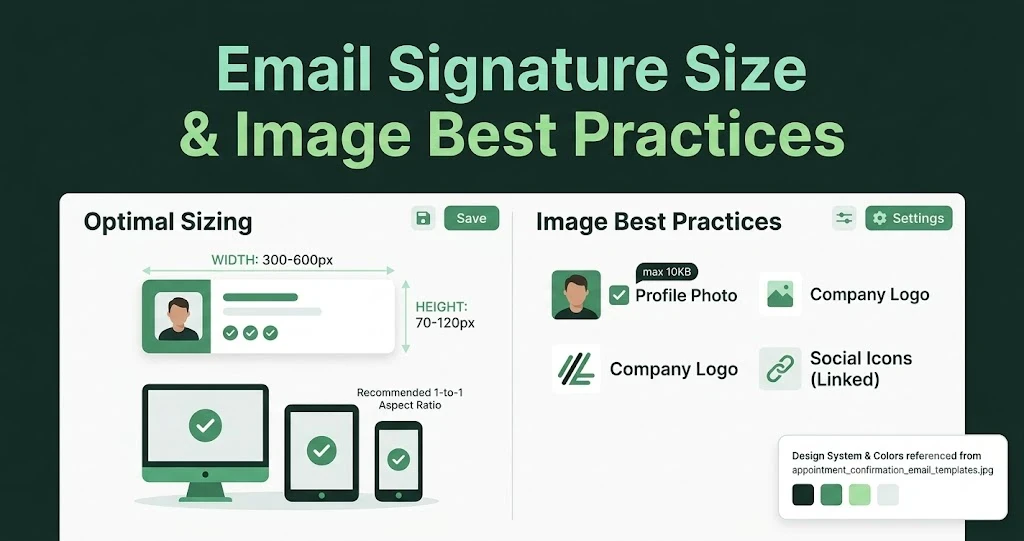
Email Signature Size and Image Best Practices
The ideal email signature is 320–600px wide and 90–200px high. Learn the best image sizes, formats, file limits, and mobile-friendly design tips.

Email Tips7 mins to read
Best Drag and Drop Email Editors in 2026
Discover the best drag and drop email editors in 2026. Compare top tools, features, templates, pricing, and automation to build stunning emails fast.

Marketing7 mins to read
4 Best Unlayer Alternatives to Design Emails
Looking for Unlayer alternatives? Explore the 4 best email design tools to create beautiful, responsive emails faster and easier.

Marketing6 mins to read
5 Beefree Alternatives to Upgrade Email Design Workflows
Looking for a better email design tool? Explore 5 Beefree alternatives that streamline workflows, improve collaboration, and elevate email campaigns.