How to Add a Banner or Logo to Your Email Signature
Add a logo or banner to your email signature in a few steps: size the image right, host it, and make it clickable so it displays in every inbox

Md. Yaikub Hossain Razon
Add an image to your email signature by hosting the logo or banner online, inserting it with its absolute URL, sizing it correctly, and wrapping it in a link. A hosted, correctly sized image displays reliably across Gmail, Outlook, and Apple Mail. Pasted or attached images break.
Follow these steps to add a logo or banner:
- Size and export the image (logo 150–300px wide; banner up to 600px wide).
- Host it online and copy its direct HTTPS URL.
- Insert the image into your signature using that URL.
- Add descriptive alt text so it reads when images are blocked.
- Wrap the image in a link to make it clickable.
- Send a test to Gmail, Outlook, and your phone to confirm it displays.
What is the difference between a logo and a banner in an email signature?
A logo and a banner serve different jobs in a signature. A logo is a small brand mark, usually 150 to 300 pixels wide, placed beside your name and title to identify the sender. A banner is a wider promotional image, up to the full signature width of about 600 pixels, used to advertise an offer, event, or link.
Use one, not both, in most signatures. A logo reinforces identity on every email. A banner drives a specific action and belongs on campaigns where that action is the goal. Stacking both makes the signature heavy and dilutes the click.
How do you add a logo to your email signature?

Add a logo by hosting the image file and inserting it with its web address, not by pasting or attaching it. Pasted images often break when the email leaves your drafts, and attached images appear as download icons instead of inline graphics.
- Export the logo as a PNG to preserve transparency, keeping the file under roughly 50KB.
- Upload it to a web server, image host, or CDN and copy the direct HTTPS URL.
- Insert the image into the signature using that URL as the source.
- Set the display width to 150–300px and let the height scale proportionally.
- Add alt text such as your company name so the logo reads when images are off.
You can add a logo to your signature in MailEditor's free signature generator, which hosts the image, sizes it, and outputs signature code that displays across every email client. For the full build, start with our guide to creating a professional email signature.
How do you add a banner to your email signature?

Add a banner the same way you add a logo, host it and insert it by URL but size it to the full signature width and make it clickable. A banner without a link wastes the space; its purpose is the click.
- Design the banner up to 600px wide and 100–200px tall.
- Export it as a PNG or JPG, keeping the file under roughly 100KB to avoid slow loads.
- Host it and insert it by its HTTPS URL, with width and height set explicitly.
- Wrap the banner in a link to your offer, booking page, or campaign.
- Add alt text describing the offer for recipients who block images.
For an animated or rotating promotional strip, see how to build animated banner and image slider blocks for emails.
What size should a signature logo or banner be?
Size signature images to the signature's width and keep files small. Oversized images slow loading, trip image warnings, and can look blurry when a client rescales them.
Export at 2x for sharp display on retina screens, then set the width and height attributes to the 1x size. A 600px-wide banner should be exported at 1200px and displayed at 600px. Always set explicit width and height, because Outlook on Windows scales images by system DPI and enlarges anything without fixed dimensions.
How do you make a signature image clickable?

Make a signature image clickable by wrapping it in an anchor link. The image becomes a button: clicking the logo opens your website, and clicking the banner opens the promoted page.
Wrap the image tag in a link that points to your destination URL, and keep the link on the image itself so the whole graphic is tappable. Point a logo at your homepage and a banner at the specific campaign page it advertises. A clickable banner turns every email you send into a small, passive ad placement.
A dedicated generator does this for you. Building the signature in MailEditor's signature generator lets you set the link, hosting, and dimensions in one place, then copy signature code that stays clickable in every client.
Why should you host signature images instead of attaching them?
Host signature images because email clients only display inline graphics reliably when they load from a web address. An image referenced by an HTTPS URL renders inline; an attached image shows as a paperclip or download prompt, and a pasted local image breaks the moment the email leaves your machine.
Hosting also keeps your signature lightweight. The image lives on a server, so your email carries only a small line of code pointing to it, not the file itself. Use a stable host or CDN and avoid moving or deleting the file, because the signature breaks everywhere the day the URL stops resolving.
Why does my signature image not show or appear broken?
A signature image fails to show for a handful of predictable reasons. Check these in order:
The image is attached or pasted, not hosted: Only images loaded from an HTTPS URL display inline.
The URL is broken or moved: If the hosted file is deleted or renamed, every signature using it breaks.
Images are blocked by default: Many clients hide images until the recipient allows them, which is why alt text matters.
No width and height set: Outlook then scales the image by DPI and distorts it.
The file is too large: Heavy images load slowly or get flagged; keep logos under ~50KB and banners under ~100KB.
FAQ
Question: How do I add an image to my email signature?
Answer:Host the image online, copy its direct HTTPS URL, and insert it into your signature using that URL rather than pasting or attaching the file. Size the logo to 150–300px wide, add alt text, and wrap it in a link if you want it clickable. Test it in Gmail and Outlook.
Question: What size should my email signature logo be?
Answer:A signature logo should be 150–300 pixels wide, with the height scaling proportionally, saved as a PNG under about 50KB. Export at 2x (up to 600px) for retina screens but display at the 1x width, and always set explicit width and height so Outlook does not enlarge it.
Question: How do I make my signature banner clickable?
Answer:Wrap the banner image in an anchor link pointing to your destination URL, so the whole image becomes tappable. Point a logo at your homepage and a banner at the specific offer or booking page it advertises. A signature generator lets you set the image, size, and link together.
Question: Why is my signature image not showing?
Answer:The image is usually attached or pasted instead of hosted, so it fails to load inline. Host it at a stable HTTPS URL, set width and height, add alt text for blocked-image views, and keep the file small. A broken or moved URL breaks the image everywhere it is used.
Question: Should I use a logo or a banner in my email signature?
Answer: Use a logo for everyday emails to reinforce brand identity, and a banner when you want to drive a specific click, such as an event or offer. Use one at a time; stacking both makes the signature heavy and splits the reader's attention.
Skip the hosting and sizing hassle. Build your signature free in MailEditor's signature generator ,add your logo or banner, set the link, and copy a signature that displays and stays clickable in every inbox.
Popular Blogs

Email Design2 mins to read
Top Email Template Builders & HTML Email Editors for 2026
Compare the best email template builders and HTML editors to design professional, responsive campaigns without coding.

Email Tips7 mins to read
Best Drag and Drop Email Editors in 2026
Discover the best drag and drop email editors in 2026. Compare top tools, features, templates, pricing, and automation to build stunning emails fast.
Email Design9 mins to read
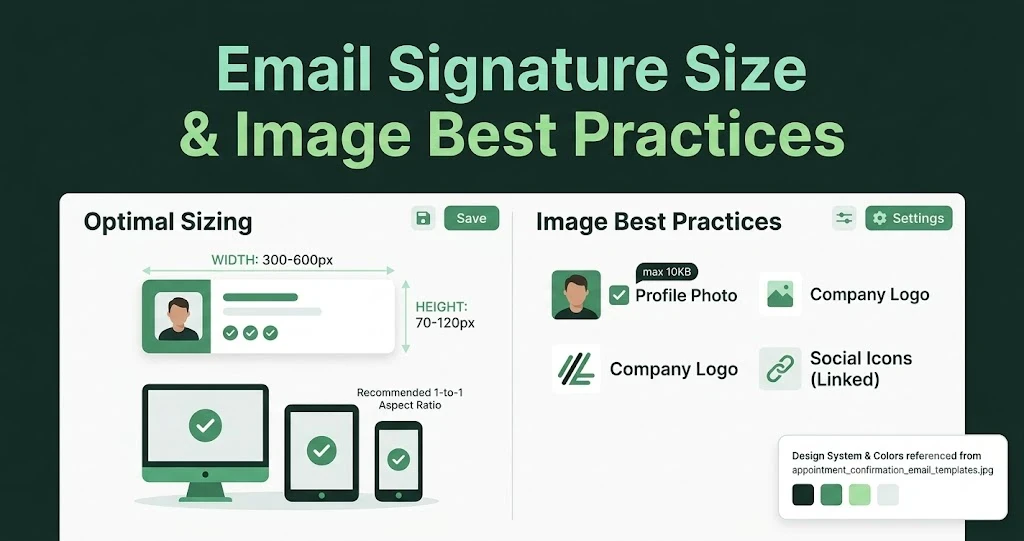
Email Signature Size and Image Best Practices
The ideal email signature is 320–600px wide and 90–200px high. Learn the best image sizes, formats, file limits, and mobile-friendly design tips.

Marketing7 mins to read
4 Best Unlayer Alternatives to Design Emails
Looking for Unlayer alternatives? Explore the 4 best email design tools to create beautiful, responsive emails faster and easier.

Marketing6 mins to read
5 Beefree Alternatives to Upgrade Email Design Workflows
Looking for a better email design tool? Explore 5 Beefree alternatives that streamline workflows, improve collaboration, and elevate email campaigns.