
If you manage a team of any size, you already know the headache that comes with getting everyone's email signature to look right. One person's got the old logo. Another forgot to update their job title. And somehow, half the sales team has signatures that look completely different from everyone else's. Other can't edit the HTML file, so you have to go to the developers to get it for each new person..
Sound familiar? You're not alone.
Creating email signatures in bulk is one of those tasks that sounds simple on paper but turns into a surprisingly painful process when you actually sit down to do it. In this guide, we'll walk through exactly what email signatures are, why they matter more than most people realize, and how you can generate professional, on-brand signatures for your entire team without losing your mind.
What Exactly Is an Email Signature?
Let's start with the basics.
An email signature is the small block of content that sits at the bottom of every email you send. Think of it as your digital business card. It typically includes your name, your job title, the company you work for, and ways to get in touch with you, whether that's a phone number, email address, or a link to your LinkedIn profile.
But modern email signatures go way beyond plain text. A well-designed signature can include your company logo, social media icons, a headshot, a promotional banner, or even a link to your latest product launch. It's the last thing someone sees in your email, and first impressions aren't the only ones that count. Last impressions stick around, too.
Here's what a solid email signature usually covers:
- Full name and job title so the recipient knows exactly who they're talking to
- Company name and logo for instant brand recognition
- Phone number and email address for quick follow-up
- Website URL to drive traffic back to your site
- Social media links so people can connect with your brand on other platforms
- Legal disclaimers or compliance text if your industry requires it
When every single email your company sends carries this information in a clean, consistent format, it adds up to something powerful. It's branding that works on autopilot.
Why Do Email Signatures Actually Matter?
It's easy to brush off email signatures as a minor detail. But here's the thing: the average office worker sends around 40 emails per day. Multiply that by the number of employees at your company, and you're looking at hundreds or even thousands of branded touchpoints going out every single day, without spending a dime on advertising.
That's a marketing channel most companies completely overlook.
They Build Credibility and Trust
When someone receives an email from your company and sees a polished, professional signature at the bottom, it immediately signals that your organization is legitimate and put-together. Compare that to a plain-text email with no signature, or worse, a messy one with broken images and misaligned text. It's the difference between walking into a meeting in a tailored suit versus a wrinkled t-shirt. People notice.
They Keep Your Brand Consistent
Brand consistency isn't just a nice-to-have. It directly impacts how people perceive and remember your company. When every employee's signature follows the same template, same fonts, same colors, same logo placement, it creates a unified brand experience for anyone interacting with your team. That kind of consistency builds recognition over time, and recognition builds trust.
They Drive Traffic Without Extra Effort
Every email signature is a passive marketing opportunity. A well-placed link to your website, your latest blog post, or an upcoming webinar can quietly drive traffic without anyone on your team having to lift a finger. It's the kind of low-effort, high-reward tactic that marketing teams dream about.
They Make Contact Information Instantly Accessible
We've all been in a situation where we needed someone's phone number or LinkedIn profile and had to dig through old emails or company directories to find it. A good email signature eliminates that friction entirely. Everything the recipient needs is right there at the bottom of the message.
The Real Problem with Creating Email Signatures Manually
Here's where things get frustrating.
Let's say your company has 100 employees. You've designed a beautiful email signature template. The colors match your brand guidelines, the layout is clean, the social icons are perfectly aligned. You're feeling pretty good about it.
But now you need to replicate that signature 100 times, each one with different names, job titles, phone numbers, headshots, and possibly different department-specific details.
What do most people do?They open up a spreadsheet with all the employee information, copy the base signature HTML, and start swapping out the details one by one.Name. Paste. Title. Paste. Phone number. Paste. Repeat 99 more times.
It's tedious, it's time-consuming, and it's a recipe for mistakes. One misplaced character in the HTML code can break the entire layout, and you might not even notice until a client or prospect points it out weeks later.
The Hidden Danger of HTML Email Signatures
Here's something a lot of people don't realize: email signatures are incredibly sensitive to code changes. Even a tiny edit in the wrong place, a deleted closing tag, a stray space in an inline style, can cause the whole thing to render incorrectly.
And the tricky part? It might look perfectly fine in your email client, but completely broken in someone else's. Email rendering is notoriously inconsistent across platforms. What looks great in Gmail might fall apart in Outlook. What works on a desktop could be a mess on mobile. Testing by sending a few emails to yourself and a couple of coworkers barely scratches the surface.
So when employees are given their signature files and asked to upload them into their email service provider (ESP) on their own, things can go sideways fast. They might accidentally delete a line of code while updating their phone number. They might resize an image in a way that throws off the entire layout. And most of the time, they won't even know something is wrong until someone on the receiving end tells them. By that point, who knows how many broken-looking emails have already gone out under your company's name?
The Smarter Way: Using a Bulk Email Signature Generator
This is exactly the kind of problem that a bulk email signature generator is designed to solve.
Instead of manually editing HTML files one at a time and crossing your fingers that nothing breaks, a tool like Maileditor's Bulk Signature Generator lets you create all of your employee signatures at once, with zero manual code editing and minimal room for error.
Here's the basic idea: you design one base signature template, upload a spreadsheet with all your employee data, and the tool automatically generates a unique, correctly formatted signature for every person on your list.
No copying and pasting. No code editing. No broken signatures showing up in client inboxes.
Let's break down exactly how it works, step by step.
Step-by-Step: How to Create Bulk Email Signatures with Maileditor
Step 1: Head Over to the Signature Generator
Start by going to Maileditor's Email Signature Generator. This is where you'll build your base template that every employee's signature will be based on.

Step 2: Choose and Customize Your Base Template
Maileditor comes with a library of pre-built signature templates, so you don't need to start from a blank canvas. Browse through the options and pick one that fits your brand's style. Once you've selected a template, this is your chance to make it your own.
Here's what you can customize:
- Add or remove content blocks to include only the information you need
- Update the theme color to match your company's brand palette
- Swap out icons for ones that better fit your style
- Adjust the layout and spacing until everything looks just right
- Include or exclude elements like social media icons, promotional banners, or legal disclaimers
Take your time with this step. The template you build here is the foundation for every signature your team will use. Get it right once, and you won't have to touch it again.
Step 3: Click "Generate Bulk Signatures"
Once your base signature looks the way you want it, hit the "Generate Bulk Signatures" button. This takes you to the next phase, where you'll prepare and upload your employee data.

Step 4: Download and Fill Out the Sample Excel File
On the bulk generation page, you'll find a sample Excel file available for download. This spreadsheet is pre-formatted with all the columns the system needs, things like employee name, job title, email address, phone number, and any other fields included in your signature template.
Download it, open it up, and start filling in your team's information. It's as simple as entering data into a spreadsheet, which is something most people are already comfortable doing.
A quick note about images: If your signature design includes elements like employee headshots, star ratings, or individual-specific badges, you'll need to host those images somewhere accessible and include the direct URL in the Excel file. You have a few options for hosting:
- Your email service provider (platforms like Brevo or Mailchimp often let you upload and host images)
- Your company's website file manager (if you have access to your site's backend)
- Maileditor's built-in file hosting (a convenient option if you want to keep everything in one place)
Once the images are uploaded and you have the URLs, paste them into the appropriate column in your Excel file and save.

Step 5: Upload the Excel File
Head back to the tool and click the "Upload Excel File" button. Select your completed spreadsheet, and the system takes it from there. It will automatically process the file, merge your employee data with the base signature template, and generate individual HTML signature files for every person on your list.
The system also creates screenshot previews so you can visually verify each signature before downloading. This is a great way to catch any data entry errors, like a misspelled name or a missing phone number, before the signatures go live.

Step 6: Download Your Signatures
You can download individual signatures if you only need a few, or grab the entire batch at once as a ZIP file. Either way, you'll have a complete set of professionally designed, correctly coded email signatures ready to deploy across your organization.

That's it. What used to take hours of tedious, error-prone manual work now takes a few minutes.
What to Do After You've Generated Your Signatures
Once you've got all your signature files downloaded, the next step is getting them into your team's email clients.
Maileditor includes a signature copier tool that makes this process easier. It lets you copy the rendered signature layout so you can paste it directly into various email platforms, whether your team uses Gmail, Outlook, Apple Mail, or something else entirely.
If your organization uses a centralized email management platform, you can also distribute the HTML files to your IT department for bulk deployment.
Frequently Asked Questions
Can I update signatures after they've been created?
Absolutely. If you need to make changes, like updating the company logo, changing a promotional banner, or correcting an employee's title, you can go back to Maileditor, adjust your base template, re-upload your updated Excel file, and generate a fresh batch of signatures.
What if my signature includes dynamic elements like promotional banners?
You can include promotional banners, seasonal offers, or event announcements in your signature template. Since these elements are part of the base design, they'll automatically appear in every employee's signature when you generate the batch.
Do I need any coding knowledge to use the bulk generator?
Not at all. The entire process is designed to be code-free. You pick a template, customize it visually, fill out a spreadsheet, and let the tool handle the rest. No HTML editing required on your end.
How many signatures can I generate at once?
The tool is built to handle teams of all sizes. According to the maileditor plan, the number of signatures you can generate varies.
What email clients are compatible with these signatures?
The generated signatures use standard HTML formatting that's compatible with all major email clients, including Gmail, Outlook, Apple Mail, Yahoo Mail, Thunderbird, etc.
Final Thoughts
Email signatures might seem like a small detail in the grand scheme of running a business, but they're one of those things that quietly shape how people perceive your brand every single day. When they're done right, they project professionalism, reinforce your brand identity, and make it effortless for people to connect with your team.
When they're done wrong, or inconsistently, or not at all, they send the exact opposite message.
A bulk email signature generator takes what used to be a frustrating, time-intensive process and turns it into something you can knock out in a few minutes. You get consistent, professional signatures for your entire team without the risk of broken code or formatting errors.
If you're managing email signatures for more than a handful of people, doing it manually just doesn't make sense anymore. Tools like Maileditor's Signature Generator exist specifically to solve this problem, and they do it well.
Need help getting started, or have a feature request? The Maileditor team reads and responds to every single message personally. Don't hesitate to reach out if you need a hand.
Popular Blogs
Email Design2 mins to read
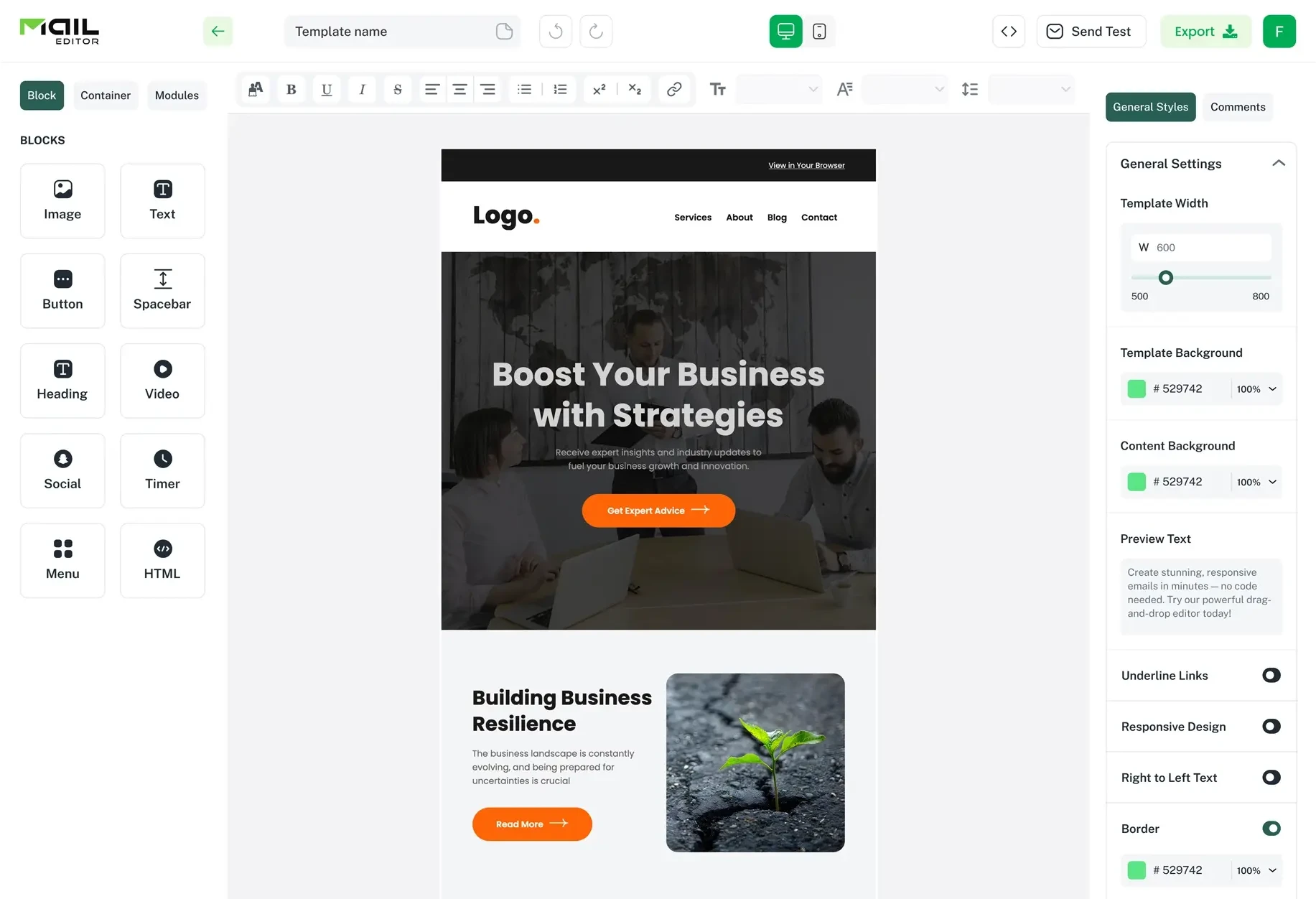
Top Email Template Builders & HTML Email Editors for 2026
Compare the best email template builders and HTML editors to design professional, responsive campaigns without coding.

Email Tips7 mins to read
Best Drag and Drop Email Editors in 2026
Discover the best drag and drop email editors in 2026. Compare top tools, features, templates, pricing, and automation to build stunning emails fast.
Email Design9 mins to read
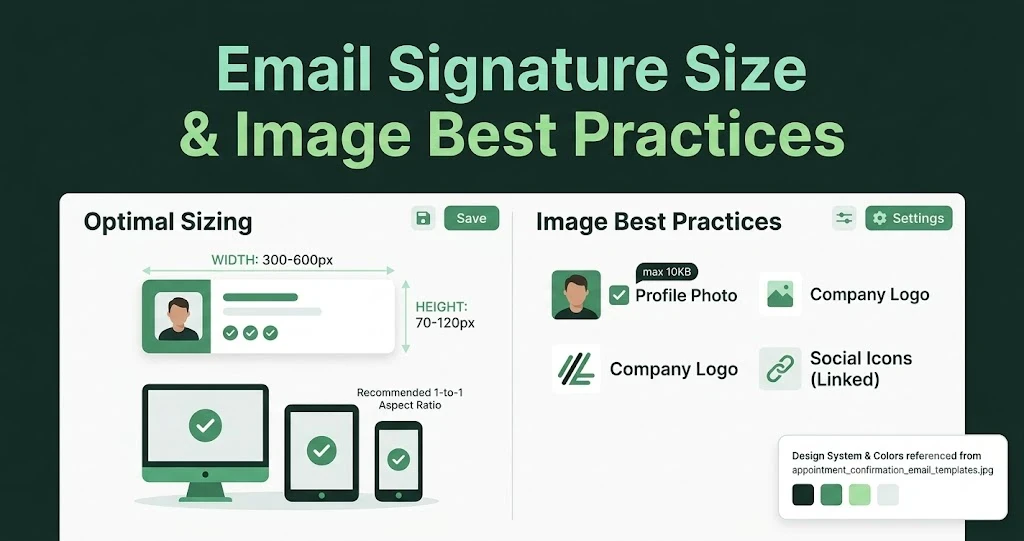
Email Signature Size and Image Best Practices
The ideal email signature is 320–600px wide and 90–200px high. Learn the best image sizes, formats, file limits, and mobile-friendly design tips.

Marketing7 mins to read
4 Best Unlayer Alternatives to Design Emails
Looking for Unlayer alternatives? Explore the 4 best email design tools to create beautiful, responsive emails faster and easier.

Marketing6 mins to read
5 Beefree Alternatives to Upgrade Email Design Workflows
Looking for a better email design tool? Explore 5 Beefree alternatives that streamline workflows, improve collaboration, and elevate email campaigns.