Email Signature Best Practices: Dos, Don’ts & Rules
A professional email signature should include your full name, job title, company, and one or two useful contact methods.

Md. Yaikub Hossain Razon
The most important email signature best practices are to keep the signature simple, include only useful contact information, use readable live text, follow your brand consistently, and test the finished design across desktop and mobile email clients.
A professional email signature should normally contain:
-
Your full name
-
Job title or professional role
-
Company name
-
One or two useful contact methods
-
Company website or professional profile
-
An optional logo or headshot
-
One optional call to action
Avoid long quotations, oversized images, multiple promotional banners, inactive social accounts, and unnecessary personal information.
There is no universal signature design that works for every profession. The best signature gives recipients the information they need without distracting them from the email itself.
What Is a Professional Email Signature?
|


A professional email signature is a contact and branding block placed at the end of a business email.
It helps recipients understand:
-
Who sent the message
-
What the sender does
-
Which organization they represent
-
How to contact them
-
What useful action they can take next
An email signature is different from the closing phrase used at the end of the message.
For example:
Best regards,
Sarah
is a sign-off.
The formatted block containing Sarah’s job title, company, phone number, website, and logo is the email signature.
For a complete building and installation process, read MailEditor’s guide on how to create a professional email signature. It explains how to create, install, test, and troubleshoot signatures in Gmail, Outlook, and Apple Mail.
What Should a Professional Email Signature Include?
|


A useful business signature normally begins with four essential elements.
1. Full name
Your name should be the most visually prominent text in the signature.
Use the name recipients know you by professionally. Avoid adding unnecessary qualifications, credentials, or honorifics unless they are relevant to your work.
2. Job title or professional role
Your title explains why you are contacting the recipient.
Examples include:
-
Account Manager
-
Marketing Director
-
Senior Developer
-
Real Estate Consultant
-
Founder
-
Customer Success Specialist
-
Freelance Designer
Use an accurate title rather than an exaggerated or vague description.
3. Company name
Include the company, organization, or personal brand you represent.
The company name can appear as live text even when the logo is also included. This keeps the organization identifiable if the image is blocked or fails to load.
4. Useful contact information
Include contact methods that recipients may reasonably use.
Depending on your work, this could include:
-
Direct business phone number
-
Company website
-
Booking link
-
Office address
-
Portfolio
-
LinkedIn profile
-
Support or sales page
You do not need to include every possible contact channel.
A recipient who already has your email address usually does not need to see the same address repeated unless it helps when the message is forwarded, printed, or copied elsewhere.
The 15 Most Important Email Signature Best Practices
|


1. Keep the Signature Focused
A signature should support the email—not become a second email underneath it.
Before adding an element, ask:
-
Will the recipient use this information?
-
Does it help establish who I am?
-
Does it provide a useful next step?
-
Is it required by my company or industry?
Remove anything that does not have a clear purpose.
A focused signature is easier to scan, less likely to break on mobile, and less likely to overwhelm a long email conversation.
2. Create a Clear Information Hierarchy
Recipients should normally notice signature information in this order:
-
Name
-
Role and company
-
Contact details
-
Optional CTA or professional profile
Make the name slightly larger or bolder than the other information.
Do not make the logo, legal disclaimer, social icons, and promotional banner more visually prominent than the sender’s identity.
Recommended hierarchy
Sarah Ahmed
Marketing Manager | Brightline Media
+1 555 123 4567
brightlinemedia.com
Book a consultation
This structure is easy to understand because every line has a defined purpose.
3. Use One or Two Fonts
Use a simple, email-safe font stack such as:
-
Arial, Helvetica, sans-serif
-
Verdana, Geneva, sans-serif
-
Tahoma, Arial, sans-serif
-
Georgia, Times New Roman, serif
Custom web fonts are not consistently available in every email environment. When the chosen font is unavailable, the email client may replace it.
Using several unrelated fonts makes the signature look inconsistent and increases the chance that spacing will change between email clients.
A practical approach is to use one font family throughout and create hierarchy with size and weight.
4. Use a Readable Font Size
Do not make contact information tiny to fit more content into the signature.
A body size around 12–14 pixels is a practical starting range for many signatures, while the sender’s name can be slightly larger. This is not a mandatory standard, so test the final result on both desktop and mobile screens.
Legal information may be smaller than the main contact block, but it should still remain readable.
5. Maintain Strong Color Contrast
Text must remain easy to read against its background.
The Web Content Accessibility Guidelines recommend a contrast ratio of at least:
-
4.5:1 for normal text
-
3:1 for large text
These ratios provide a useful accessibility benchmark for signature text, links, and calls to action.
Avoid pale gray text on white, light brand colors behind white text, and information placed directly over a busy image.
Use your brand colors selectively. A signature does not need to contain every color in your company palette.
6. Keep the Design Narrow and Mobile-Friendly
Email signatures appear inside message windows that vary significantly in width.
A practical signature width is generally between 320 and 600 pixels. Approximately 450–500 pixels works well for many signatures containing a logo, name, title, phone number, website, and a few links. A narrower layout may work better for mobile-heavy audiences.
These measurements are practical recommendations rather than universal technical requirements.
Avoid placing too much information in one long horizontal line. A design that looks balanced on a large monitor may be cut off or compressed on a phone.
Read MailEditor’s complete guide to email signature size and image best practices before choosing exact dimensions.
7. Keep Essential Information as Live Text
Do not create the entire signature as one image.
An image-only signature causes several problems:
-
Information may disappear when images are blocked.
-
Phone numbers cannot be copied easily.
-
Text may become blurry when resized.
-
Screen readers may not receive the information properly.
-
The signature may become too small on mobile.
-
Dark mode may make parts of the image difficult to see.
Use live HTML text for your name, title, company, phone number, and important links.
Images should support the information, not contain all of it.
8. Use Logos and Headshots Carefully
A logo can reinforce company recognition. A professional headshot can help consultants, recruiters, sales representatives, agents, and other relationship-focused professionals appear more identifiable.
Neither is mandatory.
Choose a logo when the company brand matters most. Choose a headshot when personal recognition matters more. Avoid including several large images in the same signature.
When using a logo or headshot:
-
Resize it before adding it.
-
Preserve the original aspect ratio.
-
Compress the file.
-
Use a stable image location.
-
Add appropriate alternative text.
-
Check how it appears when images are blocked.
-
Test it in light and dark mode.
When an HTML signature references a remote image, use a stable public HTTPS address rather than a path that points to a file stored only on your computer.
MailEditor’s guide on adding a logo or banner to an email signature explains image sizing, linking, and common display problems.
9. Add Useful Alternative Text
Alternative text describes the purpose of an image when it cannot be displayed or seen.
Suitable examples include:
-
MailEditor -
Sarah Ahmed -
Book a consultation -
Download the 2026 report
Do not write repetitive alt text such as:
-
Image -
Logo image -
Picture of logo -
A long list of keywords
The W3C recommends keeping alternative text concise and focused on the image’s purpose. Decorative images that add no information should generally use empty alt text.
10. Use Relevant Social Links Only
Do not add every social network your company has ever created.
Include only profiles that:
-
Are active
-
Are professionally relevant
-
Provide useful information
-
Are appropriate for the recipient
For example:
-
LinkedIn may be useful for consultants and recruiters.
-
Instagram may be relevant to photographers and designers.
-
GitHub may help developers.
-
Behance may help creative professionals.
-
A company YouTube channel may help software or education businesses.
Two relevant links are more useful than six inactive profiles.
When using icons, make them large enough to tap comfortably and provide text alternatives or accessible labels.
11. Use One Primary Call to Action
A signature can contain a small CTA, but it should not compete with the main email.
Suitable CTAs include:
-
Book a meeting
-
View my portfolio
-
Browse our services
-
Download the report
-
Register for the event
-
Read our latest case study
Choose one main action.
Avoid adding a booking button, product promotion, newsletter link, event banner, app download, and social invitation at the same time.
The CTA should also match the sender’s role. A booking link may make sense for a sales consultant but feel unnecessary in every message from an accounts-payable employee.
12. Keep Promotional Banners Temporary
A signature banner can promote:
-
An upcoming event
-
A seasonal offer
-
A recent report
-
A product launch
-
A webinar
-
An award or announcement
However, temporary banners require maintenance.
Remove or replace the banner when:
-
The campaign ends
-
The event has passed
-
The offer expires
-
The linked page is removed
-
The message is no longer relevant
An expired signature promotion makes the business appear inattentive.
Use either a prominent logo or promotional banner carefully. Stacking multiple large graphics can make the signature unnecessarily heavy.
13. Use a Shorter Signature for Replies
A detailed signature may be appropriate for the first message in a conversation. Repeating the same large signature after every reply can make long threads difficult to read.
Create two versions when possible:
Full signature for new messages
Include:
-
Name
-
Job title
-
Company
-
Contact details
-
Logo
-
Optional CTA
Compact signature for replies
Include:
-
Name
-
Job title
-
Phone number or website
Gmail lets users select separate signature defaults for new messages and replies. Outlook also provides controls for assigning signatures to new messages and replies or forwards.
A compact reply signature keeps the conversation readable while preserving useful contact information.
14. Include Legal Information Only When Required
Do not copy a long legal disclaimer from another company simply because it looks official.
Include legal or compliance information when it is required by:
-
Your organization
-
Applicable regulations
-
Your profession
-
A contract
-
An approved legal or compliance policy
The wording should come from authorized legal or compliance staff.
Keep required information separate from the main contact block and as concise as the approved wording permits.
A disclaimer should not be treated as a replacement for appropriate legal, privacy, security, or confidentiality procedures.
15. Test the Signature in Real Email Clients
A signature that looks correct inside a generator may change after it is pasted into Gmail, Outlook, Apple Mail, or a mobile app.
Send test messages and check:
-
Gmail
-
New Outlook
-
Classic Outlook
-
Outlook on the web
-
Apple Mail
-
Mobile email applications
-
Light mode
-
Dark mode
-
New messages
-
Replies
-
Forwards
-
Images-enabled views
-
Images-blocked views
Check every link, phone number, social profile, booking page, and banner destination.
MailEditor provides a free email signature generator for creating customizable signatures and an email testing tool for sending HTML tests to inboxes you control.
Email Signature Dos and Don’ts
| Do | Don’t |
|---|---|
| Put your name first | Make the logo more prominent than your identity |
| Include an accurate job title | Use an exaggerated or unclear title |
| Use one or two useful contact methods | List every phone number and profile |
| Keep essential information as live text | Turn the whole signature into an image |
| Use a simple font stack | Mix several decorative fonts |
| Maintain readable contrast | Use pale text on a light background |
| Use one primary CTA | Add several competing promotions |
| Link only relevant social profiles | Include inactive or personal accounts |
| Create a compact reply signature | Repeat a large banner in every reply |
| Test on desktop and mobile | Assume the sender’s preview is enough |
| Follow company branding | Let every employee create a different design |
| Review links regularly | Leave expired campaign links active |
| Use approved legal wording | Copy generic disclaimers from the internet |
| Protect private information | Publish a home address or private phone number |
Professional Email Signature Rules for Companies
Individual signatures should be simple. Company-wide signatures require additional control.
Use One Approved Template System
Employees should not independently choose:
-
Different fonts
-
Different logo sizes
-
Personal color combinations
-
Unapproved job titles
-
Random social profiles
-
Different legal wording
Create a standard template with controlled fields for:
-
Employee name
-
Job title
-
Department
-
Phone number
-
Office location
-
Company website
-
Approved social accounts
-
Required legal text
MailEditor includes a bulk signature generator designed to help teams create multiple professional signatures from a consistent system.
Define Which Fields Are Optional
Not every employee needs the same information.
For example:
-
Sales representatives may need a booking link.
-
Support staff may need a support portal.
-
Executives may need an assistant’s number.
-
Remote employees may not need an office address.
-
Developers may benefit from a GitHub link.
-
Customer-facing staff may need a direct phone number.
Define optional fields by role instead of adding everything to every signature.
Control Temporary Campaigns Centrally
When a signature banner promotes an event or offer, document:
-
Campaign owner
-
Launch date
-
End date
-
Destination URL
-
Approved image
-
Replacement plan
This prevents expired promotions from remaining in employee signatures for months.
Review Employee Information Regularly
Update signatures when:
-
An employee changes roles
-
A department name changes
-
A phone number changes
-
A company rebrands
-
An office moves
-
A social account closes
-
A campaign ends
-
Legal wording changes
At minimum, review signature details whenever an employee or company record changes. Periodic company-wide checks can catch outdated links and images.
What Should You Leave Out of an Email Signature?
Most professional signatures should exclude the following.
Long motivational quotations
A quotation may be meaningful to the sender but irrelevant to the recipient. It also adds length and can create unwanted cultural, political, or religious associations.
Personal social profiles
Do not link personal accounts unless they are intentionally part of your professional brand.
Multiple phone numbers
Include the number recipients should actually use. Listing office, mobile, fax, support, WhatsApp, and several extensions creates unnecessary choice.
Full-length biographies
A signature is not an About page. Link to a professional profile when recipients need more information.
Oversized certifications and award badges
One relevant certification may help in certain professions, but a row of badges can dominate the signature and create image-loading problems.
Animated GIFs and video
Movement can distract from the email, increase file weight, and behave inconsistently across clients. Link to the video or animation instead.
Expired promotions
Remove past events, old reports, completed offers, and discontinued products immediately.
Private personal information
Do not publish personal details recipients do not need, such as a home address or private phone number.
How to Make an Email Signature Accessible
An accessible signature should remain understandable when images, colors, and visual layout are unavailable.
Use this checklist:
-
Keep essential information as live text.
-
Use sufficient contrast.
-
Add concise alt text to meaningful images.
-
Use empty alt text for decorative graphics.
-
Do not rely on color alone.
-
Use descriptive link wording.
-
Keep the reading order logical.
-
Avoid tiny social icons.
-
Make phone numbers and links easy to tap.
-
Test the signature with images blocked.
-
Maintain a plain-text alternative
How to Install Your Signature
After creating the design, install it through the signature settings in your email client.
Gmail
Gmail users can create and manage signatures through Settings > See all settings > Signature. Gmail also supports multiple signatures and separate defaults for new messages and replies.
Outlook
New Outlook and Outlook on the web use Settings > Accounts > Signatures. Classic Outlook provides signature controls through the message menu and its mail options. Microsoft also lets users choose different defaults for new messages and replies or forwards.
Because email clients may change copied formatting, paste the rendered signature rather than raw HTML code unless the client specifically supports HTML source.
Use MailEditor’s professional email signature templates when you want a ready-made structure that can be customized to match your brand.
Final Email Signature Checklist
Content
-
Name is accurate and prominent.
-
Job title is current.
-
Company name is included.
-
Contact details are useful.
-
No unnecessary personal information appears.
-
Social links are active and relevant.
-
There is no more than one primary CTA.
-
Required legal wording is approved.
Design
-
One consistent font family is used.
-
Text is large enough to read.
-
Color contrast is sufficient.
-
The layout works at narrow widths.
-
Images are appropriately sized.
-
The design is not one large image.
-
Branding is consistent.
-
The signature does not dominate the email.
Links and images
-
Website link works.
-
Phone link uses the correct number.
-
Email and booking links work.
-
Social profiles are correct.
-
Logo destination is correct.
-
Banner has not expired.
-
Images remain available.
-
Meaningful images have alt text.
Testing
-
Gmail has been checked.
-
Relevant Outlook versions have been checked.
-
Mobile display has been checked.
-
Light and dark modes have been checked.
-
Replies and forwards have been checked.
-
Images-blocked behavior has been checked.
-
All links have been opened.
-
The plain-text version remains understandable.
Final Answer
The most effective email signature follows five rules:
-
Include only useful professional information.
-
Keep the design simple and mobile-friendly.
-
Use readable live text with sufficient contrast.
-
Add no more than one primary CTA.
-
Test the signature in the email clients your recipients use.
Avoid image-only designs, oversized logos, long quotations, multiple banners, irrelevant social profiles, and expired links.
For individual use, start with MailEditor’s free email signature generator. For company-wide consistency, use its professional signature templates and bulk signature tools to create approved signatures for multiple team members.
Frequently Asked Questions
Question: What should a professional email signature include?
Answer: Include your full name, job title, company, and one or two useful contact methods. You may also include a website, relevant professional profile, logo, headshot, or one CTA.
Question: How long should an email signature be?
Answer: There is no fixed line limit, but most signatures should be short enough to scan quickly. Include only information the recipient is likely to use.
Question: What is the best size for an email signature?
Answer: A width between approximately 320 and 600 pixels is practical for many signatures. A width near 450–500 pixels works for common layouts, while narrower designs are often easier to use on mobile.
Question: Should I include my email address in my signature?
Answer: It is optional. The recipient can already see the sender address, but repeating it may help when the message is forwarded, printed, or copied into another system.
Question: Should I include a phone number?
Answer: Include a phone number when calls are a normal or useful part of your professional communication. Do not publish a personal number unless you are comfortable using it for business.
Question: Should I use a photo or a logo?
Answer: Use a logo when company branding is most important. Use a headshot when personal recognition supports your role. Both are optional, and the signature should remain understandable without them.
Popular Blogs

Email Design2 mins to read
Top Email Template Builders & HTML Email Editors for 2026
Compare the best email template builders and HTML editors to design professional, responsive campaigns without coding.
Email Design9 mins to read
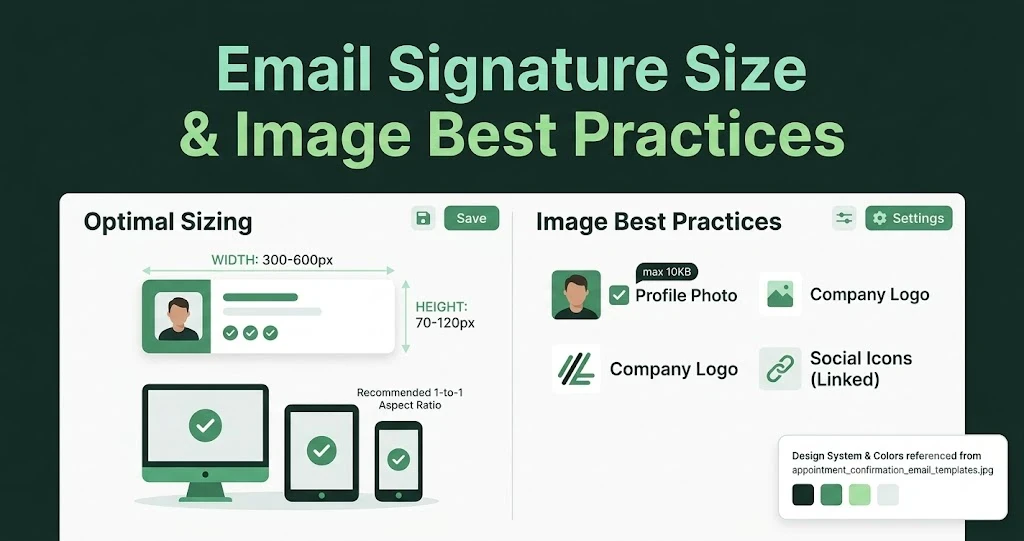
Email Signature Size and Image Best Practices
The ideal email signature is 320–600px wide and 90–200px high. Learn the best image sizes, formats, file limits, and mobile-friendly design tips.

Email Tips7 mins to read
Best Drag and Drop Email Editors in 2026
Discover the best drag and drop email editors in 2026. Compare top tools, features, templates, pricing, and automation to build stunning emails fast.

Marketing7 mins to read
4 Best Unlayer Alternatives to Design Emails
Looking for Unlayer alternatives? Explore the 4 best email design tools to create beautiful, responsive emails faster and easier.

Marketing6 mins to read
5 Beefree Alternatives to Upgrade Email Design Workflows
Looking for a better email design tool? Explore 5 Beefree alternatives that streamline workflows, improve collaboration, and elevate email campaigns.