How to Create a Professional Email Signature
Learn how to create a professional email signature that renders reliably in Gmail, Outlook, and Apple Mail, with HTML, setup, testing, and fixes.

Md. Yaikub Hossain Razon
To create a professional email signature that renders reliably, keep the content focused, use a simple table-based layout, apply important styles inline, host images on a secure public URL, and test the finished signature in the email clients your recipients use.
Email clients do not behave like modern web browsers. Gmail may rewrite formatting, Outlook can interpret HTML through Microsoft Word-based rendering, mobile apps have smaller screens, and dark mode may alter your colors. No design will look perfectly identical everywhere, but compatibility-focused HTML and careful testing can keep the important information clear.
This guide walks you through planning, building, installing, testing, and troubleshooting your signature.
Quick-Start Checklist
Before building your signature:
- Choose the contact information recipients actually need.
- Keep the layout narrow and visually simple.
- Use a web-safe font such as Arial, Helvetica, Verdana, or Georgia.
- Use a table for layout and inline CSS for styling.
- Host logos and photos on a public HTTPS URL.
- Make the signature understandable without images.
- Create a plain-text alternative.
- Test new messages, replies, and forwards.
- Check desktop, mobile, light mode, and dark mode.
How to Create a Professional Email Signature in 8 Steps
- Decide what information to include.
- Choose one clear purpose for the signature.
- Create a simple visual hierarchy.
- Build the layout with an HTML presentation table.
- Add inline styles and hosted images.
- Copy the rendered signature into your email client.
- Configure separate mobile signatures where necessary.
- Send test messages and fix compatibility problems.
What Is a Professional Email Signature?
A professional email signature is a small contact and branding block automatically or manually added to the end of an email. It normally identifies the sender, explains their professional role, and gives the recipient one or more useful ways to contact them or learn more.
It is different from several other types of signature:
- Email signature block: Contact and branding information at the bottom of an email.
- Handwritten signature: A person’s handwritten name, usually scanned or photographed.
- Electronic document signature: A mark used to approve or sign a document, agreement, or form.
- Plain-text email signature: A signature containing only typed characters and links.
- HTML email signature: A formatted signature that can include colors, links, tables, logos, and images.
- Image-only signature: A single image containing all signature information.
This guide focuses on the contact and branding block placed at the bottom of an email. It does not cover legally signing contracts or other documents.
An image-only signature is usually a poor choice. Images may be blocked, text inside them cannot wrap properly on smaller screens, and recipients may be unable to copy your phone number or use the information with assistive technology.
What Should a Professional Email Signature Include?
A useful signature tells the recipient who you are, what you do, and how to reach you. It does not need to contain your entire professional history.
Essential information
Most professional signatures should include:
- Full name
- Job title, profession, or primary role
- Company or organization
- One primary contact method
- Company website, portfolio, or professional profile
Optional information
Add these only when they help the recipient:
- Phone number
- Company logo
- Professional headshot
- LinkedIn profile
- Booking link
- Office location
- Pronouns
- One relevant call to action
- Legally required business information
What to leave out
Most people should avoid:
- Unrelated social profiles
- Long quotations
- Multiple banners
- Oversized logos
- Several competing calls to action
- Too many colors or fonts
- Personal information recipients do not need
- Repeated contact details
- Important text placed only inside an image
- Videos, forms, animations, or interactive widgets
Email Signature Content Decision Table
| Element | Include when | Leave out when | Practical recommendation |
|---|---|---|---|
| Full name | Almost always | Rarely | Make it the most prominent text |
| Job title | It helps explain your role | Your role is informal or irrelevant | Use one clear title rather than several |
| Company name | You represent a business or organization | You are contacting someone only as an individual | Link it to the official website |
| Email address | Messages may be forwarded, printed, or copied | The sender address is always obvious and space is limited | Optional, but useful in forwarded messages |
| Phone number | Calls or messages are a normal next step | You do not want unscheduled calls | Use a clickable tel: link |
| Website or portfolio | It helps establish credibility or provides more information | The page is unfinished or unrelated | Link to the most useful destination |
| LinkedIn profile | Your professional presence is current and relevant | The profile is inactive or unnecessary | Include the profile URL or one small icon |
| Logo | Brand recognition matters | The logo becomes the focus or is unreadable at a small size | Keep it secondary to your name |
| Headshot | Personal trust is important in your work | Privacy, consistency, or image quality is a concern | Use a professional, tightly cropped photo |
| Booking link | Meetings are a frequent next action | It creates an unnecessary or aggressive CTA | Use one short, descriptive text link |
| Address | Customers visit your location or regulations require it | You work remotely or the address is private | Prefer a business address, not a home address |
| Legal details | Your jurisdiction or industry requires them | They are unnecessary | Confirm requirements with legal or compliance staff |
| Disclaimer | Your organization requires approved wording | It is being added without a clear reason | Keep it separate and as short as permitted |
Plan Your Signature Before Designing It
A signature should support the reason you send email. Decide what the recipient should know or do before choosing colors, icons, or images.
Complete this worksheet:
Name:
Role:
Company:
Phone:
Website:
Professional profile:
Logo or headshot:
Primary call to action:
Required legal information:
Then remove anything that does not help the recipient.
Corporate employee
Prioritize:
- Name
- Job title
- Department, when useful
- Company
- Work phone
- Company website
- Approved company logo
- Required company details
Use the organization’s approved brand and compliance rules rather than creating a personal variation.
Freelancer or consultant
Prioritize:
- Name
- Main service or specialty
- Business name
- Portfolio or website
- Phone number
- LinkedIn profile
- Optional booking link
Your role should be specific enough to explain what you do. “Email Developer” is more useful than “Digital Professional.”
Small-business owner
Prioritize:
- Name
- Owner or founder role
- Business name
- Website
- Customer contact number
- Location, when customers visit
- One useful CTA
A suitable CTA might be “Book a consultation” or “View our services,” but not both.
Sales professional
Prioritize:
- Name
- Sales role
- Company
- Direct phone number
- Website
- One meeting or product CTA
Avoid adding multiple promotional banners. The email itself should carry the primary sales message.
Job seeker
Prioritize:
- Name
- Target role or professional field
- Phone number
- Email address
- Portfolio, GitHub profile, or personal website
Do not add “Unemployed” or an unrelated temporary role. Use a truthful professional description such as “Junior UX Designer” or “Accounting Graduate.”
Student or recent graduate
Prioritize:
- Name
- Degree, program, or professional focus
- Institution
- Expected graduation year, when useful
- Relevant portfolio
Avoid listing every course, club, or achievement. Link to a profile where the recipient can learn more.
Email Signature Design Best Practices
A signature should feel like a useful part of the email, not a separate advertisement.
Keep the visual hierarchy simple
The reader should notice information in this order:
- Your name
- Your role and company
- Your contact information
- Your optional CTA or social profile
Do not give the logo, quotation, and promotional banner the same visual importance as your identity.
Make your name the most prominent element
Use a slightly larger size or heavier weight for your name. A practical starting point is 16–18 pixels for the name and 12–14 pixels for supporting details.
These are starting points, not universal rules. Test them in the clients and devices your audience uses.
Use one web-safe font stack
A font stack tells the email client which fonts to try in order.
A dependable option is:
font-family: Arial, Helvetica, sans-serif;
Other practical choices include:
font-family: Verdana, Geneva, sans-serif;
font-family: Georgia, "Times New Roman", serif;
Avoid relying on a custom web font for essential branding. Some email clients will ignore it and substitute another font.
Limit the color palette
Use:
- One primary text color
- One secondary text color
- One brand or link color
Too many colors make the signature difficult to scan and increase the chance of dark-mode problems.
Maintain readable contrast
Aim for strong contrast between text and its background. For normal-sized text, a contrast ratio of at least 4.5:1 is a useful accessibility target under the W3C guidance for minimum text contrast.
Do not use pale gray text for essential contact information.
Keep the width mobile-friendly
As a practical starting point, keep the important content within approximately 320–520 pixels. A wider signature may still work, but it is more likely to wrap or shrink on a phone.
Do not treat this range as a technical maximum. Your actual result depends on the email client, device, font, and content length.
Use whitespace carefully
Use cell padding, line height, and small margins to separate information. Do not add repeated empty paragraphs or space characters to position elements.
Empty lines may be changed or removed when a signature is copied into an email client.
Use one primary call to action
Suitable signature CTAs include:
- Book a consultation
- View my portfolio
- Schedule a meeting
- Browse our services
- Download the latest report
Choose one. Several CTAs create competition and make the signature look promotional.
Keep social links relevant
LinkedIn may help a consultant, recruiter, or job seeker. Instagram may help a photographer or designer. An unrelated collection of six social icons rarely helps.
Use descriptive text links when possible. Tiny icons can be difficult to tap and may become misaligned.
Do not make the whole signature an image
An image-only signature can fail when:
- Images are blocked
- The message is read by a screen reader
- The signature is viewed on a small screen
- The recipient tries to copy a phone number
- Dark mode makes the image difficult to see
- The image becomes blurry after scaling
Keep all essential information as live HTML text.
Add useful alternative text
Alternative text, or alt text, describes the purpose of an image when the image cannot be seen. For a company logo, use the company name. For a meaningful headshot, the person’s name may be appropriate.
Decorative images should normally use an empty alternative value:
alt=""
The W3C images tutorial provides additional guidance on meaningful and decorative image alternatives.
Make links easy to use
Use normal links for:
- Website:
https:// - Email:
mailto: - Phone:
tel:
Avoid placing every link on one crowded line. Leave enough spacing for a person using a touchscreen.
Test without images
Turn off image loading or view the message in a client that blocks remote images. Your name, role, company, and contact details should remain understandable.
Keep a plain-text version
A plain-text version helps when formatting is removed, a mobile app has limited signature support, or a recipient uses a security-focused environment.
Why Email Signatures Break Across Email Clients
Email clients do not process HTML in one consistent way. They may remove styles, rewrite code, block images, detect phone numbers, or change colors.
Classic Outlook is particularly important because it uses Microsoft Word-based HTML rendering for many messages. Microsoft has documented Outlook signature issues caused by the Word rendering engine, including table-border behavior in certain versions.
Common Compatibility Problems
| Problem | Why it happens | Safer approach |
|---|---|---|
| Layout changes | Different clients support different HTML and CSS features | Use simple presentation tables |
| Styles disappear | A client strips embedded or external CSS | Put important CSS directly on each element |
| Images are blocked | Remote images may be disabled for privacy or security | Keep essential information as live text |
| Outlook spacing changes | Word-based rendering interprets line height and table spacing differently | Set line height, padding, border, and spacing explicitly |
| Dark mode changes colors | The client may invert or replace foreground and background colors | Use strong contrast and test both modes |
| Mobile layout overflows | Fixed widths, long URLs, or wide images exceed the screen | Keep the layout narrow and allow text to wrap |
| Signature breaks after pasting | The editor cleans or rewrites copied HTML | Paste the rendered signature rather than raw code |
| Replies add extra spacing | The client inserts quotation separators or modifies paragraphs | Keep the signature compact and test replies |
| Links look different | Clients automatically style links and phone numbers | Set link color inline, but expect some client overrides |
| Security tools rewrite links | Corporate gateways may replace links for scanning | Use clear destination text and verified HTTPS URLs |
| Font changes | The specified font is unavailable or unsupported | Use a web-safe font stack |
| Images become attachments | The image was embedded with a content ID or unsupported markup | Use a normal hosted HTTPS image where appropriate |
Why do signatures render differently?
They render differently because email clients use different HTML engines, security rules, CSS support, image policies, dark-mode behavior, and signature editors. The safest strategy is to simplify the code, protect the meaning of the content, and test the environments your audience actually uses.
How to Build an HTML Email Signature That Renders Reliably
1. Start with a table-based structure
Modern websites often use CSS Grid or Flexbox. Email signatures should use a simpler structure because table layouts are more consistently interpreted across email clients.
Add this accessibility attribute to layout tables:
role="presentation"
It tells assistive technology that the table is being used for visual layout rather than tabular data.
2. Use inline CSS
Inline CSS is written directly inside an element:
<td style="font-family: Arial, sans-serif; font-size: 14px;">
Do not depend on an external stylesheet such as:
<link rel="stylesheet" href="styles.css">
Some clients remove or ignore external and embedded styles.
3. Set table spacing explicitly
Use:
cellpadding="0"
cellspacing="0"
border="0"
Also set:
border-collapse: collapse;
These values reduce unexpected gaps and borders.
4. Use a web-safe font stack
Choose a font that is likely to exist on the recipient’s device:
font-family: Arial, Helvetica, sans-serif;
If Arial is unavailable, the client tries Helvetica and then its default sans-serif font.
5. Set image dimensions
Specify both HTML attributes and inline dimensions:
<img
  src="https://example.com/logo.png"
  width="88"
  height="88"
  style="display:block; width:88px; height:88px; border:0;"
  alt="Company Name">
Explicit dimensions help reserve space and reduce layout shifts.
6. Use absolute HTTPS image URLs
Use a complete public URL:
https://example.com/images/company-logo.png
Do not use:
C:\Users\Name\Desktop\logo.png
or:
file:///Users/name/Desktop/logo.png
Those paths refer to files on your device. Recipients cannot access them.
7. Add meaningful alt attributes
Use:
alt="Company Name"
for a meaningful logo.
Use:
alt=""
for an image that is purely decorative and adds no information.
8. Avoid JavaScript
Email clients generally remove or block JavaScript for security. A signature should not depend on scripts for menus, tracking interactions, form handling, or layout changes.
9. Avoid forms, video, and iframes
Do not include:
- Forms
- Embedded video players
- Iframes
- Interactive maps
- Carousels
- Pop-ups
- Animated interface controls
Link to an external page instead.
10. Avoid Grid and Flexbox for essential layout
Support varies across clients. A layout may look correct in one inbox and collapse in another.
Use table rows and cells for essential columns.
11. Avoid essential background images
Background-image support is inconsistent. If a background image disappears, text placed over it may become unreadable.
Use a normal <img> element for meaningful images.
12. Avoid external stylesheets
A signature should not require a separate CSS file. Put important styles inline.
13. Do not rely on custom web fonts
A custom font may load in Apple Mail but be replaced in Outlook or Gmail. Use brand fonts only as optional enhancements, with a reliable fallback.
14. Keep content readable when images are blocked
The recipient should still see:
- Your name
- Role
- Company
- Phone
- Website
- Important CTA text
Do not place those details only inside a logo or banner.
15. Use normal HTML links
Examples:
<a href="https://example.com">example.com</a>
<a href="mailto:[email protected]">[email protected]</a>
<a href="tel:+15551234567">+1 555 123 4567</a>
Use the international dialing format for phone links when practical.
16. Create a plain-text fallback
Keep a text-only version that can be used in mobile apps, plain-text messages, accessibility-sensitive communication, or restrictive company environments.
Quick HTML Compatibility Rules
| Use | Avoid |
|---|---|
| Presentation tables | CSS Grid for essential structure |
| Inline CSS | External stylesheets |
| Web-safe font stacks | Required custom web fonts |
| Hosted HTTPS images | Local file paths |
| Explicit image dimensions | Unrestricted full-size images |
| Live text | Image-only contact details |
| Standard links | Script-based interactions |
| Simple spacing | Empty paragraphs used for positioning |
| One clear CTA | Several banners and competing CTAs |
Copy-and-Customize HTML Email Signature
The following example uses a two-column presentation table, inline styles, a hosted logo, and live contact information.
<!-- Replace every bracketed placeholder before using this signature. -->
<table
  role="presentation"
  cellpadding="0"
  cellspacing="0"
  border="0"
  width="520"
  style="width:100%; max-width:520px; border-collapse:collapse; font-family:Arial, Helvetica, sans-serif;">
  <tr>
    <!-- Optional logo column. Remove this entire <td> if you do not need a logo. -->
    <td
      width="104"
      valign="top"
      style="width:104px; padding:0 16px 0 0; vertical-align:top;">
      <a
        href="[Website URL]"
        style="text-decoration:none;">
        <img
          src="[Hosted Logo URL]"
          width="88"
          height="88"
          alt="[Company Name]"
          style="display:block; width:88px; height:88px; border:0; outline:none; text-decoration:none;">
      </a>
    </td>

    <td
      valign="top"
      style="padding:0; vertical-align:top; font-family:Arial, Helvetica, sans-serif; color:#1f2937;">

      <div
        style="margin:0; font-size:17px; line-height:22px; font-weight:bold; color:#111827;">
        [Your Name]
      </div>

      <div
        style="margin:2px 0 0; font-size:13px; line-height:19px; color:#4b5563;">
        [Job Title] | [Company Name]
      </div>

      <div
        style="margin:8px 0 0; font-size:13px; line-height:20px; color:#374151;">
        <a
          href="tel:[Phone Number]"
          style="color:#1d4ed8; text-decoration:none;">
          [Phone Number]
        </a>
        <span style="color:#9ca3af;"> | </span>
        <a
          href="mailto:[Email Address]"
          style="color:#1d4ed8; text-decoration:none;">
          [Email Address]
        </a>
      </div>

      <div
        style="margin:2px 0 0; font-size:13px; line-height:20px;">
        <a
          href="[Website URL]"
          style="color:#1d4ed8; text-decoration:none;">
          [Website URL]
        </a>
        <span style="color:#9ca3af;"> | </span>
        <a
          href="[LinkedIn URL]"
          style="color:#1d4ed8; text-decoration:none;">
          LinkedIn
        </a>
      </div>

      <!-- Optional CTA. Keep only one primary action. -->
      <div
        style="margin:8px 0 0; font-size:13px; line-height:20px;">
        <a
          href="[CTA URL]"
          style="color:#1d4ed8; font-weight:bold; text-decoration:underline;">
          [Call to Action]
        </a>
      </div>
    </td>
  </tr>
</table>
Replace These Placeholders
[Your Name]: Your full professional name[Job Title]: Your main role[Company Name]: Your organization or business[Phone Number]: Your display number andtel:destination[Email Address]: Your professional email address[Website URL]: A complete HTTPS address[LinkedIn URL]: Your complete LinkedIn profile URL[Hosted Logo URL]: A direct public HTTPS image URL[CTA URL]: The destination of your one optional CTA[Call to Action]: Clear text such as “Book a consultation”
Remove the logo column or CTA block when you do not need it. Do not leave empty placeholders in the final signature.
To paste HTML into an email client, you normally need to copy the rendered result, not the raw code. MailEditor’s Email Signature Copier lets you paste or upload signature HTML, preview the result, and copy the rendered signature.
Plain-Text Email Signature Alternative
[Your Name]
[Job Title] | [Company Name]

Phone: [Phone Number]
Email: [Email Address]
Website: [Website URL]
LinkedIn: [LinkedIn URL]
Plain text may be preferable when:
- A mobile app offers limited formatting
- Your workplace uses strict email-security controls
- The recipient uses assistive technology or text-only email
- You need the smallest possible signature
- HTML formatting is frequently altered
- You are replying in a long conversation and want to reduce clutter
How to Host Your Logo or Headshot Correctly
Why local images do not work
A local image path points to a file on your computer. Recipients cannot retrieve that file after the email leaves your device.
Your image needs to be available through a public web address.
Suitable hosting options
Use a location you or your organization controls, such as:
- Your company website
- Your website’s media library
- A trusted content delivery network
- Approved company asset hosting
- A stable public storage service that provides a direct HTTPS image URL
Avoid temporary file-sharing links, preview pages, expiring URLs, or unknown free image hosts.
Use stable filenames
A URL such as:
https://example.com/assets/jordan-lee-email-signature.png
is safer than a temporary link containing tokens or an expiration date.
If you replace the file later, confirm that caching does not cause old versions to remain visible.
Compress the image
As a practical target, keep a small logo or headshot below approximately 100 KB when possible. This is not a universal limit, but smaller files generally load faster and create less message weight.
Use:
- PNG for transparent logos or sharp graphics
- JPEG for photographs
- GIF only when animation is genuinely necessary
Avoid animated signatures when possible. Animation can distract readers, increase file size, and behave differently across clients.
Use an appropriate background
Transparent logos can disappear when dark mode changes the background. Test the logo on both light and dark surfaces.
Possible solutions include:
- Adding a subtle outline
- Placing the logo on a small neutral background
- Using a logo designed to remain visible on varied backgrounds
- Keeping the company name as live text beside the logo
Use explicit display dimensions
A practical starting point might be:
- Logo: 80–120 pixels wide
- Headshot: 72–96 pixels square
- Small icon: 16–24 pixels square
These are starting points, not universal requirements.
Prepare sharper images for high-density screens
You can upload an image at twice the intended dimensions and display it at half size.
For example:
- Uploaded file: 176 × 176 pixels
- Display size: 88 × 88 pixels
Compress the file carefully so the additional resolution does not create unnecessary weight.
Be careful with base64 and embedded images
Base64 images, content-ID images, and other embedded methods can behave differently across clients. They may be stripped, blocked, converted, or displayed as attachments.
A normal hosted HTTPS image is often easier to manage, but it can still be blocked by the recipient’s settings. That is why essential information must remain as live text.
Test with images disabled
Confirm that the signature still communicates your identity and contact information when the logo or headshot is missing.
How to Add Your Signature to Gmail
Google’s current desktop instructions place signatures under Gmail’s general settings. Gmail also provides separate mobile-signature controls in its Android and iOS apps. Review the latest steps in the official Google guide to creating a Gmail signature.
Gmail on desktop
- Open Gmail in a web browser.
- Select the Settings gear.
- Select See all settings.
- Open the General tab.
- Scroll to Signature.
- Select Create new and give the signature a clear name.
- Paste the rendered signature into the editor.
- Review every image, line break, and link.
- Under Signature defaults, choose the signature for new messages.
- Choose the signature for replies and forwards, or leave it disabled.
- Scroll to the bottom and select Save Changes.
- Compose a new email and send a test to another account.
Do not paste raw HTML tags into the signature editor. Preview the HTML first, then copy the rendered signature. You can use MailEditor’s professional signature generator or its signature-copying tool to create a copyable result.
Gmail on Android
- Open the Gmail app.
- Tap the menu icon.
- Scroll down and tap Settings.
- Choose the account.
- Tap Mobile signature.
- Enter or edit the signature.
- Save or return to the previous screen.
Google’s Android help describes a separate mobile-signature setting, so verify the mobile result rather than assuming the desktop signature will behave identically.
Gmail on iPhone or iPad
- Open the Gmail app.
- Tap the menu icon.
- Tap Settings.
- Under Compose and Reply, tap Signature settings.
- Turn on Mobile Signature.
- Add or edit the mobile signature.
- Tap Back to save.
These are separate mobile-app controls. A simplified plain-text signature is often the safest choice when rich formatting does not paste cleanly.
Gmail installation checks
After setup:
- Send a new message.
- Send a reply.
- Forward a message.
- Check whether Gmail added extra blank lines.
- Confirm the correct signature is assigned to the correct sending address.
- Open the message in another email service.
- Check desktop and mobile.
- Test every link.
- Confirm the logo URL does not require sign-in.
For additional Gmail-compatible design ideas, browse MailEditor’s email templates for Gmail.
How to Add Your Signature to Outlook
Outlook has several interfaces. Use the instructions for the version you actually have.
Microsoft’s current signature guide covers new Outlook for Windows, classic Outlook, Outlook on the web, and Outlook.com. Microsoft provides a separate guide for Outlook for Mac.
New Outlook for Windows
- Open Outlook.
- Select Settings.
- Select Accounts > Signatures.
- Choose the correct account when more than one is connected.
- Select Add signature.
- Give it a descriptive name.
- Paste or build the signature in the editing area.
- Choose whether it should appear on new messages.
- Choose whether it should appear on replies and forwards.
- Select Save.
- Create a new message and send a test.
To add a saved signature manually while composing, use Message > Signature and select the required signature.
Classic Outlook for Windows
- Open a new email.
- On the Message tab, select Signature > Signatures.
- Under Select signature to edit, choose New.
- Name the signature.
- Paste or create the signature under Edit signature.
- Select the correct email account.
- Choose the default for New messages.
- Choose the default for Replies/forwards.
- Select OK.
- Open another new message and test it.
You can also edit an existing signature through:
File > Options > Mail > Signatures
Microsoft notes that the first message window used during setup may not automatically receive the new signature. Add it manually to that message or open a new one.
Outlook on the web or Outlook.com
Microsoft’s current consolidated guide uses:
- Select Settings.
- Select Accounts > Signatures.
- Select Add signature.
- Name and create the signature.
- Choose defaults for new messages and replies or forwards.
- Select Save.
Some organizations or interface versions may still show signature controls under Mail > Compose and reply or another nearby account setting. Use the Settings search field and search for “signature” when the menu wording differs.
Outlook for Mac
- Open Outlook.
- Select Outlook > Settings.
- Under Email, select Signatures.
- Rename the default signature or select the add button.
- Enter a signature name.
- Paste or create the signature in the editor.
- Add links, a picture, or a table when needed.
- Select Save.
- Under Choose default signature, select the correct account.
- Choose defaults for new messages and replies or forwards.
- Close the settings and send a test.
Microsoft states that default signatures must be selected separately for each account in Outlook for Mac.
Outlook mobile
- Open Outlook on Android or iOS.
- Open Settings.
- Under Mail, tap Signature.
- Enter the signature.
- Turn on Per Account Signature when different accounts need different signatures.
- Send a test message.
Microsoft confirms that Outlook mobile supports one signature for all accounts or separate signatures for each account. Formatting options may be more limited than desktop, so use a compact design and test it.
Outlook installation warnings
- Do not assume a signature created in one Outlook product will always appear in every other Outlook product.
- Check the desktop app, browser version, Mac app, and mobile app separately.
- Avoid VML code in signature images. Microsoft warns that VML tags can cause elements to appear as attachments.
- Expect some spacing differences in classic Outlook.
- Set all table borders to zero explicitly.
- Recheck signatures after major Outlook updates.
MailEditor also provides Outlook email templates designed for users working with Outlook-compatible email content.
How to Add Your Signature to Apple Mail
Mail on macOS
Apple’s current instructions use the Mail app’s Signatures settings:
- Open the Mail app.
- Select Mail > Settings.
- Select Signatures.
- Choose the email account in the left column.
- Select the add button.
- Name the signature.
- Paste or type the signature in the preview area.
- Use the Edit or Format menus to change text and links.
- Drag an image into the preview when needed.
- Choose the signature as the account’s default.
- Send a test message.
When you create a signature under All Signatures, Apple says you must drag it to the desired email account before using it. Apple Mail on Mac supports formatted text, links, and images in the signature area.
Mail on iPhone
Apple’s current iPhone instructions are:
- Open Settings.
- Tap Apps.
- Tap Mail.
- Tap Signature under Composing.
- Edit the signature text.
- Select Per Account when each account needs a different signature.
Apple states that iPhone Mail signatures support text only. Use a plain-text version rather than depending on a logo or HTML layout.
Mail on iPad
- Open Settings.
- Tap Apps.
- Tap Mail.
- Tap Signature.
- Edit the text.
- Select Per Account when needed.
- Apple also states that iPad Mail signatures are text-only.
How to Test Your Email Signature
A signature is not finished when it looks correct in the editor. It is finished when the important information survives real sending and receiving conditions.
MailEditor’s Email Testing Tool can send HTML tests to email addresses you own and control. Use it alongside manual checks in the apps your audience uses.
Recommended test accounts and clients
Send the signature to accounts you can open in:
- Gmail on desktop
- Gmail mobile app
- New Outlook
- Classic Outlook, when relevant to your audience
- Outlook on the web
- Outlook mobile
- Apple Mail on macOS
- Mail on iPhone
- Mail on iPad
Test these situations
New email
Check that:
- The signature appears once
- It is positioned correctly
- All text is present
- The correct default signature is used
Reply
Check that:
- The signature is not excessively large
- It appears above or below quoted text as intended
- The conversation remains readable
- Extra line breaks are not added
Forward
Check that:
- The signature is still clear
- Forwarded content does not push it into an awkward position
- Links and images remain available
Desktop and mobile
Check:
- Text wrapping
- Image size
- Table width
- Link spacing
- Phone-number tap behavior
- Long names, roles, or URLs
Light and dark mode
Check:
- Text contrast
- Link visibility
- Logo visibility
- Unexpected background changes
- Borders or dividers
- Transparent images
Images enabled and blocked
With images blocked:
- Your name must still be visible
- Your company must still be identifiable
- Contact details must remain usable
- The layout must not collapse into a confusing gap
Long email conversations
Send several replies to the same thread. Confirm that repeated signatures do not overwhelm the conversation.
Copyable Email Signature Testing Checklist
CONTENT
[ ] Name is correct
[ ] Job title is current
[ ] Company name is correct
[ ] Phone number is correct
[ ] Website and profile links are correct
[ ] CTA destination is correct

LAYOUT
[ ] Looks clear on desktop
[ ] Fits on mobile
[ ] Text wraps cleanly
[ ] No unexpected borders
[ ] No excessive blank lines
[ ] Logo remains secondary to the contact details

IMAGES
[ ] Images load over HTTPS
[ ] No login is required to view images
[ ] Logo is sharp
[ ] Images do not appear as attachments
[ ] Signature still works when images are blocked

LINKS
[ ] Website opens correctly
[ ] Email link opens a new message
[ ] Phone link works on mobile
[ ] LinkedIn or social link is correct
[ ] CTA opens the intended page

CLIENTS
[ ] Gmail desktop
[ ] Gmail mobile
[ ] New Outlook
[ ] Classic Outlook, if relevant
[ ] Outlook web
[ ] Outlook mobile
[ ] Apple Mail on Mac
[ ] Mail on iPhone or iPad

MODES AND MESSAGE TYPES
[ ] Light mode
[ ] Dark mode
[ ] New email
[ ] Reply
[ ] Forward
[ ] Long conversation
[ ] Plain-text fallback
Common Email Signature Problems and Fixes
| Problem | Likely cause | Step-by-step fix |
|---|---|---|
| Logo does not appear | The URL is private, temporary, incorrect, or blocked | Open the image URL in a private browser window; confirm it loads without signing in; switch to HTTPS; replace temporary links; resend the message |
| Image appears as an attachment | It was embedded with content-ID, VML, or client-specific code | Use a normal hosted image URL; remove VML or unsupported image markup; insert the image using the client’s supported method; test again |
| Image is blurry | A small source image is being enlarged | Upload a sharper image; use a source file around twice the display dimensions; set explicit width and height; compress without excessive quality loss |
| Signature is too large on mobile | The table, image, URL, or content is too wide | Reduce image dimensions; shorten displayed URLs; keep content within a narrow table; remove unnecessary columns; test on a phone |
| Text wraps awkwardly | Long titles, links, or unbreakable content exceed the available width | Shorten the title; display a domain instead of a full path; move contact methods to separate lines; avoid white-space:nowrap |
| Outlook adds unwanted spacing | Word-based rendering interprets paragraphs or line height differently | Use table cells instead of stacked paragraphs; set margin:0; set an explicit line height; remove empty <p> elements; test in classic Outlook |
| Font changes in another client | The chosen font is unavailable or stripped | Use a web-safe stack such as Arial, Helvetica, sans-serif; avoid relying on custom fonts |
| Icons move out of alignment | Images are inline, dimensions are missing, or baseline alignment differs | Set explicit width and height; use display:block; place icons inside table cells; use valign="middle" when appropriate |
| Links are not clickable | The URL is incomplete, broken, or removed while pasting | Use complete HTTPS links; use mailto: and tel: where appropriate; recopy the rendered signature; test every destination |
| Phone-number color changes | The client automatically detects and styles phone numbers | Add a tel: link and inline color; accept that some clients may still override it; avoid relying on color alone |
| Dark mode makes text unreadable | The client inverted one color but not another | Increase contrast; remove unnecessary backgrounds; test neutral text colors; keep information readable without brand-color dependence |
| Background color changes | Dark mode or the client replaces the background | Avoid using background color as the only source of contrast; keep essential text on a simple neutral background; test in multiple apps |
| Gmail removes formatting | Gmail cleaned unsupported HTML or the signature was pasted as raw code | Copy the rendered signature; turn off plain-text compose mode; simplify the HTML; remove external CSS and unsupported elements |
| Signature appears twice | Both the app and a server-side system are adding it | Disable one signature source; check desktop, web, mobile, CRM, and company signature-management settings |
| Signature is missing from replies | A separate reply default is disabled | Open signature settings; assign the signature to replies and forwards; create a test reply |
| Copying and pasting breaks the layout | The source app inserted extra formatting or the destination cleaned the HTML | Copy from a rendered browser preview; avoid copying from a document editor; simplify the table; use the MailEditor signature copier |
| It looks correct to the sender but not the recipient | The recipient uses another client, security gateway, dark mode, or image policy | Ask which client shows the issue; reproduce it there; inspect images, widths, fonts, and stripped styles; prioritize readable content over pixel-perfect matching |
Professional Email Signature Examples
1. Minimal Corporate Signature
Jordan Lee
Senior Account Manager | Northstar Systems
+1 555 0.......
northstarsystems.example
Why it works: It immediately identifies the sender and provides only the most useful contact information.
Best for: Corporate employees, account managers, and internal teams.
Customization: Add an approved company logo or legally required company details when necessary.
2. Freelancer or Consultant Signature
Maya Chen
Email Developer and Deliverability Consultant
maya.example | LinkedIn
Book a consultation
Why it works: The professional specialty is clear, and the signature offers one relevant next step.
Best for: Freelancers, consultants, and independent professionals.
Customization: Replace the booking CTA with a portfolio link when examples of work are more important.
3. Small-Business Owner Signature
Daniel Ortiz
Founder | Harbor Street Coffee
+1 555 01.......
harborstreetcoffee.example
Visit our Albuquerque location
Why it works: It connects the owner to the business and gives customers a practical action.
Best for: Retail businesses, local services, restaurants, and owner-operated companies.
Customization: Add the business address only when customers regularly visit the location.
4. Sales Professional Signature
Priya Rahman
Enterprise Solutions Consultant | Meridian Cloud
+1 555 .......
meridiancloud.example
Schedule a 20-minute introduction
Why it works: The role is specific, the direct number is visible, and there is one focused CTA.
Best for: Sales representatives, business-development teams, and customer-success professionals.
Customization: Replace the meeting link with a product page when the recipient is earlier in the buying process.
5. Job Seeker Signature
Alex Morgan
Junior Product Designer
alexmorgan.example | LinkedIn
[email protected] | +1 555 012 9034
Why it works: The target profession is clear, and the recipient can quickly access the portfolio and professional profile.
Best for: Job seekers, recent graduates, and career changers.
Customization: Add a GitHub profile for a technical role or a Behance profile for a visual-design role.
Email Signature Accessibility Checklist
Use this checklist before publishing:
- Use a readable font size.
- Maintain strong text-to-background contrast.
- Keep the reading order logical.
- Use live text for essential information.
- Add useful alt text to meaningful images.
- Use empty alt text for purely decorative images.
- Use descriptive links such as “View my portfolio.”
- Avoid relying on color alone to communicate meaning.
- Give links enough space for touchscreen use.
- Avoid flashing, blinking, or distracting animation.
- Test with images blocked.
- Check the signature in dark mode.
- Keep a plain-text equivalent.
- Avoid tiny social icons without text alternatives.
- Make sure the signature remains understandable when read linearly.
Email Signature Security and Privacy Considerations
Share only necessary information
Do not publish your private home address, personal phone number, or other sensitive information unless it is genuinely required.
Use official business contact details
Use company-approved email addresses, phone numbers, domains, and social profiles.
Be careful with tracking
Tracking pixels and link-tracking systems can create privacy, consent, security, and compliance concerns. Use them only when your organization has a clear, lawful, and disclosed process.
Verify every destination
Check that:
- Links use HTTPS
- Domains are spelled correctly
- No link redirects to an unexpected site
- Old booking and campaign links have not expired
- Social profiles are still active
Avoid suspicious shortened URLs
A recipient may hesitate to open an unfamiliar shortened link. Use a recognizable branded domain when possible.
Use trusted signature tools
Do not provide account passwords or unnecessary mailbox permissions to an unknown signature generator.
Treat legal disclaimers carefully
A disclaimer does not automatically create legal protection. Requirements vary by country, company type, profession, and industry.
Regulated organizations should obtain approved wording from qualified legal or compliance staff. This guide does not provide legal advice.
Final Professional Email Signature Checklist
Content
- Name, role, and company are accurate
- Only useful contact methods are included
- There is no unnecessary personal information
- There is no more than one primary CTA
- Required legal information has been approved
Design
- Name is the most prominent element
- One web-safe font stack is used
- Colors have sufficient contrast
- The layout is compact and easy to scan
- Images do not dominate the signature
HTML compatibility
- Presentation tables are used for essential structure
- Important styles are inline
- Table borders and spacing are explicitly set
- No JavaScript, forms, iframes, Grid, or Flexbox is required
- Essential content does not depend on a background image
Images
- Images use public HTTPS URLs
- Width and height are set
- Alt text is appropriate
- File sizes are reasonable
- The signature remains useful without images
Links
- Website link works
- Email link works
- Phone link works
- Profile and CTA links are correct
- Link text clearly describes the destination
Testing
- Desktop and mobile checked
- Gmail, Outlook, and Apple Mail checked where relevant
- Light and dark modes checked
- New messages, replies, and forwards checked
- Images-enabled and images-blocked views checked
- Plain-text alternative saved
Maintenance
- Contact details are reviewed regularly
- Temporary CTAs are removed when expired
- Images remain publicly available
- Signature is retested after major email-client updates
Conclusion
The safest way to create a professional email signature is to keep the content focused, use a simple design, build essential structure with presentation tables, apply important styles inline, and host images on stable HTTPS URLs.
Install the signature separately in Gmail, Outlook, Apple Mail, and mobile apps where necessary. Then test it across desktop, mobile, light mode, dark mode, new messages, replies, and forwards.
Do not chase perfect pixel matching across every inbox. Protect the meaning, readability, links, and contact information first.
You can start with MailEditor’s free email signature generator, explore its professional email signature templates, preview HTML with the Email Signature Copier, and send test messages using the Email Testing Tool.
Popular Blogs

Email Design2 mins to read
Top Email Template Builders & HTML Email Editors for 2026
Compare the best email template builders and HTML editors to design professional, responsive campaigns without coding.
Email Design9 mins to read
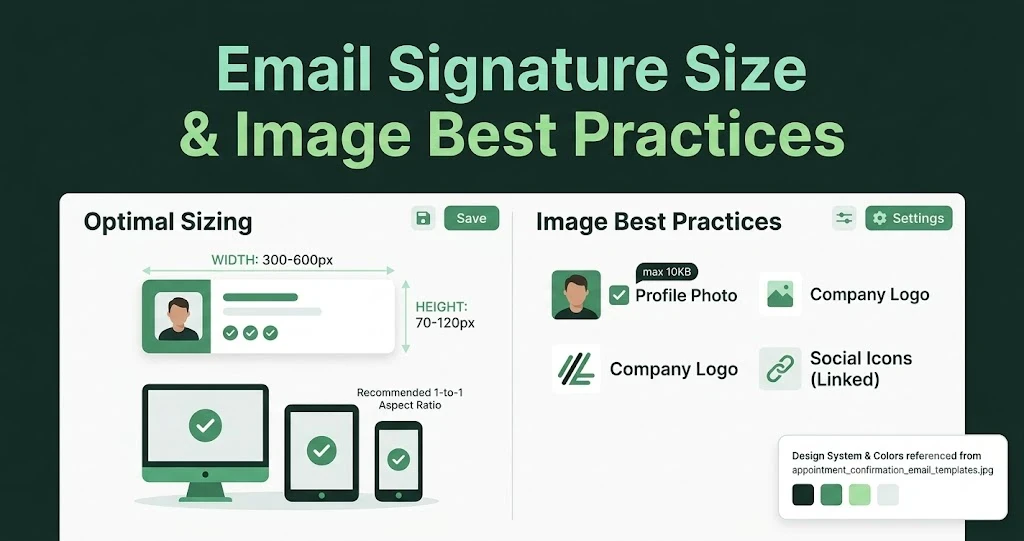
Email Signature Size and Image Best Practices
The ideal email signature is 320–600px wide and 90–200px high. Learn the best image sizes, formats, file limits, and mobile-friendly design tips.

Email Tips7 mins to read
Best Drag and Drop Email Editors in 2026
Discover the best drag and drop email editors in 2026. Compare top tools, features, templates, pricing, and automation to build stunning emails fast.

Marketing7 mins to read
4 Best Unlayer Alternatives to Design Emails
Looking for Unlayer alternatives? Explore the 4 best email design tools to create beautiful, responsive emails faster and easier.

Marketing6 mins to read
5 Beefree Alternatives to Upgrade Email Design Workflows
Looking for a better email design tool? Explore 5 Beefree alternatives that streamline workflows, improve collaboration, and elevate email campaigns.