Mailchimp Email Templates: Create, Edit, Import & Use Easily
Create, edit, import, and reuse Mailchimp email templates without stress. Learn how templates work, how to customize them, and how to fix common design issues.

Md. Yaikub Hossain Razon
Mailchimp email templates make email campaigns easier, but only when the design actually works. Cause the email copy is not the only thing that matters.
According to SearchLab,
The average open rate is 21.5%, the average click-to-open rate is 10.5%, and the unsubscribe rate sits around 0.22%.
So, if your template looks messy, the button is weak, or the mobile view feels off. Then be prepared to lose clicks, attention, and subscribers. That’s why I like to use some MailChimp email templates to keep my emails engaging.
I know Mailchimp has its own email templates, but they are limited and not very editable. Cause sometimes the template looks good at first, but then you need to change a button, adjust the layout, import custom HTML, or make it fit your brand. That’s where many marketers get stuck.
That’s why I created my own custom Mailchimp template with MailEditor. Here is how convenient it is.
Types of Mailchimp Email Templates You Can Build With MailEditor
For me, Mailchimp becomes the sending platform, and MailEditor becomes the place where the actual template work feels easier. Here are some Mailchimp email template ideas I normally use:
Mailchimp Newsletter Templates
Newsletter templates I use regularly for regular updates, weekly emails, blog roundups, company news, product updates, or community emails.
And honestly, this is where reusable design matters a lot.
Cause if you send newsletters often, you don’t want to rebuild the header, footer, CTA section, and content layout every single time. You can create a clean Mailchimp newsletter template once, save the structure, and reuse it for future campaigns.
You just need to update the copy, images, links, and offer using this newsletter template.

Promotional Mailchimp Templates
Promotional emails need to look sharp fast. Why? Well, maybe because you’re sending a discount email, a Black Friday offer, a product launch, a flash sale, or a seasonal campaign.
In that case, the design has to guide people toward one action.
That means your hero section, product block, CTA button, spacing, and mobile view all need to work together.

MailEditor makes this easier by letting you build promotional Mailchimp email templates visually without touching HTML. You can adjust sections, move blocks, change button styles, and export the final template to Mailchimp when it looks right.
No need to fight with code just to launch one campaign.
Welcome Email Templates
Welcome emails should not look random. It should have a branded welcome email template for Mailchimp, with your logo, colors, an intro message, a CTA button, and a clean layout.
Then you can use it for new subscribers, lead magnets, onboarding flows, or first-purchase sequences.

This helps you maintain a clean, consistent first impression.
E-commerce Mailchimp Templates
If you run an e-commerce store, you need more than a basic email layout.
You may need product sections, discount banners, product images, pricing blocks, CTA buttons, review sections, and a mobile-friendly design. And if the email looks messy on mobile, people may not even reach the offer.
That’s why e-commerce templates should be built with a proper structure.
MailEditor helps you create product-focused email templates that are easier to edit, reuse, and export. You can build the layout around the offer instead of forcing your campaign into a generic template.
Custom HTML Mailchimp Templates
Sometimes you don’t want a basic template. You already have a custom design. Maybe your designer made it. Maybe your agency created it. Or maybe you built it in another tool and now need to use it in Mailchimp.
But editing HTML manually is neither fun nor time-consuming!
Cause one small spacing change can break the layout. Mobile responsiveness can shift. Outlook can behave differently. And now a simple campaign becomes a technical job.
MailEditor helps me avoid that mess.
You can work with a visual builder with their HTML templates. You don’t need to know the codes to do so. It will be a visual page like any Canva design. So you still get design control, but without turning every edit into a code problem.

Reusable Mailchimp Email Templates
This is my favorite one because it saves me a lot of time. If you send campaigns weekly or monthly, reusable templates can save a lot of work. You can keep the same branded structure and only change the content for each campaign.

For example, you can reuse:
- Header sections
- Footer sections
- Promo blocks
- Product sections
- CTA areas
- Banner sections
- Newsletter layouts
You can build these sections once and use them again later. So your Mailchimp campaigns stay consistent without rebuilding the same layout over and over.
How to Edit Mailchimp Email Templates Without Breaking the Design?
The mistake most people make is starting by changing random things first. An unplanned edit can make the mobile view look broken.
So don’t do it like that. Here is the cleaner way I usually edit Mailchimp HTML:
Step 1: Open Your Mailchimp Template in MailEditor
First, open MailEditor and choose the Mailchimp email template you want to work on. Now wait for the full template to load inside the visual editor.
Don’t start changing things immediately.
Just look at the full email once from top to bottom. Check the header, banner, text sections, image blocks, buttons, footer, and mobile view.
Step 2: Now, Click On The Headline Section.
Change the main headline first, since this is the first thing people will notice when opening the email. After that, move to the subheading and body copy.
Step 3: Go To The Image Section.
Click the image you want to replace and upload your new banner, product image, logo, or campaign graphic. After uploading, check how the image sits inside the layout.
Fix that before moving to the next part.
Cause one wrong image size can make the whole Mailchimp email template look messy.
Step 4: Preview the Mobile Version
This is where I need to be careful.
Check that the headline is readable, the image isn't stretched, the button is easy to tap, and the sections aren't too crowded.
If something feels off, go back and fix it before exporting.
Don’t skip this step. A Mailchimp email template may look perfect on desktop and still feel bad on mobile.
Step 5: Save the Template for Future Campaigns
Once everything looks clean, save the template. Now you don’t have to rebuild the same design again for the next campaign.
Next time, you can open the same Mailchimp email template, change the copy, replace the image, update the offer, and export it again.
That’s the whole point.
You build the structure once, then reuse it whenever you need a new campaign.
How To Import A Template To Mailchimp?
Importing a custom HTML template into Mailchimp sounds technical, but the process is not that scary when your file is already clean. Here’s how the process works.
Step 1: Go To The Export Option in Maileditor to Export The Template As HTML from Maileditor
Choose HTML and download the file. This gives you a clean HTML email template that you can use inside Mailchimp. You don’t need to copy and paste random code or rebuild the same design in Mailchimp.
Just export the finished version template like this:
- Go to Campaigns
- Open Email templates
- Find your template
- Click More options
- Choose Export as HTML
- Download the HTML file
- Save it somewhere safe for future use
Once the HTML download is complete, you can keep the file as a backup, use it on another platform, send it to a developer, or edit it later in a visual email editor like MailEditor.
Step 2: Upload or Paste Your HTML File
Now, take the HTML file you exported from MailEditor. Upload the file into Mailchimp, or paste the HTML code if Mailchimp asks for code input. After that, wait for Mailchimp to load the template.
Don’t start editing right away.
First, check if the main layout appears correctly. Look at the header, image sections, text blocks, button, and footer.
If everything is showing properly, then move to the next step.
Step 3: Preview the Template Before Sending
Check the desktop view first, then check the mobile view.
Look carefully at the spacing, image size, button alignment, font size, and footer. Also, make sure the links are working properly.
This step is important because Gmail, Outlook, Apple Mail, and other email clients don’t always render HTML the same way. So even if the template looks good in the editor, it's still a must to preview before sending.
Step 4: Save the Template for Future Campaigns
Once everything looks clean, save the template inside Mailchimp.
Now you can reuse it for future campaigns.
Next time, you don’t need to start from zero. You can open the same custom HTML Mailchimp template, change the copy, update the offer, replace the images, and send the campaign faster.
Mailchimp email templates make email campaigns easier, but only when the design actually works. Cause the email copy is not the only thing that matters.
According to SearchLab,
The average open rate is 21.5%, the average click-to-open rate is 10.5%, and the unsubscribe rate sits around 0.22%.
So, if your template looks messy, the button is weak, or the mobile view feels off. Then be prepared to lose clicks, attention, and subscribers. That’s why I like to use some MailChimp email templates to keep my emails engaging.
I know Mailchimp has its own email templates, but they are limited and not very editable. Cause sometimes the template looks good at first, but then you need to change a button, adjust the layout, import custom HTML, or make it fit your brand. That’s where many marketers get stuck.
That’s why I created my own custom Mailchimp template with MailEditor. Here is how convenient it is.
Types of Mailchimp Email Templates You Can Build With MailEditor
For me, Mailchimp becomes the sending platform, and MailEditor becomes the place where the actual template work feels easier. Here are some Mailchimp email template ideas I normally use:
Mailchimp Newsletter Templates
Newsletter templates I use regularly for regular updates, weekly emails, blog roundups, company news, product updates, or community emails.
And honestly, this is where reusable design matters a lot.
Cause if you send newsletters often, you don’t want to rebuild the header, footer, CTA section, and content layout every single time. You can create a clean Mailchimp newsletter template once, save the structure, and reuse it for future campaigns.
You just need to update the copy, images, links, and offer using this newsletter template.
Promotional Mailchimp Templates
Promotional emails need to look sharp fast. Why? Well, maybe because you’re sending a discount email, a Black Friday offer, a product launch, a flash sale, or a seasonal campaign.
In that case, the design has to guide people toward one action.
That means your hero section, product block, CTA button, spacing, and mobile view all need to work together.
MailEditor makes this easier by letting you build promotional Mailchimp email templates visually without touching HTML. You can adjust sections, move blocks, change button styles, and export the final template to Mailchimp when it looks right.
No need to fight with code just to launch one campaign.
Welcome Email Templates
Welcome emails should not look random. It should have a branded welcome email template for Mailchimp, with your logo, colors, an intro message, a CTA button, and a clean layout.
Then you can use it for new subscribers, lead magnets, onboarding flows, or first-purchase sequences.
This helps you maintain a clean, consistent first impression.
E-commerce Mailchimp Templates
If you run an e-commerce store, you need more than a basic email layout.
You may need product sections, discount banners, product images, pricing blocks, CTA buttons, review sections, and a mobile-friendly design. And if the email looks messy on mobile, people may not even reach the offer.
That’s why e-commerce templates should be built with a proper structure.
MailEditor helps you create product-focused email templates that are easier to edit, reuse, and export. You can build the layout around the offer instead of forcing your campaign into a generic template.
Custom HTML Mailchimp Templates
Sometimes you don’t want a basic template. You already have a custom design. Maybe your designer made it. Maybe your agency created it. Or maybe you built it in another tool and now need to use it in Mailchimp.
But editing HTML manually is neither fun nor time-consuming!
Cause one small spacing change can break the layout. Mobile responsiveness can shift. Outlook can behave differently. And now a simple campaign becomes a technical job.
MailEditor helps me avoid that mess.
You can work with a visual builder with their HTML templates. You don’t need to know the codes to do so. It will be a visual page like any Canva design. So you still get design control, but without turning every edit into a code problem.
Reusable Mailchimp Email Templates
This is my favorite one because it saves me a lot of time. If you send campaigns weekly or monthly, reusable templates can save a lot of work. You can keep the same branded structure and only change the content for each campaign.
For example, you can reuse:
- Header sections
- Footer sections
- Promo blocks
- Product sections
- CTA areas
- Banner sections
- Newsletter layouts
You can build these sections once and use them again later. So your Mailchimp campaigns stay consistent without rebuilding the same layout over and over.
How to Edit Mailchimp Email Templates Without Breaking the Design?
The mistake most people make is starting by changing random things first. An unplanned edit can make the mobile view look broken.
So don’t do it like that. Here is the cleaner way I usually edit Mailchimp HTML:
Step 1: Open Your Mailchimp Template in MailEditor
First, open MailEditor and choose the Mailchimp email template you want to work on. Now wait for the full template to load inside the visual editor.
Don’t start changing things immediately.
Just look at the full email once from top to bottom. Check the header, banner, text sections, image blocks, buttons, footer, and mobile view.
Step 2: Now, Click On The Headline Section.
Change the main headline first, since this is the first thing people will notice when opening the email. After that, move to the subheading and body copy.
Step 3: Go To The Image Section.
Click the image you want to replace and upload your new banner, product image, logo, or campaign graphic. After uploading, check how the image sits inside the layout.
Fix that before moving to the next part.
Cause one wrong image size can make the whole Mailchimp email template look messy.
Step 4: Preview the Mobile Version
This is where I need to be careful.
Check that the headline is readable, the image isn't stretched, the button is easy to tap, and the sections aren't too crowded.
If something feels off, go back and fix it before exporting.
Don’t skip this step. A Mailchimp email template may look perfect on desktop and still feel bad on mobile.
Step 5: Save the Template for Future Campaigns
Once everything looks clean, save the template. Now you don’t have to rebuild the same design again for the next campaign.
Next time, you can open the same Mailchimp email template, change the copy, replace the image, update the offer, and export it again.
That’s the whole point.
You build the structure once, then reuse it whenever you need a new campaign.
How To Import A Template To Mailchimp?
Importing a custom HTML template into Mailchimp sounds technical, but the process is not that scary when your file is already clean. Here’s how the process works.
Step 1: Go To The Export Option in Maileditor to Export The Template As HTML from Maileditor
Choose HTML and download the file. This gives you a clean HTML email template that you can use inside Mailchimp. You don’t need to copy and paste random code or rebuild the same design in Mailchimp.
Just export the finished version template like this:
- Go to Campaigns
- Open Email templates
- Find your template
- Click More options
- Choose Export as HTML
- Download the HTML file
- Save it somewhere safe for future use
Once the HTML download is complete, you can keep the file as a backup, use it on another platform, send it to a developer, or edit it later in a visual email editor like MailEditor.
Step 2: Upload or Paste Your HTML File
Now, take the HTML file you exported from MailEditor. Upload the file into Mailchimp, or paste the HTML code if Mailchimp asks for code input. After that, wait for Mailchimp to load the template.
Don’t start editing right away.
First, check if the main layout appears correctly. Look at the header, image sections, text blocks, button, and footer.
If everything is showing properly, then move to the next step.
Step 3: Preview the Template Before Sending
Check the desktop view first, then check the mobile view.
Look carefully at the spacing, image size, button alignment, font size, and footer. Also, make sure the links are working properly.
This step is important because Gmail, Outlook, Apple Mail, and other email clients don’t always render HTML the same way. So even if the template looks good in the editor, it's still a must to preview before sending.
Step 4: Save the Template for Future Campaigns
Once everything looks clean, save the template inside Mailchimp.
Now you can reuse it for future campaigns.
Next time, you don’t need to start from zero. You can open the same custom HTML Mailchimp template, change the copy, update the offer, replace the images, and send the campaign faster.
Frequently Asked Questions
Question: Do I need coding knowledge to use Mailchimp email templates?
Answer: Not always. If you are using a visual email editor like MailEditor, you can design, change text, replace images, update buttons, and export the template without touching HTML. But if you are editing raw custom HTML manually, then yes, you may need some coding knowledge.
Question: Why does my Mailchimp email template look different after importing?
Answer: This usually happens because different email platforms and clients render HTML differently. Spacing, fonts, image sizes, and button alignment can shift a little. So before sending, always preview the template and send a test email. Don’t just import and send directly.
Question: Can I reuse the same Mailchimp email template for future campaigns?
Answer: Yes, and honestly, that’s the main reason templates are useful. You can create one branded layout, save it, and reuse it again for newsletters, promotions, welcome emails, invoice emails, or product updates. Next time, you only change the copy, images, offer, and links.
Final Thoughts
Mailchimp email templates are not hard to use once you understand the workflow. But for me, the main thing is not just using a template. The main thing is using the right template correctly.
The main thing is that it gives me more flexibility.
I can keep the branding consistent, visually fix the layout, check the mobile view, export clean HTML, and use it in Mailchimp without touching code again and again.
Still, I don’t skip testing.
Even if the template looks clean, I always preview it before sending. Small issues like spacing, button alignment, or image size can affect the whole campaign.
So yes, Mailchimp email templates can save time. But when I use them with MailEditor, the process feels much smoother. I don’t have to rebuild the same email every time, and I can focus more on the actual campaign instead of fighting with the design.
Popular Blogs

Email Design2 mins to read
Top Email Template Builders & HTML Email Editors for 2026
Compare the best email template builders and HTML editors to design professional, responsive campaigns without coding.
Email Design9 mins to read
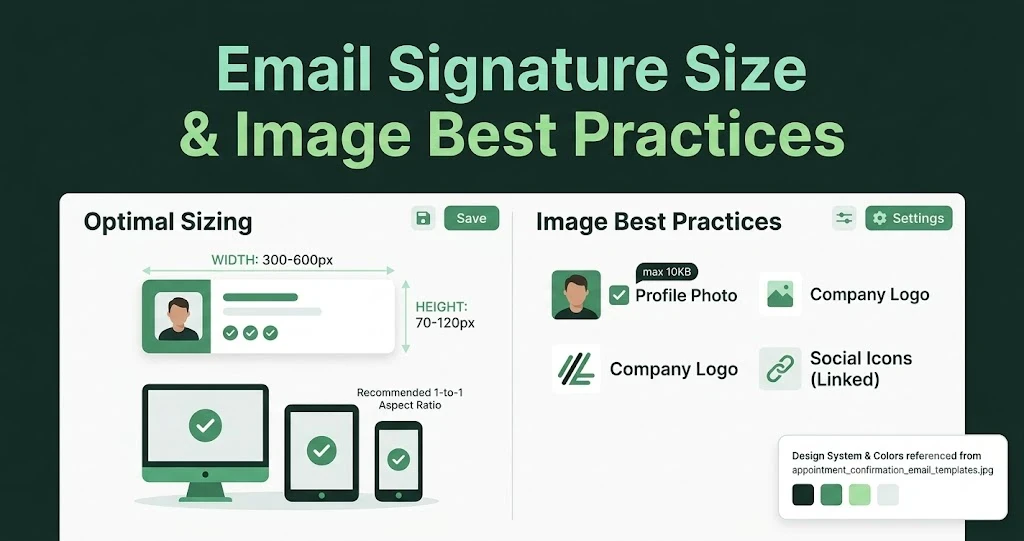
Email Signature Size and Image Best Practices
The ideal email signature is 320–600px wide and 90–200px high. Learn the best image sizes, formats, file limits, and mobile-friendly design tips.

Email Tips7 mins to read
Best Drag and Drop Email Editors in 2026
Discover the best drag and drop email editors in 2026. Compare top tools, features, templates, pricing, and automation to build stunning emails fast.

Marketing7 mins to read
4 Best Unlayer Alternatives to Design Emails
Looking for Unlayer alternatives? Explore the 4 best email design tools to create beautiful, responsive emails faster and easier.

Marketing6 mins to read
5 Beefree Alternatives to Upgrade Email Design Workflows
Looking for a better email design tool? Explore 5 Beefree alternatives that streamline workflows, improve collaboration, and elevate email campaigns.