
Email templates are essential for creating consistent, professional, and engaging email campaigns.
If you're using Mailercloud, you’re in the right place to design templates that align with your brand and captivate your audience.
This step-by-step guide will walk you through the process of creating an email template in Mailercloud, from logging in to saving your design.
Let’s get started and make your email marketing efforts more impactful!
How to Create an Email Template in Mailercloud (Step-by-Step Guide)
1. Log in to Mailercloud
Go to Mailercloud and sign in to your account.
2. Navigate to Templates
From the left-hand menu, click “Templates gallery”


3. Create a New Template
Click “Create Template” on the upper right corner. Write template name on “Template name” box and click on “Create”.


Click on “Code your own” option and then click on “Paste your code” option.


Paste the prewritten HTML code on the write text box and continue.

The template is created and saved.

Conclusion
And there you have it—a simple and effective way to create an email template in Mailercloud! By following these steps, you can design templates that not only look great but also help you connect with your audience on a deeper level.
A well-crafted email template is a powerful tool for driving engagement and achieving your marketing goals. So, start creating today and watch your email campaigns thrive!
Popular Blogs
Email Design2 mins to read
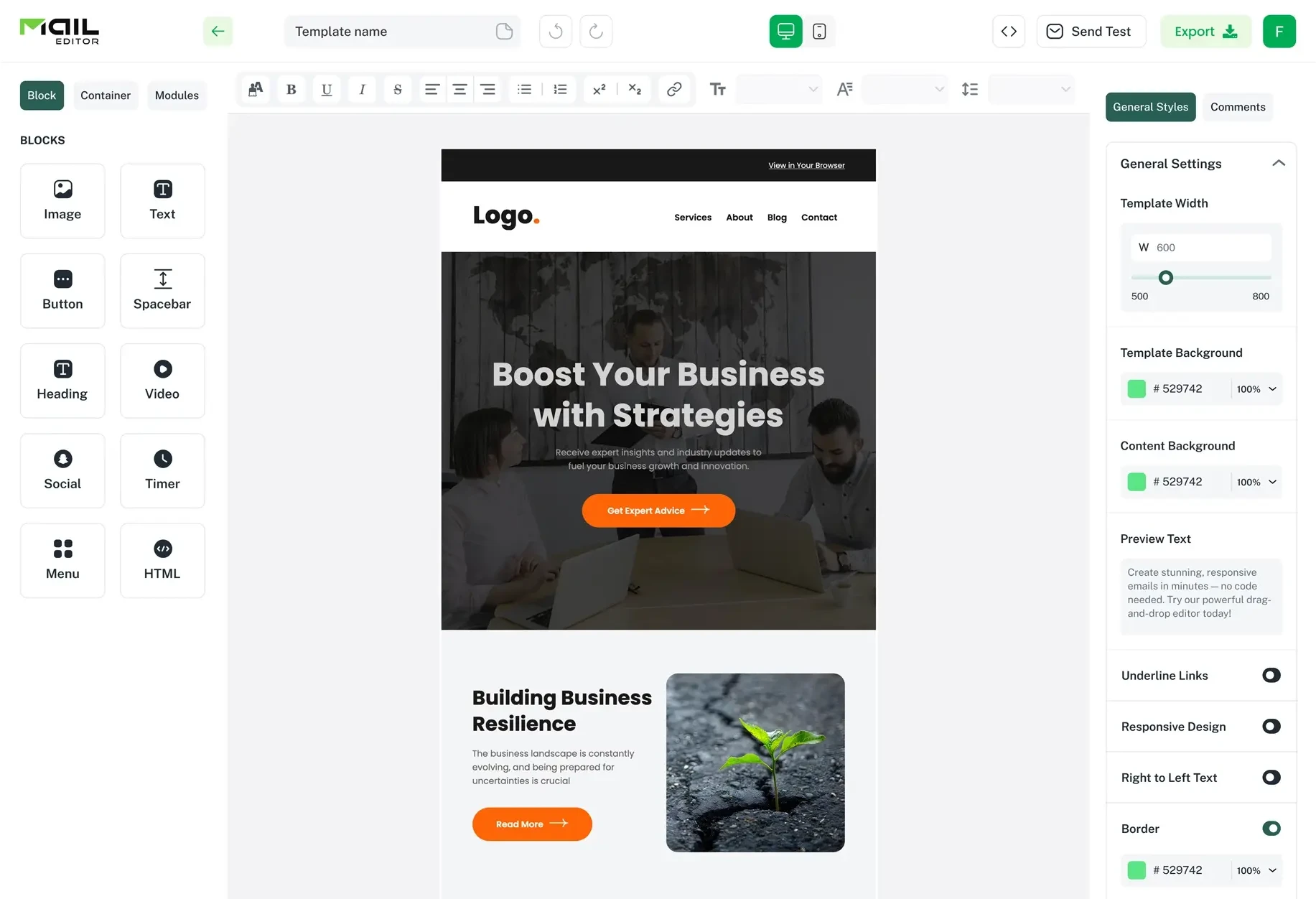
Top Email Template Builders & HTML Email Editors for 2026
Compare the best email template builders and HTML editors to design professional, responsive campaigns without coding.
Email Design9 mins to read
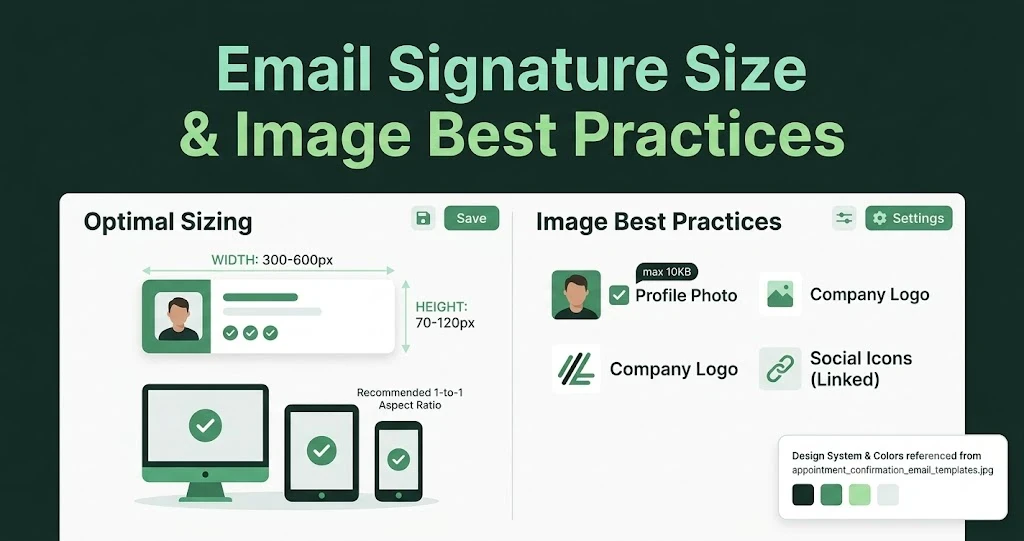
Email Signature Size and Image Best Practices
The ideal email signature is 320–600px wide and 90–200px high. Learn the best image sizes, formats, file limits, and mobile-friendly design tips.

Email Tips7 mins to read
Best Drag and Drop Email Editors in 2026
Discover the best drag and drop email editors in 2026. Compare top tools, features, templates, pricing, and automation to build stunning emails fast.
Marketing7 mins to read
4 Best Unlayer Alternatives to Design Emails
Looking for Unlayer alternatives? Explore the 4 best email design tools to create beautiful, responsive emails faster and easier.

Marketing6 mins to read
5 Beefree Alternatives to Upgrade Email Design Workflows
Looking for a better email design tool? Explore 5 Beefree alternatives that streamline workflows, improve collaboration, and elevate email campaigns.