How to Fix Email Images Not Displaying in Gmail & Outlook
Fix email images not displaying by checking image URLs, permissions, HTML, file formats, Gmail or Outlook settings, and testing the final email.

Md. Yaikub Hossain Razon
If email images are not displaying, check whether the email client is blocking external images, confirm every image uses a valid publicly accessible URL, use supported image formats, define sensible image dimensions, add alt text, and test the final HTML in Gmail, Outlook, and other important inboxes.
When images do not appear in an email, the problem is usually caused by one of three things: the email client is blocking remote images, the image URL cannot be accessed, or the HTML references the image incorrectly.
Start by checking whether the same image opens directly in a browser. If it does, inspect the email HTML and recipient settings. If it does not, fix the image hosting or URL before changing the email design.
Gmail allows users to choose whether external images are automatically displayed, while Outlook can also block external pictures depending on the application, user settings, or administrator policy.
Use the following guide to diagnose the problem without rebuilding the entire email.
Why Are Images Not Showing in My Email?
Common causes include:
- External images are blocked by the recipient's email client.
- The image URL is incorrect.
- The image is stored somewhere recipients cannot access.
- The image was deleted or moved.
- The HTML contains a local computer path.
- The image URL uses an expired temporary link.
- The file format is not suitable for the target email client.
- Image dimensions or responsive CSS are incorrect.
- The sending platform changed the HTML or image URL.
- A privacy, security, VPN, or administrator setting prevents remote content from loading.
The correct fix depends on whether the problem affects one recipient, one email client, or everyone receiving the campaign.
Quick Diagnosis: Why Your Email Image Is Broken
| What you see | Most likely cause | What to check first |
|---|---|---|
| Images fail for everyone | Broken URL or hosting | Open the image URL directly |
| Images fail only in Outlook | Outlook settings or HTML compatibility | Test Outlook and inspect the image source |
| Images fail only in Gmail | Gmail setting, inaccessible source, or source issue | Gmail image setting and public URL |
| Images appear only after clicking “Download pictures” | Remote images are being blocked | Recipient/client settings |
| One image fails but others work | That specific file or URL is broken | Image URL and filename |
| Image appears on your computer but not for recipients | Local/private image source | Host the image publicly |
| Images disappear after campaign import | ESP changed or rejected the markup | Test the exported/sent version |
| Images look stretched | Width and height conflict | Image dimensions and CSS |
| Logo disappears in dark mode | Contrast/transparency problem | Dark-mode version or background |
1. Check the Image URL First
This is the fastest test.
Copy the image URL from the email HTML and open it in a private or incognito browser window.
If the image does not load there, it cannot reliably load in an inbox.
A typical hosted image reference looks like:
<img src="https://example.com/images/product.jpg" alt="Product name">
A broken email might instead reference something like:
<img src="C:\Users\John\Desktop\product.jpg">
That file exists only on the sender's computer. Recipients cannot access it.
The same problem occurs with private cloud-storage URLs that require the sender to be signed in.
Fix
Host email images at a stable, publicly accessible web address and reference that URL in your HTML.
Then test the URL while logged out of the hosting service.
2. Do Not Use Local Image Paths
One of the most common HTML email mistakes is building the template locally and forgetting to replace local paths.
For example:
<img src="images/header.jpg">
That relative path may work while you preview files on your own machine because the image exists next to the HTML document.
Once the email is sent, the recipient does not have your images folder.
Use a complete hosted URL instead.
<img src="https://example.com/email/header.jpg">
If you import an existing HTML template into MailEditor, check its image sources before sending. MailEditor can visually edit existing HTML, but external assets still need valid accessible locations.
3. Check Whether Gmail Is Blocking Images
Gmail normally provides controls for external-image behavior.
Google's current Gmail instructions say that users who cannot see images can check:
Settings → See all settings → Images → Always display external images.
On Android, Gmail also provides an option to ask before showing external images. When that setting is active, the recipient can choose Show pictures for a message.
If you are the sender
You cannot assume every Gmail recipient will automatically display every external image.
Design the email so that it remains useful when images are unavailable:
- Keep important copy as live HTML text.
- Add useful alt text.
- Do not put the entire offer inside a hero image.
- Keep CTA text as an HTML button or link.
The recipient should still understand the email even if the images never appear.
4. Check Whether Outlook Is Blocking External Pictures
Outlook's behavior depends on the version and configuration.
Classic Outlook can be configured not to automatically download pictures in HTML emails. Microsoft documents this under its Trust Center automatic-download settings.
Outlook for Android and iOS can also block external images when the relevant setting has been enabled by the user or an administrator. Microsoft says recipients can then use the banner at the top of the message to display the images.
Important distinction
If an image appears after the recipient chooses Download pictures or Show images, your HTML image may not actually be broken.
The client is intentionally preventing automatic remote loading.
If the image still does not appear after external images are allowed, investigate the URL, hosting, HTML, or file itself.
5. Make Sure the Image Is Publicly Accessible
An image URL can look correct but still be inaccessible.
Typical problems include:
- Authentication is required.
- The file is restricted to employees.
- Cloud sharing permissions are private.
- A temporary URL has expired.
- The server blocks external requests.
- The image has been deleted.
- The filename changed.
- The directory was moved.
A useful test is:
- Copy the exact
srcURL. - Open a private browser window.
- Paste the URL.
- Confirm the image loads without signing in.
If it does not, fix the hosting first.
6. Use HTTPS Image URLs
For a modern email workflow, host assets on secure HTTPS URLs.
For example:
https://example.com/images/logo.png
rather than relying on insecure or internal locations.
Using one consistent public HTTPS asset host also makes images easier to maintain when the same header, logo, or product component appears across multiple campaigns.
7. Check the File Format
Use common email-friendly image formats when broad compatibility matters.
JPG/JPEG
Best suited to:
- Product photographs
- Lifestyle photography
- Large photographic hero images
PNG
Useful for:
- Logos
- Icons
- Illustrations
- Transparent graphics
GIF
Useful when simple animation is required, but the recipient experience can vary by email client. Essential information should not depend on animation.
SVG
SVG can work in some email environments, but support is not consistent enough to assume identical behavior everywhere.
For a critical logo or icon that must appear broadly, PNG is often a simpler fallback.
This is especially important if an email was converted from a design tool. MailEditor’s guide to converting [Figma or PSD designs to HTML email] explains why exported assets still need to be adapted for email-client compatibility.
8. Set Image Dimensions Carefully
An image may technically load but still appear broken because of its dimensions.
For example:
- A large hero expands outside the email.
- A logo becomes stretched.
- An image looks tiny on desktop.
- Width and height values distort the original ratio.
A common responsive pattern is:
<img
  src="https://example.com/image.jpg"
  width="600"
  alt="Product collection"
  style="display:block; width:100%; max-width:600px; height:auto;"
>
The exact HTML needed depends on your template and the email clients you support, but the important principles are:
- Preserve the image's aspect ratio.
- Do not stretch a small image to a much larger size.
- Define a sensible maximum width.
- Allow large content images to scale down on smaller screens.
MailEditor also recommends properly resizing source images rather than uploading oversized assets and relying entirely on the inbox to resize them.
9. Add display:block When Unexpected Gaps Appear
Sometimes the image is visible but there is an unexplained gap underneath it.
Images are inline elements by default in HTML, which can introduce baseline spacing in some layouts.
For email images that should behave as clean visual blocks, a common treatment is:
style="display:block;"
Do not apply fixes randomly across the whole template. Use them where the layout requires them and verify the delivered result.
10. Always Add Useful Alt Text
Even perfectly hosted images will sometimes be unavailable.
Alt text gives the recipient information when the image does not display.
For example:
<img
  src="https://example.com/summer-sale.jpg"
  alt="Summer sale: Save 25% through Friday"
>
Good alt text is especially useful for:
- Logos
- Product images
- Promotional banners
- Informational graphics
Do not write alt text such as:
image123.jpg
And do not depend on alt text to recreate an entire image-heavy design.
The email should primarily communicate through live text.
11. Never Make the Whole Email One Image
An image-only email is fragile.
When images are blocked, the recipient may see:
- An empty message
- One broken-image icon
- Very little information
- No useful context around the CTA
An image-only design is also harder to adapt across mobile screen sizes.
Instead, separate the campaign into:
- Live headline
- Live body copy
- HTML CTA
- Product or supporting images
- Live footer content
MailEditor’s guide to why emails can look different across inboxes also recommends keeping essential information outside images so the message survives image blocking and client differences.
12. Be Careful With Background Images
A normal <img> and a CSS background image are not the same thing.
Background-image support varies more significantly among email environments, particularly in Outlook workflows.
If the design contains text over a background:
- Add a solid fallback background color.
- Keep the text as live HTML.
- Make sure the section remains readable without the image.
- Use Outlook-compatible fallback techniques when necessary.
For Outlook-heavy audiences, MailEditor’s guide to [Outlook-compatible HTML email builders] covers background images and other Outlook-specific rendering considerations.
13. Check Whether the Sending Platform Changed the Image URL
An email may look correct in your HTML preview but break after being imported into an ESP or marketing platform.
That platform may:
- Rewrite image URLs.
- Upload images to its own CDN.
- Remove unsupported markup.
- Transform the HTML.
- Replace temporary assets.
- Apply its own template processing.
That is why the final delivered email matters more than the local preview.
If the image works before import but fails after sending, compare the source before and after the platform processes it.
14. Check Apple Mail Remote-Content Settings
Apple's privacy features can also affect remote email content.
Apple explains that Mail Privacy Protection changes how Mail handles remote email content to limit what senders can learn about recipients. Apple also documents situations where Mail may say it is unable to load remote content privately, including some VPN-related scenarios.
If an image problem occurs only for one Apple Mail user, recipient privacy or network configuration should be considered alongside the email HTML.
Do not rebuild the entire campaign until you know whether the image fails for other recipients too.
15. Test the Actual Email in Multiple Inboxes
The most reliable way to catch broken images is to send the real HTML before launching.
Test:
- Gmail desktop
- Gmail mobile
- Outlook
- Apple Mail when relevant
- Desktop and mobile widths
- Light mode
- Dark mode
- Images enabled
- Images blocked when possible
MailEditor’s [email testing tool] can send an HTML email to up to 10 inboxes that you own and control for troubleshooting.
This matters because an editor preview cannot reproduce every recipient setting, email client, or sending-platform transformation.
How to Fix Images Not Showing in Gmail
Use this quick sequence:
- Confirm the image URL works publicly.
- Check the Gmail external-image setting.
- Inspect the email's actual image
src. - Make sure the image does not require authentication.
- Test a common JPG or PNG version.
- Send the final email again.
Google specifically advises users to check Gmail's Images setting when images do not load.
If other images display normally but one campaign does not, investigate that campaign's image source rather than changing the recipient's entire Gmail configuration.
How to Fix Images Not Showing in Outlook
Use this sequence:
- Check whether Outlook says pictures were blocked.
- Allow/download pictures for the test message.
- Verify the public image URL.
- Check dimensions and HTML.
- Replace unusual image formats with a common alternative.
- Test Classic Outlook separately when it matters.
- Test the version produced by the actual sending platform.
Classic Outlook includes settings specifically controlling automatic picture downloads, so a blocked image does not automatically mean the sender's HTML is defective.
Email Image Checklist Before Sending
Hosting
- Image URLs are publicly accessible.
- URLs use the correct domain and path.
- No local computer paths remain.
- No temporary or private sharing links remain.
- Files have not been renamed or deleted.
HTML
- Every important
<img>has a correctsrc. - Useful alt text is included.
- Image dimensions are sensible.
- Aspect ratios are preserved.
- Responsive images can shrink on mobile.
- Essential information is live text.
Design
- The entire email is not one image.
- Background images have fallback colors.
- Logos remain visible in dark mode.
- The campaign still makes sense when images are blocked.
- Images are compressed to a practical size.
Testing
- Gmail has been checked.
- Outlook has been checked.
- Relevant mobile apps have been checked.
- All image URLs have been opened directly.
- The version sent by the ESP has been tested.
- Images-blocked behavior has been reviewed.
Frequently Asked Questions
Question: Why are images not displaying in my email?
Answer: The most common causes are blocked external images, invalid or private image URLs, deleted files, incorrect HTML paths, unsupported formats, or changes made by the sending platform.
Question: Why are images not showing in Gmail?
Answer: Gmail may be configured to ask before displaying external images, or the image itself may be inaccessible. Google recommends checking the Gmail Images setting when external images do not load.
Question: Why are images not showing in Outlook?
Answer: Outlook can block automatic external-picture downloads depending on the version, settings, or organization policy. If downloading pictures does not fix the problem, inspect the image URL and HTML.
Question: Why does an image work on my computer but not in the email?
Answer: The HTML may reference a local file or private asset. Recipients need a publicly accessible hosted URL, not a path to a file stored on your computer.
Question: Should email images be PNG or JPG?
Answer: JPG is generally useful for photographs, while PNG is useful for logos, graphics, and transparency. Choose the format according to the image and test it in the inboxes you support.
Question: Should I embed images or host them online?
Answer: For marketing HTML emails, hosted images referenced through public URLs are a common approach. Whatever method your sending platform supports, test the final delivered message because client behavior can vary.
Question: How do I make email images responsive?
Answer: Use appropriate dimensions and allow large images to scale down within their container while preserving their aspect ratio. Test the final layout on real mobile inboxes.
Question: What happens if a recipient blocks images?
Answer: The email should still communicate its main message through live text, useful alt text, and an HTML CTA. Do not make images the only place where critical information appears.
Question: Can dark mode make an email image disappear?
Answer: Yes. For example, a transparent black logo may become difficult to see against a dark background. Test logos and transparent graphics in both light and dark mode. MailEditor documents similar dark-mode image problems in its email-design guidance.
Final Answer
If email images are not displaying, troubleshoot them in this order:
- Open the image URL directly.
- Confirm it is public and does not require a login.
- Check the HTML
srcfor incorrect or local paths. - Check whether Gmail, Outlook, or another client is blocking external images.
- Use common image formats and sensible dimensions.
- Keep essential information as live HTML text.
- Test the exact email produced by your sending platform.
Do not immediately redesign the campaign.
First determine whether the problem is the image file, hosting, HTML, sending platform, or recipient's email client. Once you identify which layer is responsible, most broken-image problems become much easier to fix.
For final verification, use MailEditor’s email testing tool to send your HTML to inboxes you control and compare the delivered result across the email clients that matter to your audience.
Popular Blogs

Email Design2 mins to read
Top Email Template Builders & HTML Email Editors for 2026
Compare the best email template builders and HTML editors to design professional, responsive campaigns without coding.
Email Design9 mins to read
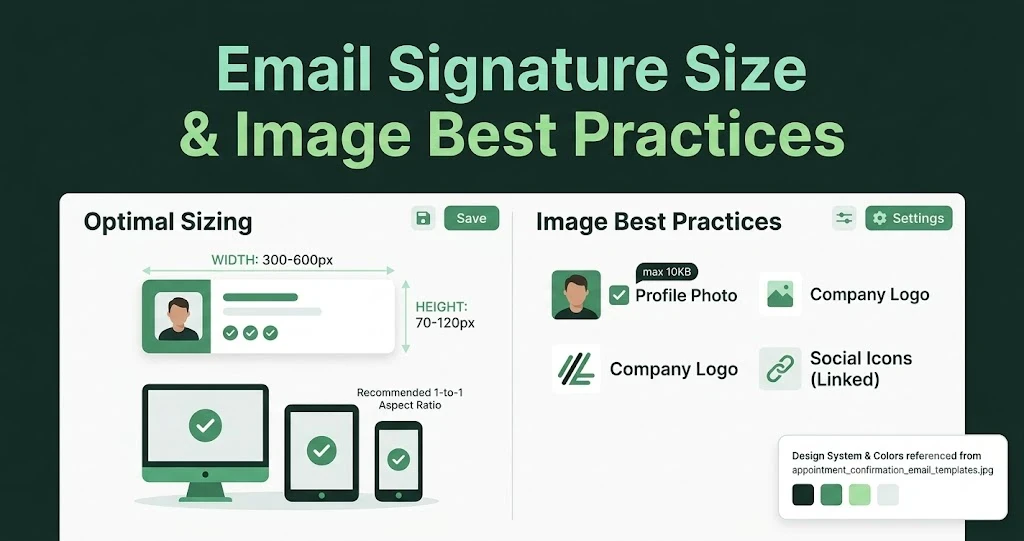
Email Signature Size and Image Best Practices
The ideal email signature is 320–600px wide and 90–200px high. Learn the best image sizes, formats, file limits, and mobile-friendly design tips.

Email Tips7 mins to read
Best Drag and Drop Email Editors in 2026
Discover the best drag and drop email editors in 2026. Compare top tools, features, templates, pricing, and automation to build stunning emails fast.

Marketing7 mins to read
4 Best Unlayer Alternatives to Design Emails
Looking for Unlayer alternatives? Explore the 4 best email design tools to create beautiful, responsive emails faster and easier.

Marketing6 mins to read
5 Beefree Alternatives to Upgrade Email Design Workflows
Looking for a better email design tool? Explore 5 Beefree alternatives that streamline workflows, improve collaboration, and elevate email campaigns.