
Building an email template from a blank canvas eats hours you don't have. You line up the header, fuss with the spacing, rebuild the same button for the tenth time, then run a test and find it breaks in Outlook. MailEditor modules cut most of that out. Instead of coding every section by hand, you drag ready-made blocks into your template, swap in your content, and send.
This guide walks through the whole process, from opening a blank template to setting your brand once so every module styles itself automatically.
What are MailEditor modules?

Modules are prebuilt, editable email components you drop straight into a template. Think headers, banners, promo blocks, product cards, CTA sections, footers, and plenty more. MailEditor ships with a library of 150+ of them, all designed to look sharp and all coded to render correctly across email clients. Rather than writing HTML from scratch, you assemble a template the way you'd stack building blocks, then style it to match your brand.
That one shift, from building to assembling, is what turns an afternoon of work into a few minutes.
Why building emails from scratch slows you down
Hand-coding email is its own kind of pain. The layout has to survive Gmail, Apple Mail, Outlook, and a long list of mobile clients that each read HTML a little differently. You end up rebuilding the same patterns over and over, testing endlessly, and fixing rendering bugs that have nothing to do with your actual message.
Modules remove that repetition. The structure is already solved, so your time goes into the part that matters: your copy, your offer, and your design.
How to build an email template with modules, step by step
1. Start a blank template or open one from the library

Log in to your dashboard and head to Template Library. You'll see two options: start from a Blank template or pick a pre-made one. For most people, blank is the better starting point. It gives you a clean canvas and lets you arrange modules exactly how you want, without undoing someone else's layout first.
2. Open the Modules panel

Inside the editor, click Modules in the top left. A panel opens with your full component library. Use the dropdown to filter by category, so you can jump straight to headers, product cards, CTAs, or whatever section you need next.
3. Drag and drop the sections you need
Pull each module onto the canvas and stack them in order. Header up top, hero banner below, a product row, a CTA, a footer at the bottom. In a couple of minutes you've got a complete email skeleton without touching a line of code.
4. Edit the content
Now make it yours. Click into any module to swap the text, replace images, adjust colors, and tweak the styling. Everything stays fully editable, so you're never stuck with the default look.
Set your branding once with Module Settings (paid plans)

Here's where it gets really fast. On a paid plan, you get access to Module Settings, a panel where you define your brand defaults up front: background colors, fonts, font sizes, and more.
Set it once, and every module you drop after that picks up your branding automatically. No restyling each block by hand. The header, the buttons, the product cards, they all land pre-branded and ready to go. For teams sending on a regular schedule, this alone can bring template production down to minutes.
Every module is tested for inbox rendering
A good-looking email is useless if it falls apart in the inbox. Every MailEditor module is tested on Email on Acid (EOA) to confirm it renders cleanly across the major email clients and devices. So when you build with modules, you're not just moving faster. You're starting from blocks that are already proven to display correctly wherever your subscribers open them.
Quick recap
To build a template fast with MailEditor:
- Start from a blank template for full control
- Open the Modules panel and filter by category
- Drag the sections you need onto the canvas
- Edit the content, images, and colors to fit your message
- On a paid plan, set your brand once in Module Settings so every module inherits it
That's the whole workflow. Most emails come together in a fraction of the time it takes to code one from zero.
Frequently asked questions
## How many modules does MailEditor have?
MailEditor includes 150+ prebuilt modules, covering headers, banners, promo sections, product cards, CTAs, footers, and more.
## Do I need to know HTML to use modules?
No. Modules are drag and drop, so you add sections visually and edit them right in the editor. No coding required. And if you do know HTML, you still have full control over the output.
## Can I use my own branding?
Yes. You can style any module manually, and on a paid plan, Module Settings lets you set your brand defaults once so every new module matches automatically.
## Will the emails work across different inboxes?
Yes. Every module is tested on Email on Acid to make sure it renders correctly across major email clients and devices.
## Can I export the finished template?
Yes. Once your template is ready, you can export it and send it from your own email platform.
Ready to build faster?
Stop coding emails from scratch. Open MailEditor, start a blank template, and watch a full email come together module by module.
Popular Blogs

Email Design2 mins to read
Top Email Template Builders & HTML Email Editors for 2026
Compare the best email template builders and HTML editors to design professional, responsive campaigns without coding.
Email Design9 mins to read
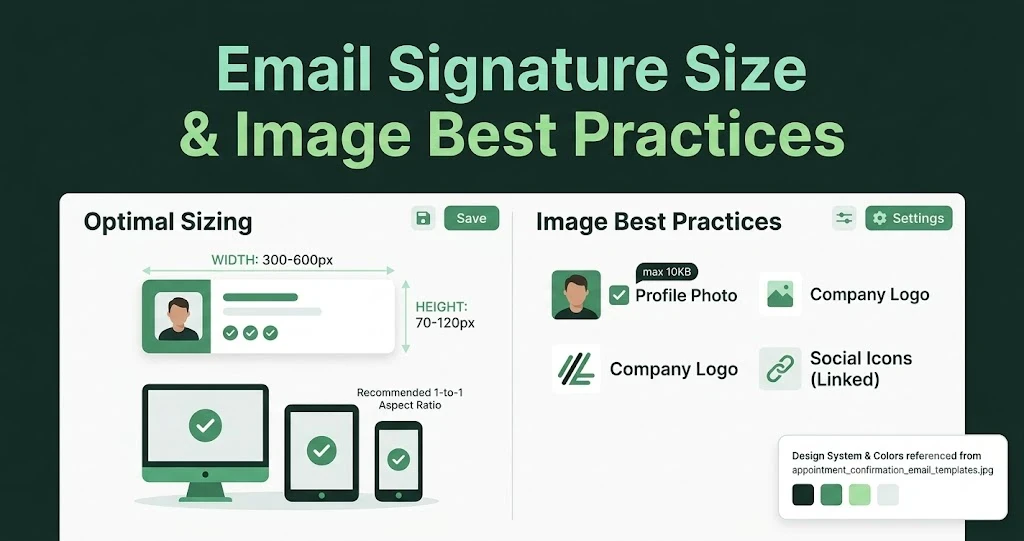
Email Signature Size and Image Best Practices
The ideal email signature is 320–600px wide and 90–200px high. Learn the best image sizes, formats, file limits, and mobile-friendly design tips.

Email Tips7 mins to read
Best Drag and Drop Email Editors in 2026
Discover the best drag and drop email editors in 2026. Compare top tools, features, templates, pricing, and automation to build stunning emails fast.

Marketing7 mins to read
4 Best Unlayer Alternatives to Design Emails
Looking for Unlayer alternatives? Explore the 4 best email design tools to create beautiful, responsive emails faster and easier.

Marketing6 mins to read
5 Beefree Alternatives to Upgrade Email Design Workflows
Looking for a better email design tool? Explore 5 Beefree alternatives that streamline workflows, improve collaboration, and elevate email campaigns.